Connect MSP360 Managed Backup to ChatGPT
Connect MSP360 Managed Backup to ChatGPT using a custom MCP app to check backup status, diagnose failures, and onboard computers using natural language prompts. Once connected, ChatGPT can access Managed Backup resources and perform actions based on your account permissions.
This feature is provided as a beta version. AI-generated results may contain errors or inaccuracies. Results provided by the MCP server should be reviewed and verified before use and are not recommended for production environments.
The MCP server must be enabled in the Management Console by the service provider. The service provider sets the access level for the MCP server connector and grants administrators permission to use the integration in full or read-only mode. The service provider or an administrator authorized by the service provider should sign in to the Management Console during setup. The app will be granted access to the Managed Backup API under this account.
Refer to the Manage MCP Server Integration article for details on how to enable the MCP server in the Management Console.
Step 1. Add the MSP360 MCP App
If IP allowlisting is enabled, add the IP addresses you will use to access the MCP server to the IP allowlist.
If IP allowlisting is enabled in the MSP360 Managed Backup Management Console, you need to allow the IP addresses from which ChatGPT connects to the MSP360 Managed Backup MCP server - not the public IP address of your computer or office.
OpenAI routes requests from ChatGPT through its cloud infrastructure, so your local network's IP address is not the appropriate one to allowlist for this integration. OpenAI publishes dedicated IP ranges for ChatGPT connectors.
Use the official ChatGPT connector IP ranges:
Open the JSON file and add the published IP ranges to Settings > IP Allowlisting in the MSP360 Managed Backup Management Console. These ranges can change, so keep your allowlist updated.
- Open chatgpt.com and sign in.
- Open Settings and navigate to Apps.
- Enable developer mode. The available settings depend on your ChatGPT plan and workspace permissions.
- On Business plans, an admin or owner must enable developer mode for their account.
- On Enterprise and Edu plans, an admin or owner must grant the required permissions under Workspace settings > Permissions & Roles > Connected Data. For details, refer to the OpenAI documentation on developer mode and MCP apps.
- Open the app creation interface. Depending on your plan and permissions, this may be available under Settings > Apps or Workspace settings > Apps.
- Create a custom MCP app and enter the following details:
| Field | Value |
|---|---|
| Name | MSP360 Managed Backup |
| Description (optional) | Backup status, failure diagnosis, and onboarding for MSP360 Managed Backup |
| Server URL | https://mbs-web-mcp.services.mspbackups.com/ |
| Authentication | OAuth |
- Leave Client ID and Client Secret empty if these fields are displayed and the setup form allows you to do so.
- Review the security warning and confirm that you want to continue.
- Create the app and complete any additional setup steps required by ChatGPT.
If you cannot create a custom MCP app: Check whether developer mode is enabled and whether your account or workspace has permission to create custom apps. If you use a workspace account, contact your ChatGPT workspace admin if necessary.
Step 2. Sign In to Managed Backup
- After creating the app, initiate the connection to MSP360 Managed Backup in ChatGPT.
- When prompted, sign in to the Management Console using your Managed Backup account.
- Review the requested access and click Approve.
- Complete the authorization process and return to ChatGPT.
The app should now be connected and available in ChatGPT. You can disable it whenever you want in the Management Console on Settings > General as described in the Manage MCP Server Integration article.
Add a Custom MCP Server on the ChatGPT Free Plan
MCP servers are added in ChatGPT as plugins. Follow the steps below to add the MSP360 Managed Backup MCP server.
- Open chatgpt.com and sign in.
- Open Settings.
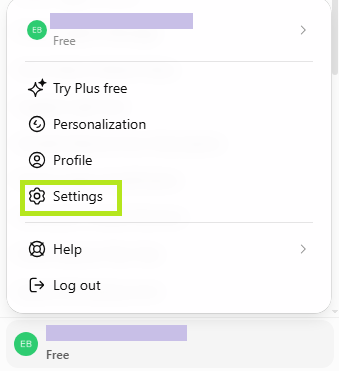
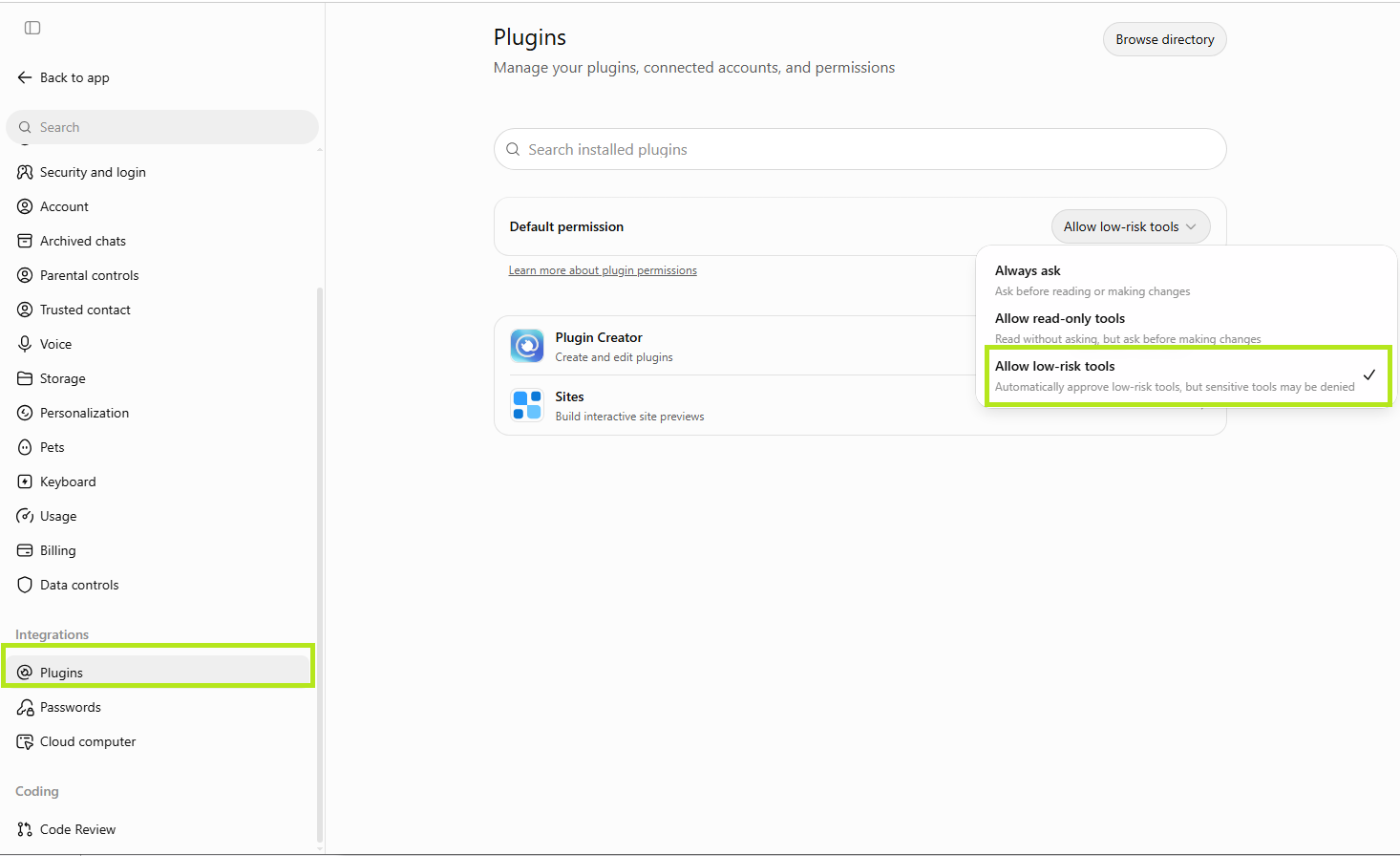
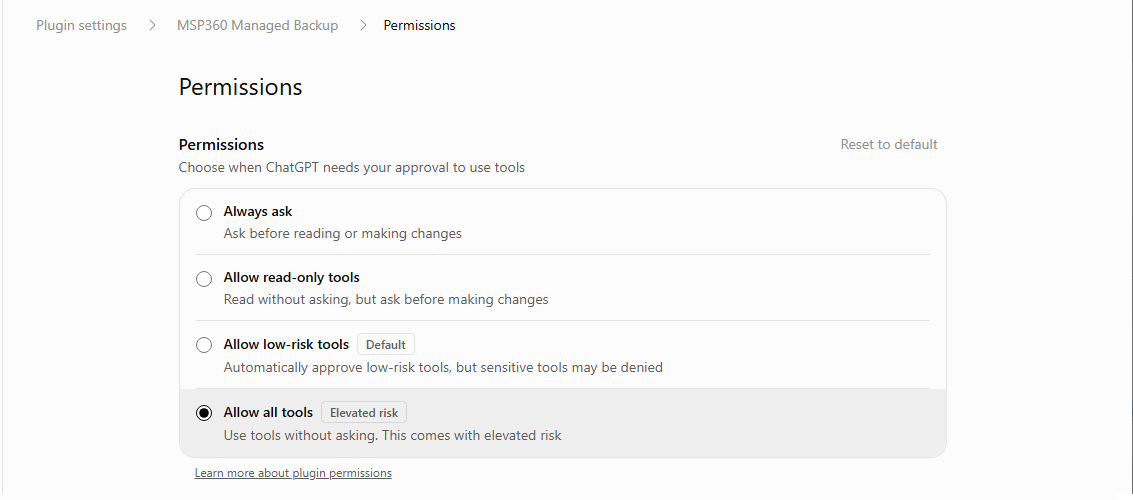
- In the Plugins section, expand Default Permission and select the security level you want, for example, Allow low-risk tools.
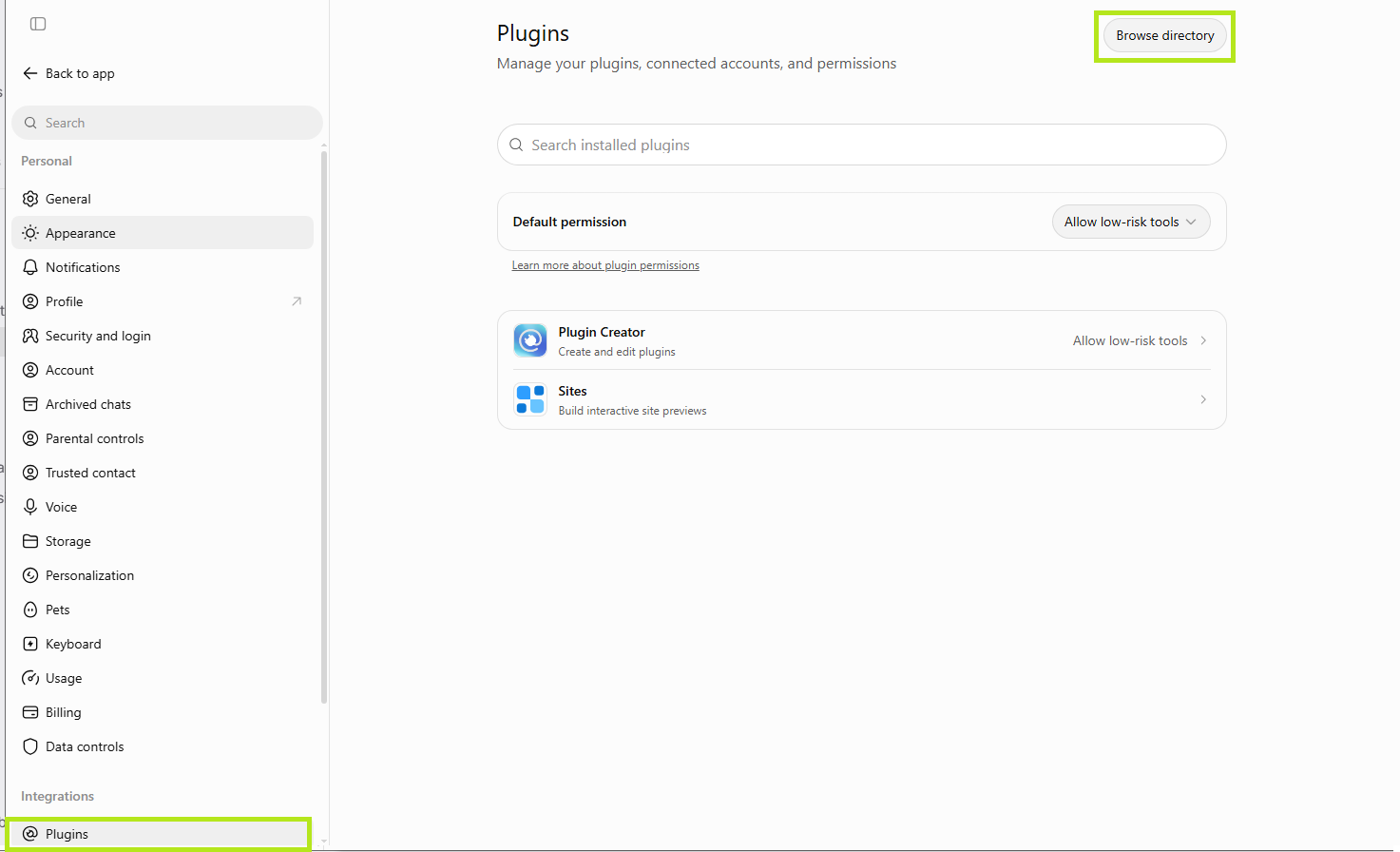
- In the Plugins section, click Browse directory.
- In the Plugins section, expand + Add, and select Add custom MCP server.
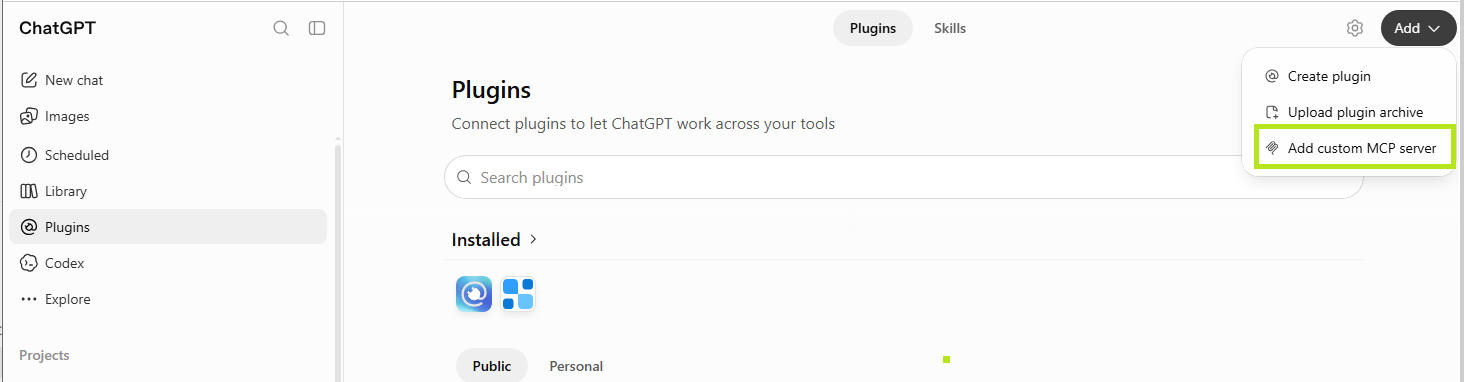
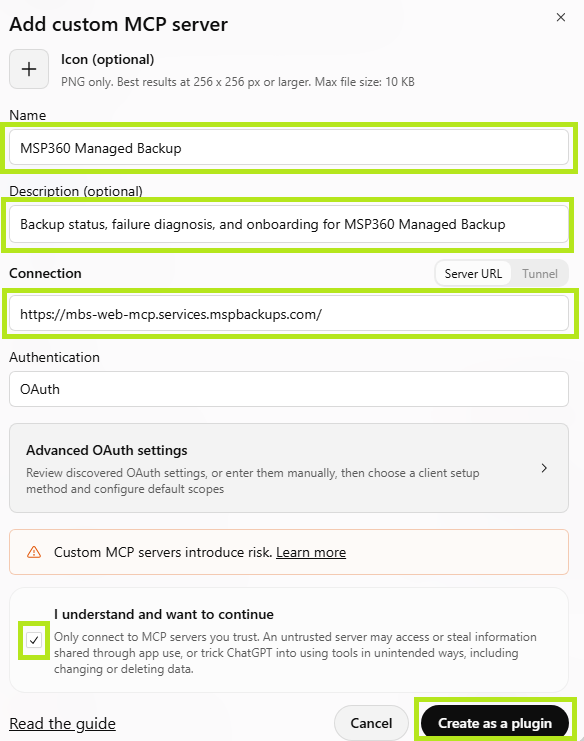
- Enter a name for the custom MCP server and, optionally, a description. Specify the following MCP server URL: https://mbs-web-mcp.services.mspbackups.com/. Confirm that you understand the risks and want to continue, then click Create as a plugin.
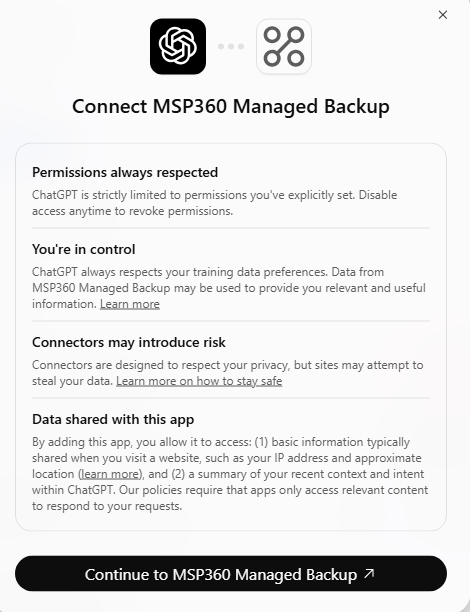
- Click Continue to MSP360 Managed Backup.
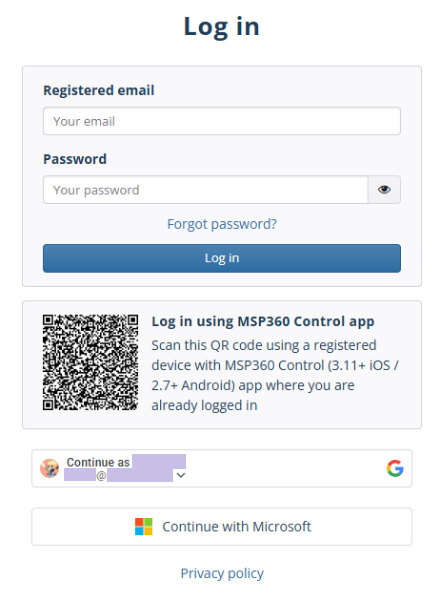
- Sign in to the Management Console with any registered Managed Backup account (a service provider or an administrator).
- Review the requested access and click Approve.
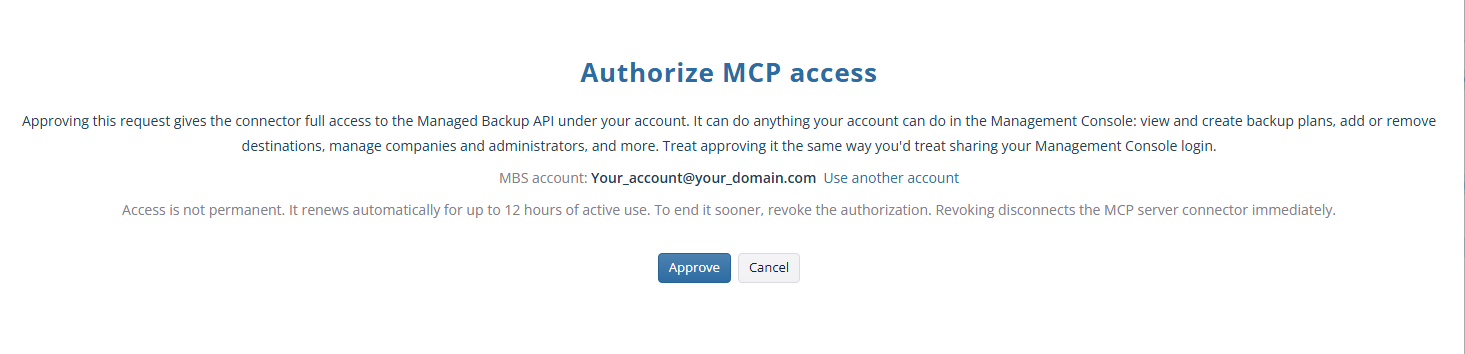
- Complete the authorization process. Once authorization is complete, you will return to ChatGPT.
The plugin is now available in the Plugins section under the name you specified during setup.
Step 3. Use the MCP App in a Chat
Open chatgpt.com and start a new chat.
Select MSP360 Managed Backup from the available apps, or mention the custom MCP app in your prompt using the following format, if supported by your ChatGPT interface:
@<Your custom MCP server name> <prompt text>
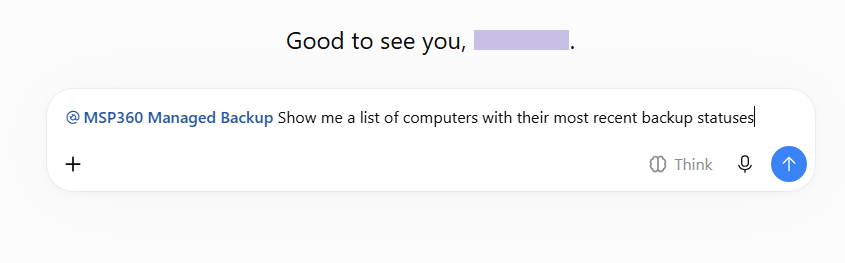
- Enter your prompt text in natural language.
ChatGPT may ask you to confirm an action before performing it. Review the details carefully before approving operations that create, modify, or delete data.
Example Prompts
Start with something simple, such as:
"Show me a list of computers with their most recent backup statuses".
Below you can find more prompts to explore Managed Backup MCP connector capabilities:
Show me every backup failure from the last 7 days, grouped by company.Which computers haven't had a successful backup in 14 days?For our top five clients, list backup issues from the last 30 days by computer, and tell me which failures are on their network rather than on our side.Create a company called [Company name] and cap their [Storage name] storage at 500 GB.Create an administrator [Administrator email] for [Company Name], give them access to just that company, and let them manage backups but not billing.Create nightly Files backup plans for all [Company Name] computers, keeping 30 days of versions. Distribute their schedule evenly throughout the night.
Refer to the Use the MCP Server article for more prompts.
Manage Custom MCP Server (Free ChatGPT plan)
To manage the added custom MCP server:
- Open chatgpt.com and click Plugins.
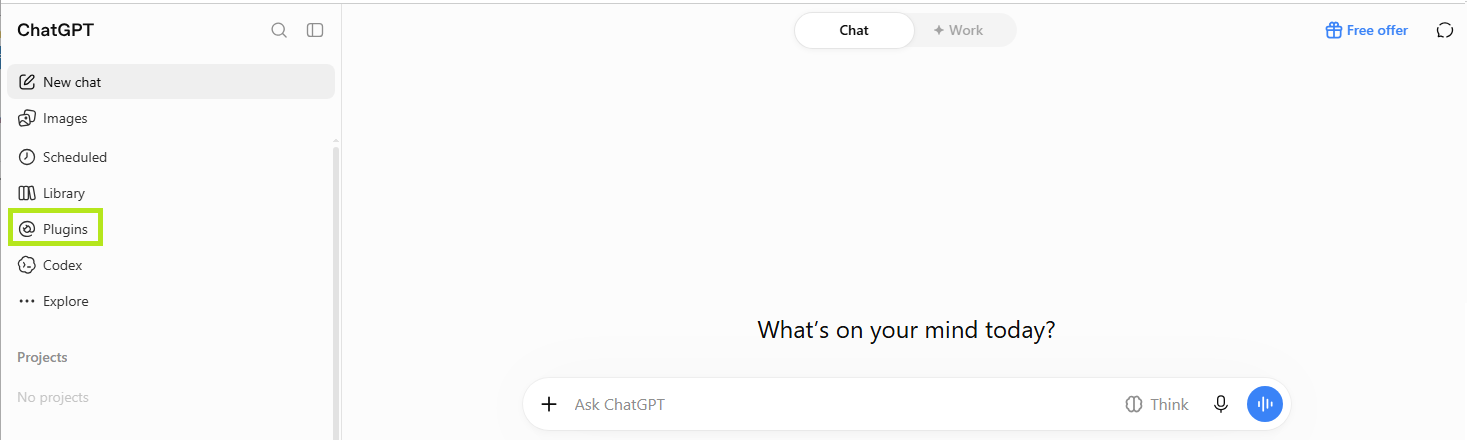
- Find your added plugin by its name.
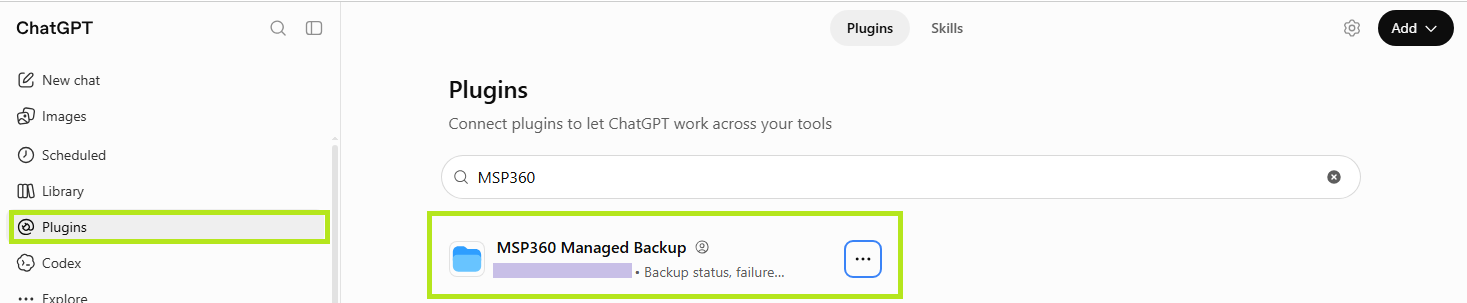
- Click the plugin to manage it.
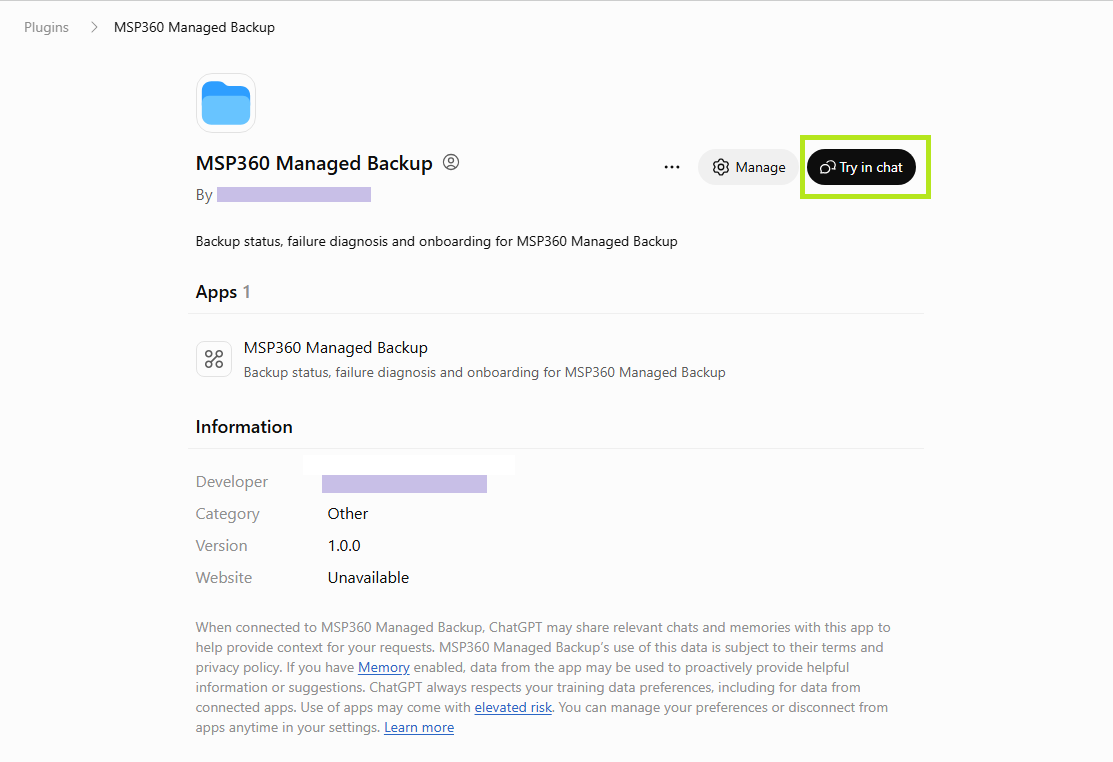
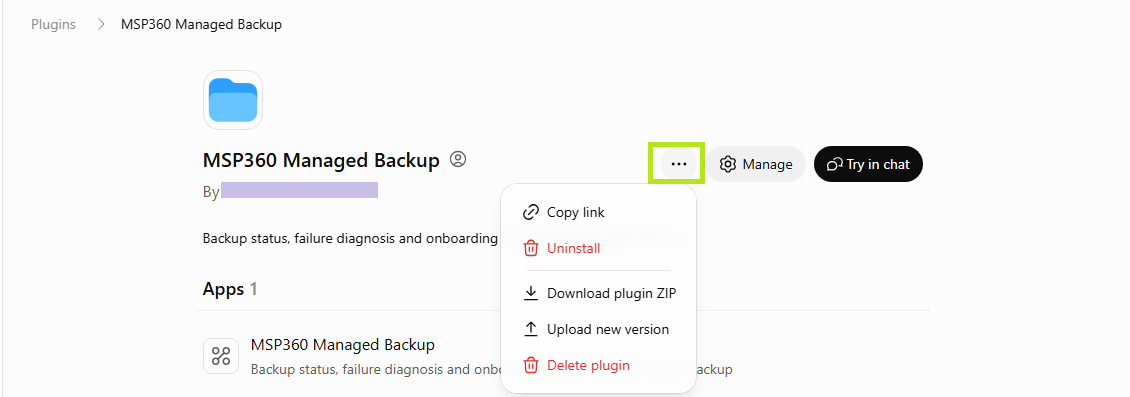
Now you are on the plugin page. If you no longer need the integration, select the Delete plugin option to remove the MCP server connector.
Expand actions to access available options.
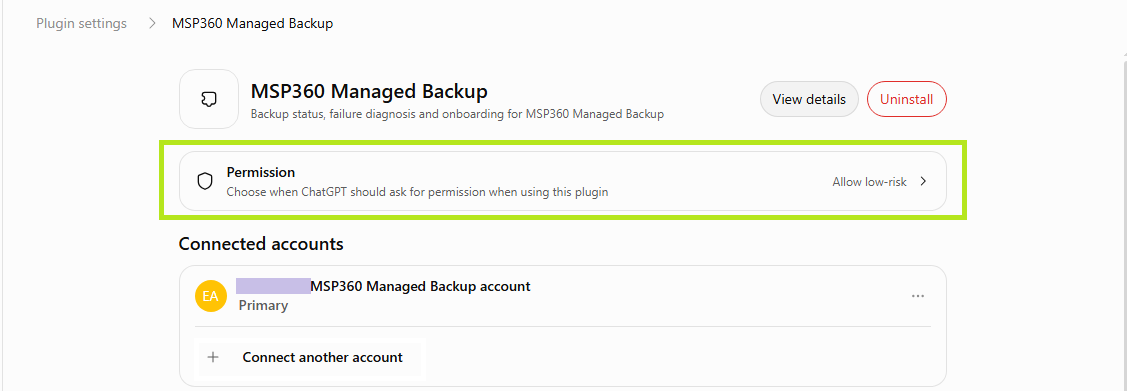
Click Manage to change the permission level for the plugin, if needed.

Once you have configured everything, click Try in chat to use the plugin with updated settings.