Manage MCP Server Integration in Management Console
To use the integration with the Management Console, the MCP server must be enabled in the Management Console by the service provider. The service provider sets the access level for the MCP server connector and grants administrators permission to use the integration.
The following access levels are available:
- Read-only access. AI assistants can view information and generate reports but cannot create, modify, start, or delete anything
- Full access (allow changes). AI assistants can view information and make changes within the scope of each account’s permissions
The selected setting applies to all administrators. You can further restrict access for specific administrators in Organization › Administrators. Refer to the Administrator Permissions article.
Enable MCP Server Integration in Read-Only Access
To enable read-only MCP server access, proceed as follows:
- In the Settings menu, select General.
- Scroll down to MCP server.
- To allow access to the MCP server, select the MCP server check box. Read-only access is granted by default. To allow the administrator to make changes, select Full access (allow changes).
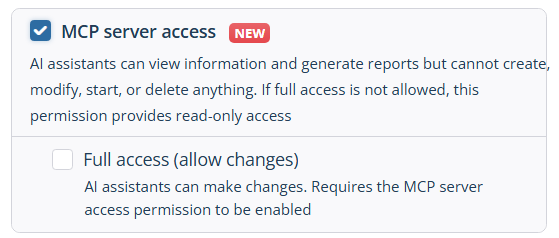
- Save the changes. The service provider and all authorized administrators will be able to use the AI assistant to access Managed Backup through the MCP server to monitor the process.
Enable MCP Server Integration in Full Access (Allow Changes)
To enable full MCP server access, proceed as follows:
- In the Settings menu, select General.
- Scroll down to MCP server.
- To allow full access to the MCP server, select the MCP server check box. Read-only access is granted by default.
- Select Full access (allow changes) to allow changes.
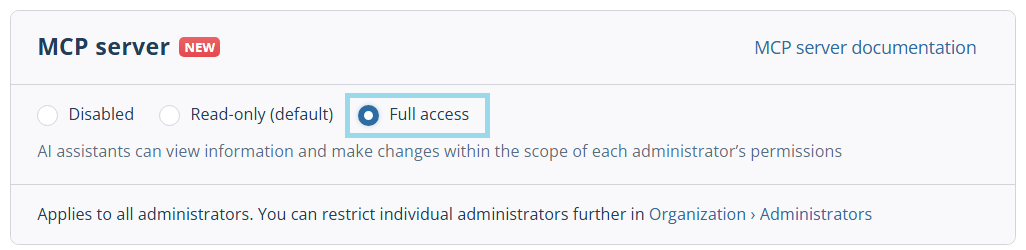
- Save the changes. The service provider and all authorized administrators will be able to use the AI assistant to access Managed Backup through the MCP server and make changes.
Grant MCP Server Access to Administrator
To grant MCP server access to an administrator, proceed as follows:
- In the Organization > Administrators menu, select the required administrator.
- Click Edit.
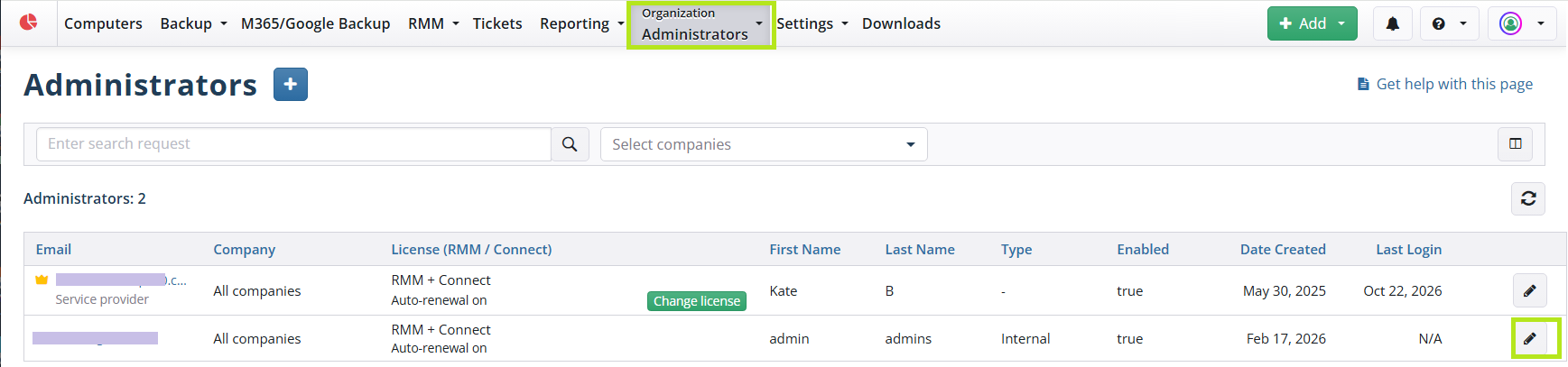
- On the side panel, select the Permissions tab.
- Scroll down to MCP server access. If the service provider has set the MCP server to read-only access mode in Settings > General, the Full access (allow changes) option will be unavailable to all administrators.
- Under MCP server access, you can set the MCP server access level for the administrator. Read-only access is granted by default. To allow the administrator to make changes, select Full access (allow changes).
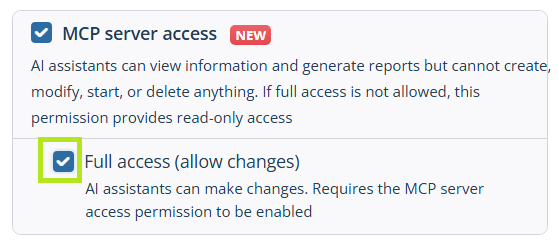
- Save the changes.
Disable MCP Server Integration
To disable the MCP server integration, proceed as follows:
- In the Settings menu, select General.
- Scroll down to MCP server.
- To disable the integration, clear the MCP server check box. The service provider and all authorized administrators will no longer be able to use the AI assistant to access Managed Backup through the MCP server.
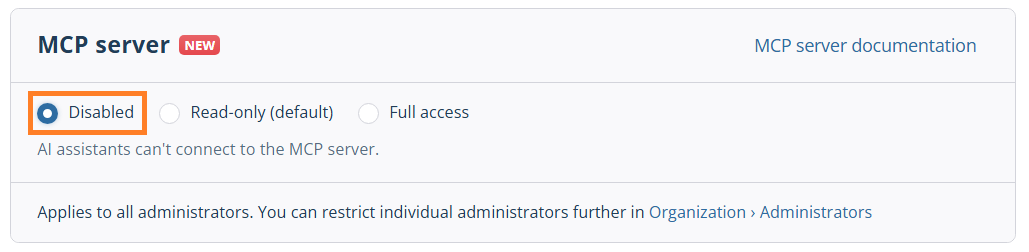
- Save the changes. Clearing the MCP server checkbox disables the integration for everyone. To revoke the access for an individual administrator, edit the administrator's permissions as described below.
Disable MCP Server Integration for Specific Administrator
To disable MCP server access to an administrator, proceed as follows:
- In the Organization menu, select the required administrator.
- Click Edit.
- On the side panel, select the Permissions tab.
- Scroll down to MCP server access.
- To revoke the administrator's access to the MCP server, clear the MCP server access check box. The administrator will no longer be able to use the AI assistant to access Managed Backup through the MCP server.
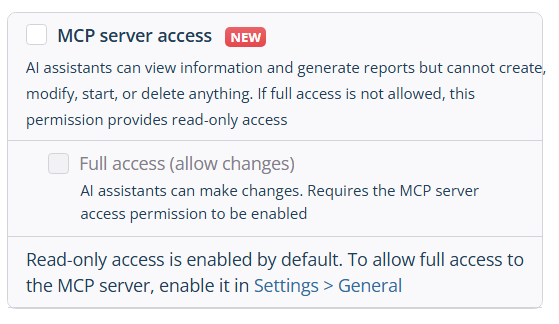
- Save the changes. Clearing an individual administrator’s MCP server access checkbox only revokes access for that administrator.