Alternative Authentication
MSP360 Managed Backup offers an alternative authentication method using SMS for users with a registered email address and phone number. When Two-Factor Authentication (2FA) is enabled, one-time authentication codes and security notifications can be delivered via both SMS and email for account access and recovery purposes. These SMS and email messages are used exclusively for security-related communications and are never used for marketing or promotional purposes.
If you cannot log in using recovery codes (the primary emergency access method), you can access the Management Console by entering verification codes sent sequentially to your phone and then to your email.
You will receive SMS messages of the following type: Your MSPBACKUPS verification code is: XXXXXX, as well as email messages containing verification codes.
Use alternative authentication when you cannot access your authenticator app or recovery codes. It provides an additional recovery option by delivering verification codes to your verified phone number and email address.
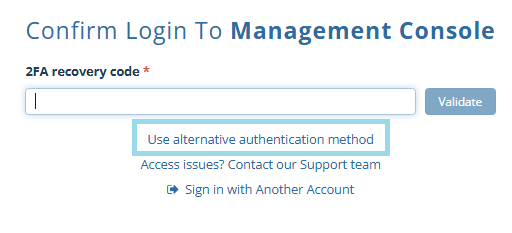
More information is available in our official documents:
Enable Alternative Authentication After Two-Factor Authentication Is Enabled
Alternative authentication requires Two-Factor Authentication (2FA) to be enabled.
To enable the alternative authentication method, perform the following steps:
- In the Management Console, navigate to Settings > General.
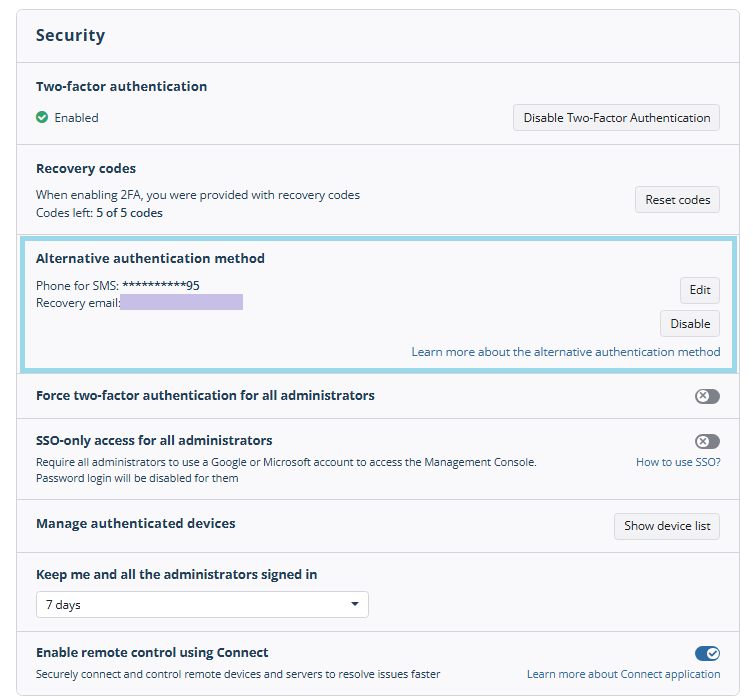
- In the Security area, click Enable alternative authentication.
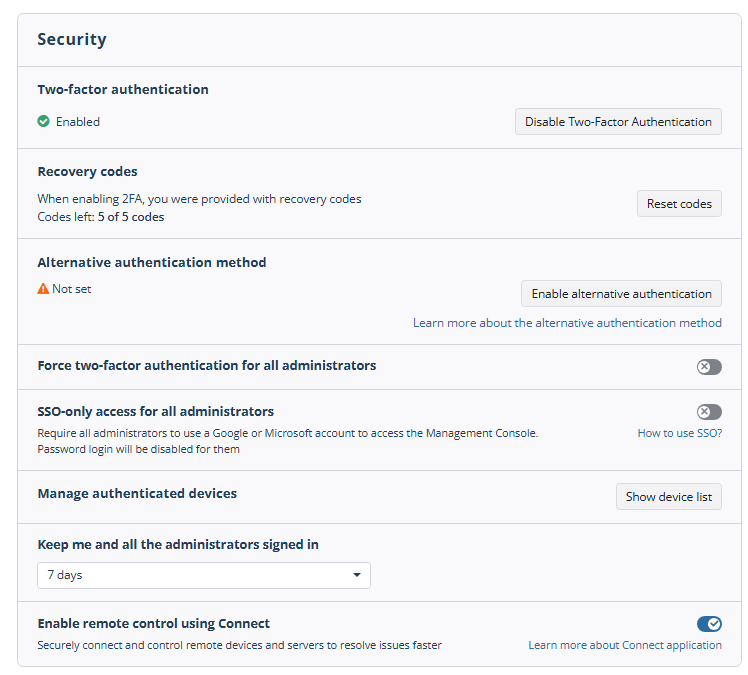
- Confirm this action with 2FA.
- Review the notification terms and click I agree to receive SMS and emails with recovery codes to proceed with enabling alternative authentication.
- Configure the method:
- Enter the phone number that will receive verification codes and security notifications.
- Click Send code to verify the phone number.
- Enter the received code in the Verification code field and click Confirm.
- Enter the email address that will receive verification codes and security notifications. You can use your currently registered email address or enter a new one.
- Click Send code to verify the email address.
- Enter the received code in the Verification code field and click Confirm.
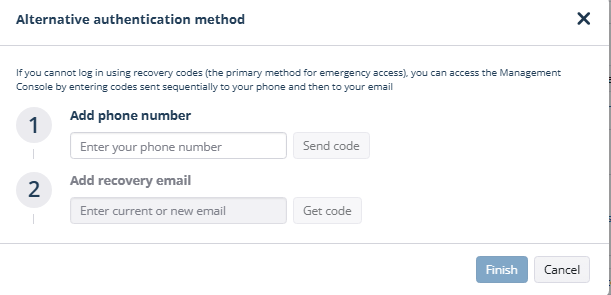
- Once the email address and phone number are confirmed, click Finish.
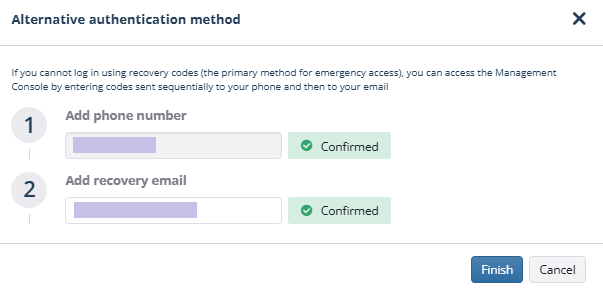
Alternative authentication is now enabled.
Enable Alternative Authentication Along with Two-Factor Authentication
Alternative authentication requires Two-Factor Authentication (2FA) and can be enabled at the same time as 2FA.
To enable the alternative authentication method along with 2FA, perform the following steps:
- In the Management Console, navigate to Settings > General.
- In the Security area, click Enable Two-Factor Authentication.
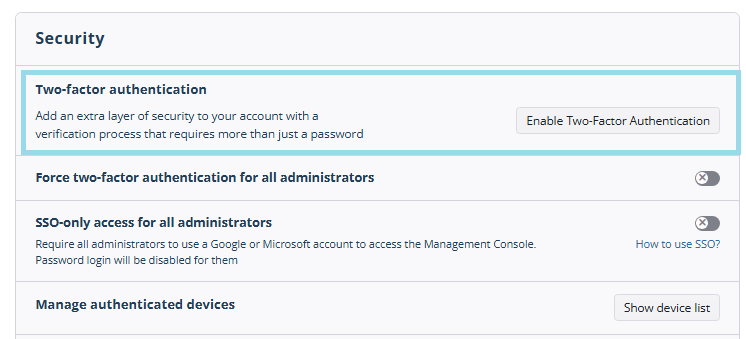
- Confirm this action by scanning the displayed QR code with your authenticator app.
- In the Enable Two-Factor Authentication dialog, turn on Alternative Authentication method.
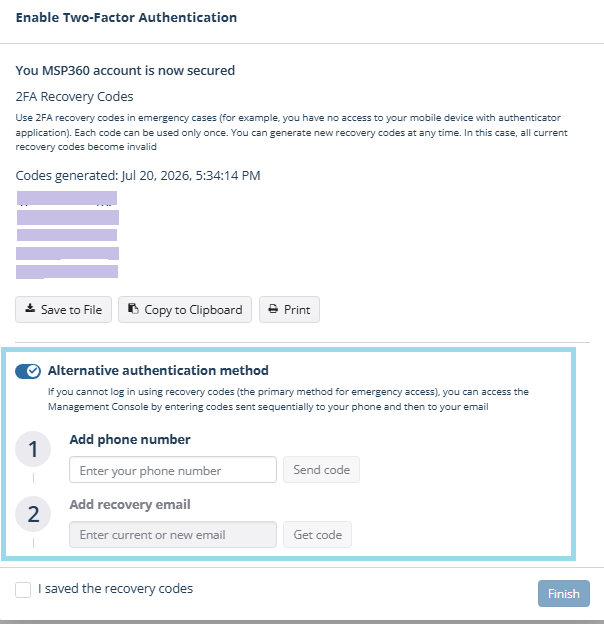
Review the notification terms and click I agree to receive SMS messages and emails containing verification codes to proceed with enabling alternative authentication.
Configure the method:
- Enter the phone number that will receive verification codes and security notifications.
- Click Send code to verify the phone number.
- Enter the received code in the Verification code field and click Confirm.
- Enter the email address that will receive verification codes and security notifications. You can use your currently registered email address or enter a new one.
- Click Send code to verify the email address.
- Enter the received code in the Verification code field and click Confirm.
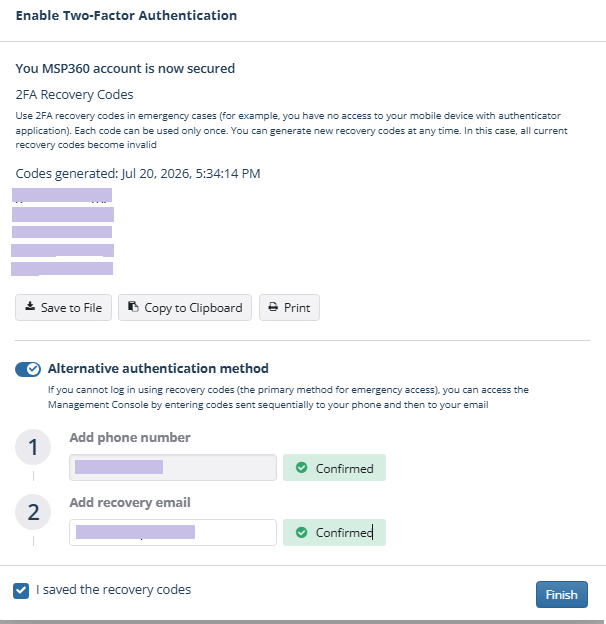
- Once the email address and phone number are confirmed, save the recovery codes in a safe place, and then click Finish.
Two-Factor Authentication and alternative authentication are now enabled.
Edit Alternative Authentication
To change the email address or phone number used for alternative authentication, perform the following steps:
- In the Management Console, navigate to Settings > General.
- In the Security area, click the Edit button in the Alternative authentication method section.

- Confirm the action with 2FA.
- Re-configure the method:
- Enter the phone number that will receive verification codes and security notifications.
- Click Send code to verify the phone number.
- Enter the received code in the Verification code field and click Confirm.
- Enter the email address that will receive verification codes and security notifications. You can use your currently registered email address or enter a new one.
- Click Send code to verify the email address.
- Enter the received code in the Verification code field and click Confirm.
- Once the email address and phone number are confirmed, click Finish.
Alternative authentication has now been updated.
Disable Alternative Authentication
To disable alternative authentication, perform the following steps:
- In the Management Console, navigate to Settings > General.
- In the Security area, click the Disable button in the Alternative authentication method section.

- Confirm the action with 2FA.
Alternative authentication is now disabled.