Manage Account Passwords
Change Account Password for Service Provider
To change an account password, proceed as follows:
- Open the Management Console.
- In the Settings menu, select General.
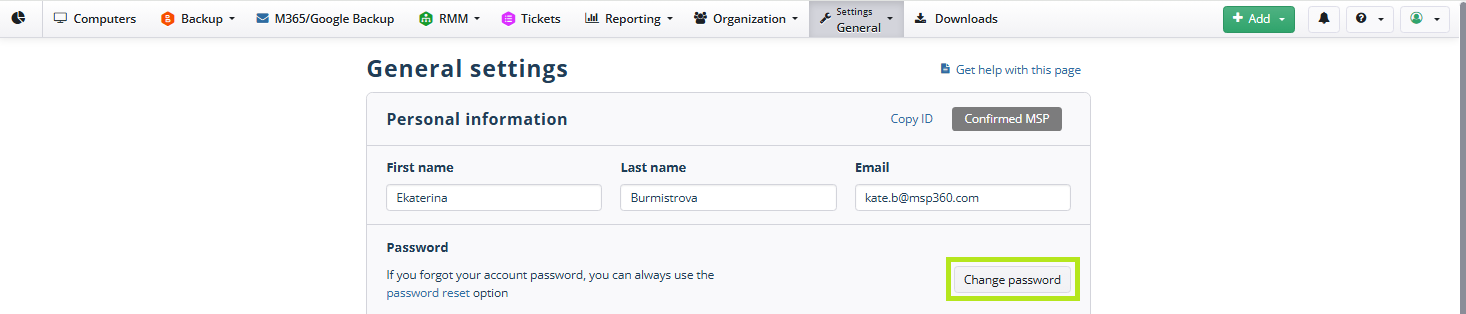
- On the General settings page, in the Personal information area, click the Change password button.
- Provide the existing password to confirm the operation, then type a new password and repeat it to confirm.
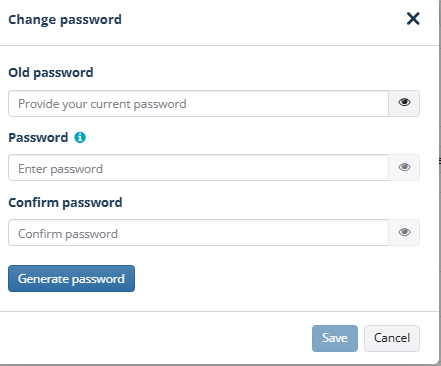
- Save the new password. Keep it in a safe place.
Alternatively, you can generate a secure password with the Generate password button.
Reset Compromised Account Password for Service Provider
To reset a compromised password, proceed as follows:
- Open the Management Console.
- In the Settings menu, select General.
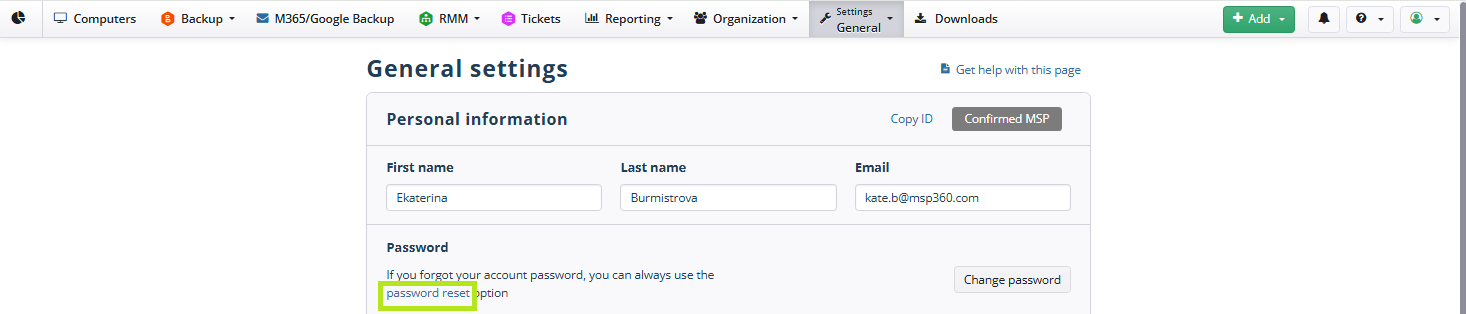
- On the General settings page, in the Personal information area, click the Reset password link.
- Check the registered email address and click Send to send a password reset link.
- Check your mailbox for instructions.
Restore Account Password for Service Provider
To restore a password, proceed as follows:
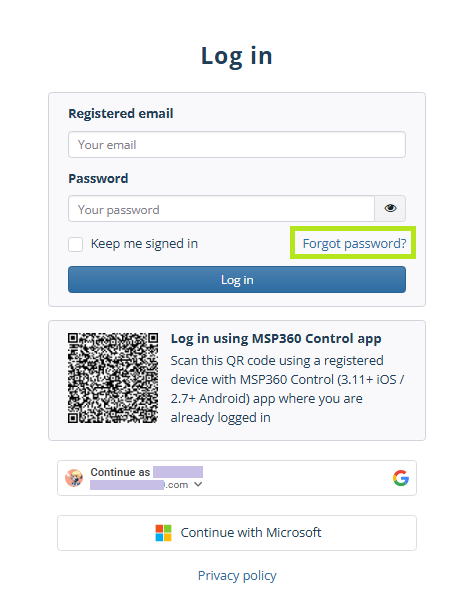
- On the login screen of the Management Console, click Forgot password?
- In the Restore your password dialog, click Send restore password link.
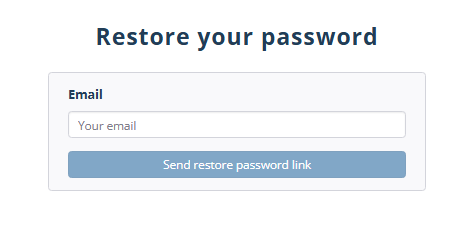
- Check your mailbox for instructions.
Change Account Password for Administrator
To change an account password for an administrator, proceed as follows:
- Open the Management Console.
- In the Organization menu, select Administrators.
- Select the administrator account to change the password, then click the account email address to open the side panel.
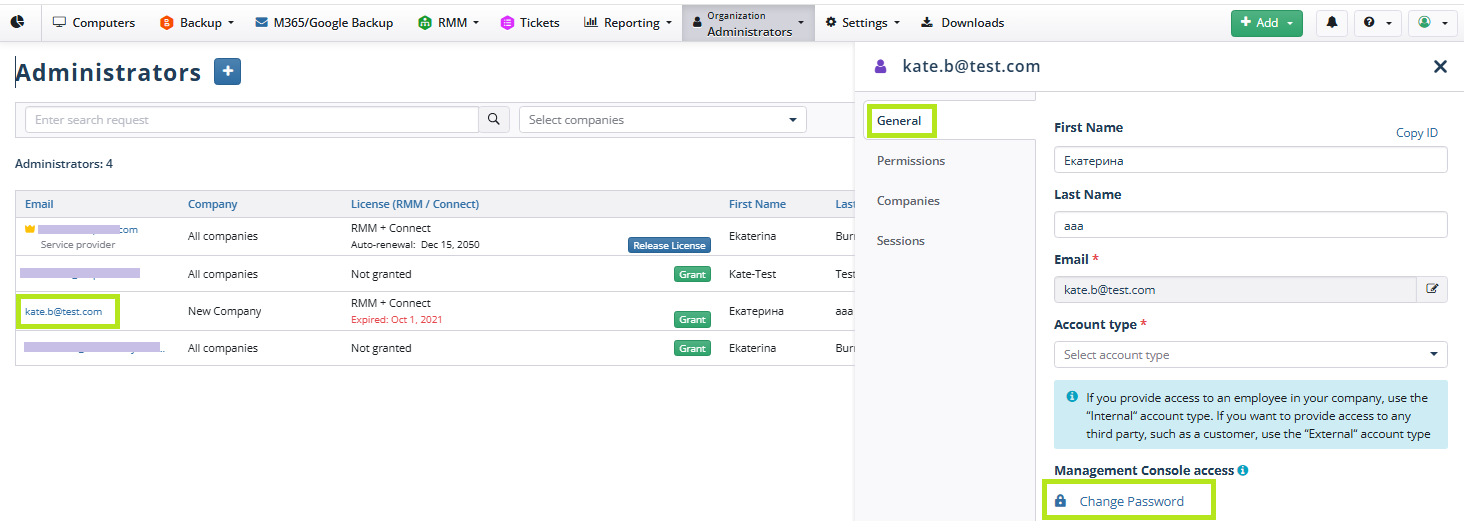
On the General tab of the side panel, click the Change password button.
Provide the existing password to confirm the operation, then type a new password and repeat it to confirm.
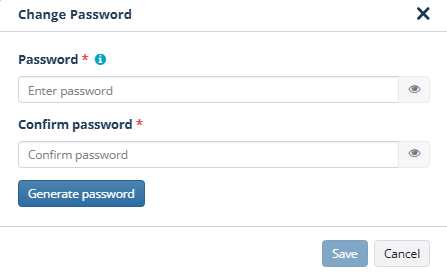
- Save the new password. Keep it in a safe place.
Alternatively, you can generate a secure password by clicking Generate password.
Change Account Password for User
To change an account password for a user, proceed as follows:
- Open the Management Console.
- In the Organization menu, select Users.
- Select the user account to change the password, then click the account email address to open the side panel.
- On the Personal info tab of the side panel, click the Change password button.

- Provide the existing password to confirm the operation, then type a new password and repeat it to confirm.
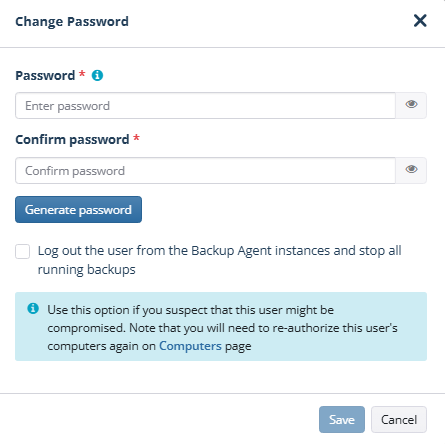
- Save the new password. Keep it in a safe place.
Alternatively, you can generate a secure password by clicking Generate password. You can also select the option to log the user out of Backup Agent instances and stop all running backups for this user.
Once the password is changed, you will need to re-authorize this user's computers on the Computers page.
Reset Compromised Account Password for User
To reset a compromised user account password, proceed as follows:
- Open the Management Console.
- In the Organization menu, select Users.
- Select the user account to change the password, then click the account email address to open the side panel.
- On the Personal info tab of the side panel, click the Reset password button.

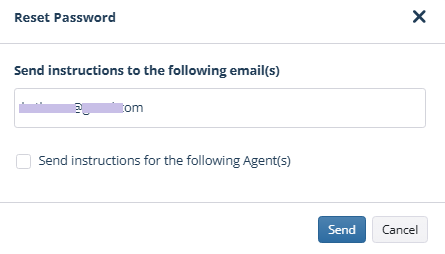
- Verify the email address and click Send to send a password reset link. Enable the Send instructions for the following Agent(s) option to send the instructions for specific Agents.
- Check your mailbox for instructions.