Products: Managed Backup (Agent), Managed Backup (Web), Connect, RMM Agent, Deep Instinct
Article ID: m0413Last Modified: 05-Oct-2026
Master Password Protection
A master password is a password used to access the GUI or CLI in Backup Agent and is designed to protect the software from unauthorized access attempts.
Master password protection provides:
- GUI protection. A user cannot start Backup Agent without providing a master password.
- Command Line Interface protection
- Pstore (Protected storage) protection
- Manual change of settings protection. Any manual attempt to modify settings requires providing a master password.
- Password reset
Configure Master Password for Backup Agent
To set a master password, proceed as follows:
- Open the Management Console.
- In the Computers menu or on the Backup > Computers page, find the computer you want to configure the Agent settings for.
- Click the computer name or the configure icon to open the side panel.
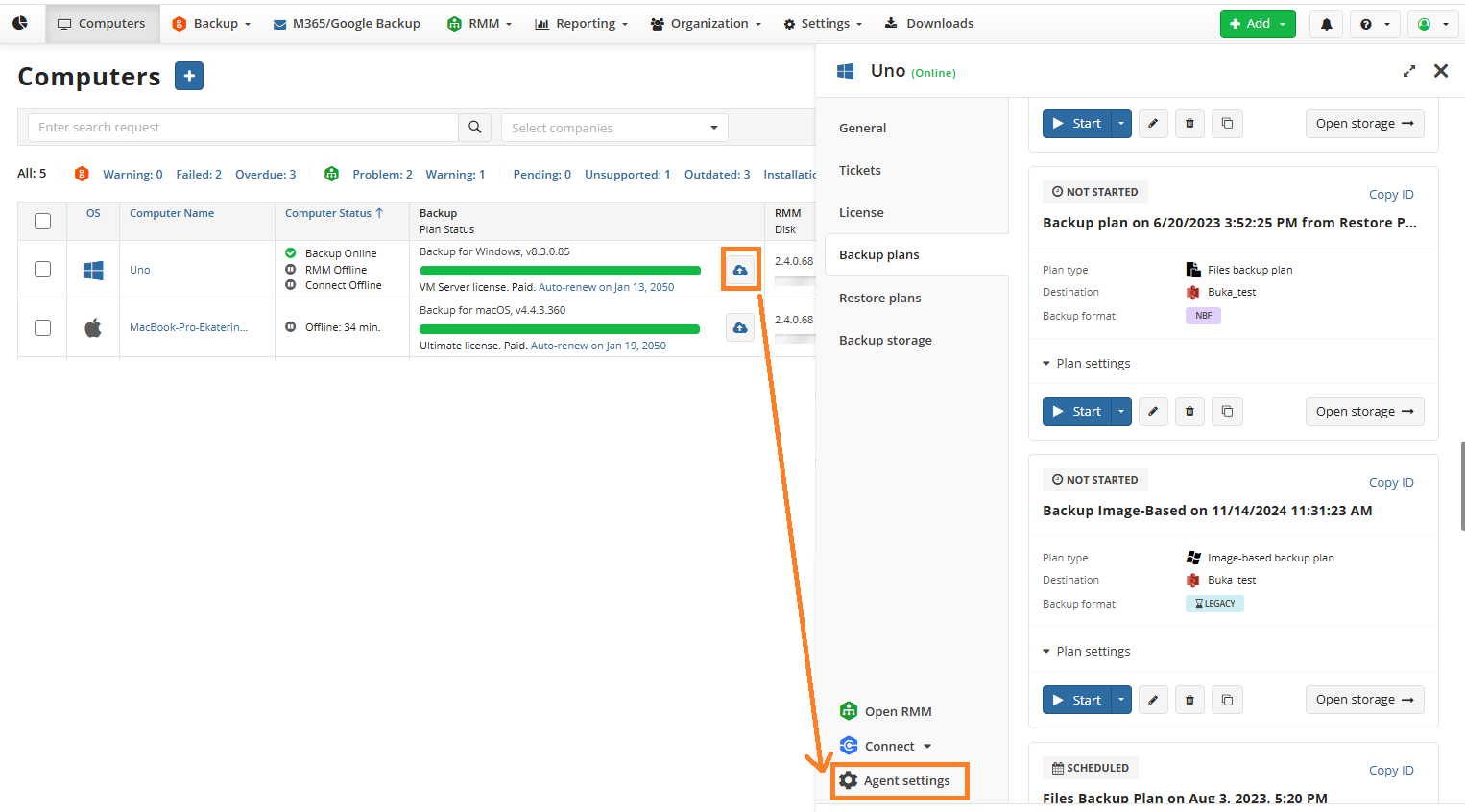
- Click Agent settings.
- On the General tab, you can configure the following Backup Agent settings:
- Protect Agent with master password. Select this checkbox if you intend to protect Backup Agent with a master password. You will have to enter this master password every time you open the Agent. Provide a master password and confirm it.
- Protect CLI with master password. Select this checkbox to protect the command line interface with the master password.
- User interface language. Select the user interface language. By default, English (United States) is set.
- Protect Agent with master password. Select this checkbox if you intend to protect Backup Agent with a master password. You will have to enter this master password every time you open the Agent. Provide a master password and confirm it.
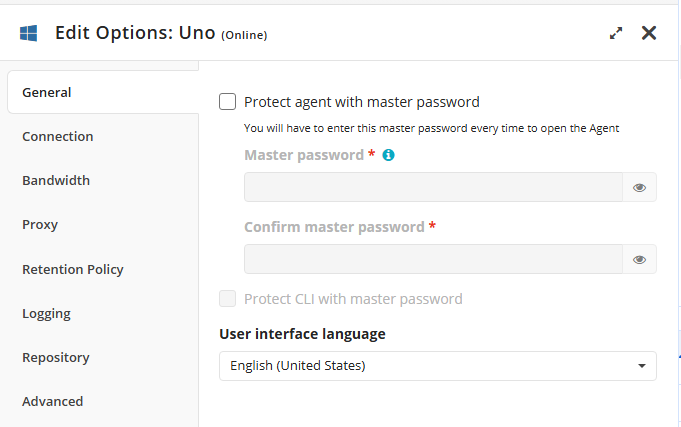
- Once you are done, click Save. Configured settings will be applied to the Agent instance once it goes online.
Reset Master Password
To reset a master password in Backup Agent, proceed as follows:
- Open the Management Console.
- In the Computers menu or on the Backup > Computers page, find the computer you want to configure the Agent settings for.
- Click the computer name or the configure icon to open the side panel.
- Click Agent settings.
- On the General tab, provide a new master password and confirm it.
- Once you are done, click Save. Updated settings will be applied to the Agent instance once it goes online.
Disable Master Password
For security reasons, this action is not recommended.
To disable the master password in Backup Agent, proceed as follows:
- Open the Management Console.
- In the Computers menu or on the Backup > Computers page, find the computer you want to configure the Agent settings for.
- Click the computer name or the configure icon to open the side panel.
- Click Agent settings.
- On the General tab,
- Clear the following checkboxes:
- Protect Agent with master password
- Protect CLI with master password
- Once you are done, click Save. Updated settings will be applied to the Agent instance once it goes online.