Manage Licenses
License Distribution and Purpose
- Backup licenses
- Backup licenses: Server, Ultimate, File Backup, Desktop, MS SQL Server, MS Exchange, MS SQL Server + MS Exchange, VM Server licenses are distributed on a per-instance basis. Each endpoint where Backup Agent is installed requires a separate license to access Managed Backup services.
- VM Server Socket licenses are assigned for each additional socket exceeding the two sockets included in the VM Server subscription.
- RMM and Connect licenses
- RMM + Connect and Connect licenses are assigned on a per-endpoint basis. Each endpoint must have a license assigned to use RMM or RMM and Connect. Licenses already assigned to administrator accounts remain valid.
- Microsoft 365 and Google Workspace Backup licenses
- Microsoft 365 / Google Workspace licenses are distributed on a per-domain-user basis. For details, refer to the following article.
- SharePoint / Teams / Shared Drives licenses are distributed on a per-domain basis. A separate license is required for each domain where SharePoint, Teams, or Shared Drives data is backed up.
- Branding
- Advanced Rebranding & Custom SSL. Advanced Rebranding & Custom SSL licenses are distributed per additional branding. One base branding is included free of charge. Each additional branding requires a separate license.
- Restore to Cloud licenses
- A Restore to EC2 / Azure license lets you restore disk image backups directly to the cloud, enabling recovery as a Microsoft Azure instance or an Amazon EC2 instance.
- Support licenses
There is no need for prepaid purchases and upfront license accounting to activate a particular service. Billing occurs after service consumption, based on actual usage after the trial period, if any.
Required Permissions
The provider can view and manage licenses without any limitations. Administrators should be granted permissions to perform license management:
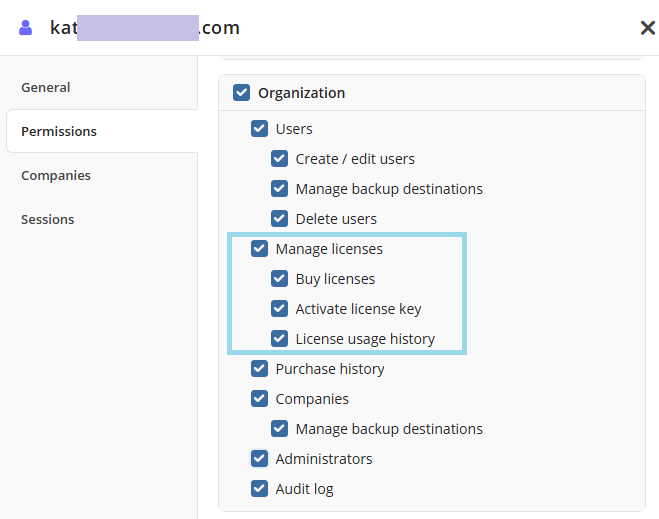
- To manage licenses, the Organization > Manage licenses permission should be granted as the administrator permission on Organization > Administrators. Depending on the administrator role, you can grant the Organization > Buy licenses and Organization > Activate license key permissions. To access the license usage history, the administrator should be granted the Organization > License usage history permission.
An active payment method is required to activate any new paid license subscription.
Only the FastSpring payment system is supported.
Billing Cycle: Charges are processed at the beginning of the next month for the previous month's usage.
A minimum payment applies to licenses based on the subscription period (monthly or yearly).
Refer to the chapters below for step-by-step instructions:
- Allocate Licenses
- Change Licenses
- Backup License Types
- Group Actions with Licenses
- Renew Licenses
- Account Closure
License Management
If you already have trial or paid licenses, check their renewal status to determine whether you need to make any changes.
As soon as you install any Agent on a computer, a 15-day trial license is added automatically. You can manage licenses on the Organization > Licenses page.
- Open the Management Console.
- In the Organization menu, select the Licenses item.
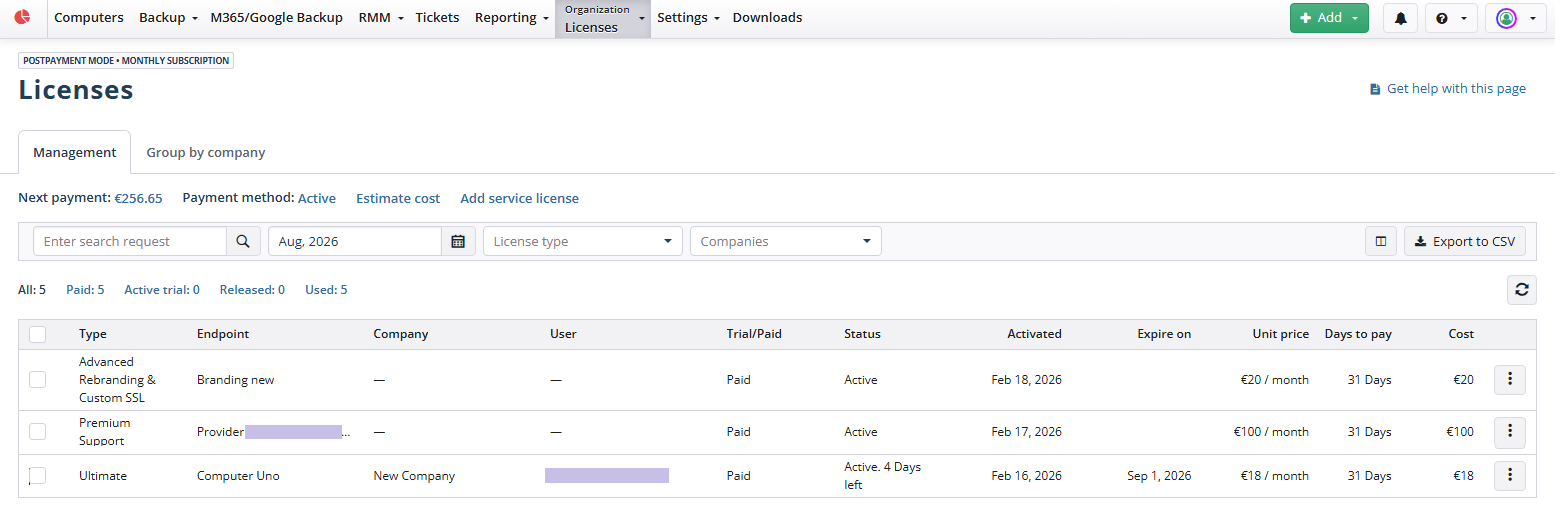
Using this grid, you can view and manage the following:
- The next payment amount. You will be charged for this amount on the 1st day of the next month.

- Payment method status

- Estimated costs

- Add the Premium Support service license to keep your service organized.

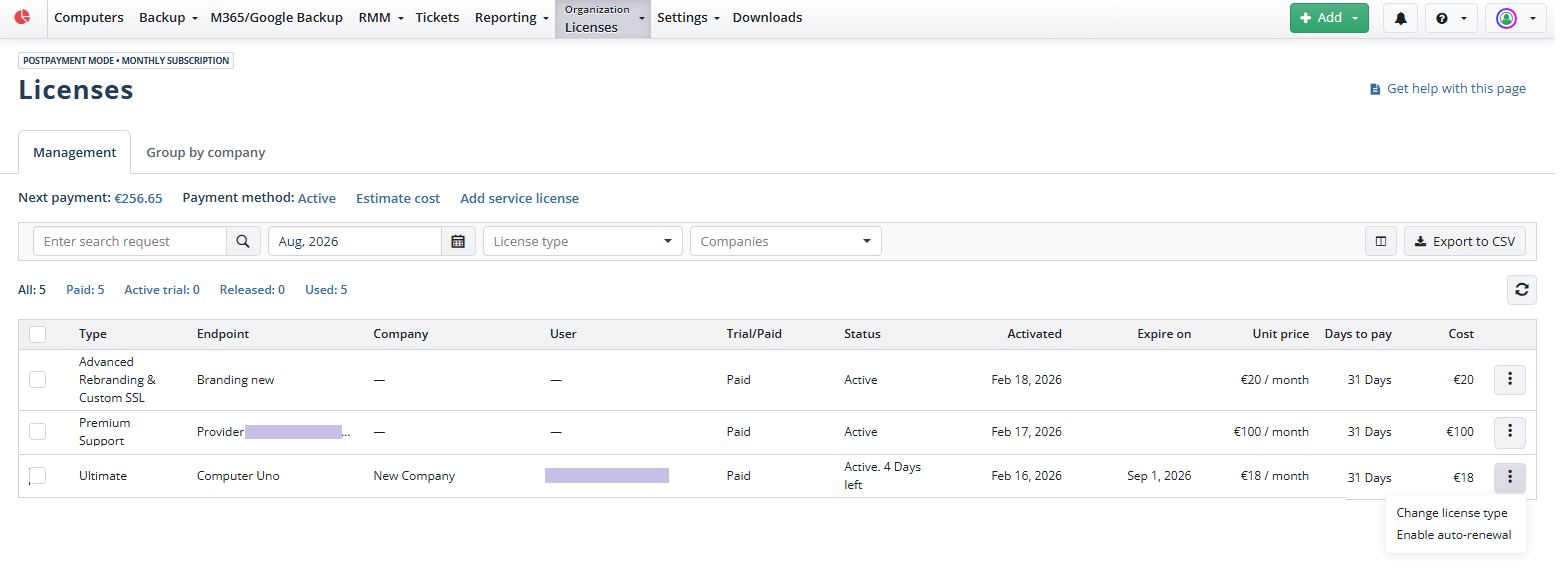
- Manage specific licenses. To manage a specific license, expand actions at the end of the license entry to see the available options. The following options can be available depending on the license:
- Change license type. When you assign a new license, its billing period begins on that day. If you change licenses, the billing period for the previous license ends on that day and will be calculated relative to the number of days from the beginning of the billing period.
- Disable auto-renewal. The license will be discontinued the day after its expiration date. No further charges can be applied, except for deletion.
- Stop trial. The trial license will be released (the trial is stopped). You can reuse or delete it.
- Delete. Available for expired licenses and stopped trials.
You can export license data as a comma-separated value file using the Export to CSV button.
For details on Microsoft 365 / Google Workspace and SharePoint / Teams / Shared Drives licenses, refer to Licensing.
Search and Filtering
Use the search box or filters above the grid to find the required license type.

The following filters are available:
- Companies. Displays the licenses used for the selected company. Click All to clear the filter.
- License type. Filters the licenses by license type. Click the required category to apply the filter.
- MMM,YYYY. Select the month to view license information for.
Counters above the grid help you filter licenses by status. The following counters are available:
- All. Number of available licenses.
- Active trial. Number of valid trial licenses.
- Paid. Number of valid paid licenses.
- Released. Number of released licenses.
- Used. Number of licenses that are in use.
Minimum Payment
As of August 1, 2024, a minimum payment applies to license purchases to help us maintain the quality and sustainability of our services.
The minimum payment is $25 per month for monthly subscriptions and $250 per year for yearly subscriptions.
If your license charges for a billing period are less than the minimum payment, you are still charged the minimum. The unused balance is applied to your license charges in the next billing period only. If it is not used by the end of that period, it expires.
The minimum payment applies even when you have an unused balance. The balance is deducted from your license charges first, and if the result is below the minimum, you are charged the minimum.
For example, on a monthly subscription:
- March: license charges are $18. You are charged $25, and the unused $7 carries over to April.
- April: license charges are $30. The $7 balance is deducted, which leaves $23. That is below the minimum, so you are charged $25. The unused $2 carries over to May.
Payments are processed by FastSpring. When you set up or change a payment method, you are redirected to the FastSpring page.
The minimum payment helps us continue providing high-quality service and support while investing in ongoing product improvements.
Group Actions with Licenses
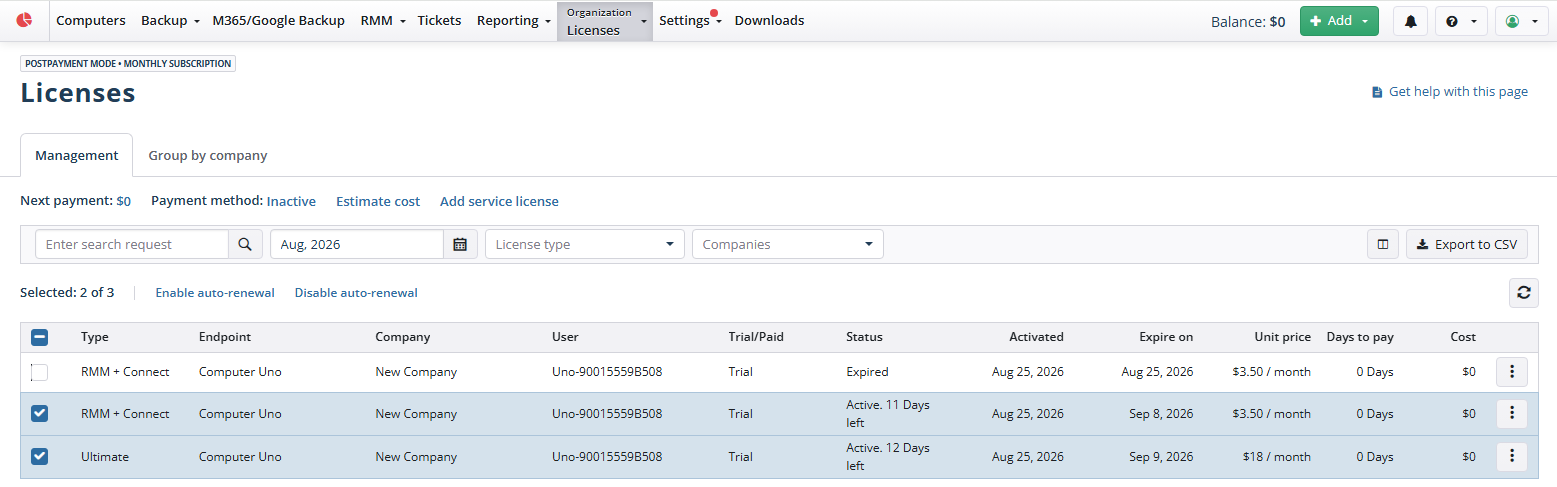
You can manage licenses in bulk by selecting the required ones and applying the same action to the selection. To do this, proceed as follows:
- In the Organization menu, select Licenses.
- Expand the required license type, then select the licenses to apply the group action.
- Select the group action to apply to the selection. The following group actions are available:
- Enable Auto-Renewal
- Disable Auto-Renewal
- Confirm the action. For licenses with disabled auto-renewal, the Expire on column contains the last date the license is still valid.