Products: Managed Backup (Agent), Managed Backup (Web)
Article ID: m0845Last Modified: 05-Oct-2026
Manage Permission Presets
A preset saves a selected set of permissions for quick reuse. The service provider and administrators with the Organization > Administrators permission can view all presets under the same service provider, regardless of who created them.
Create a Preset
To create a preset of configurable administrator permissions, follow these steps:
- Open the Management Console.
- In the Organization menu, select Administrators.
- Click any administrator email to open the side panel.
- Switch to the Permissions tab.
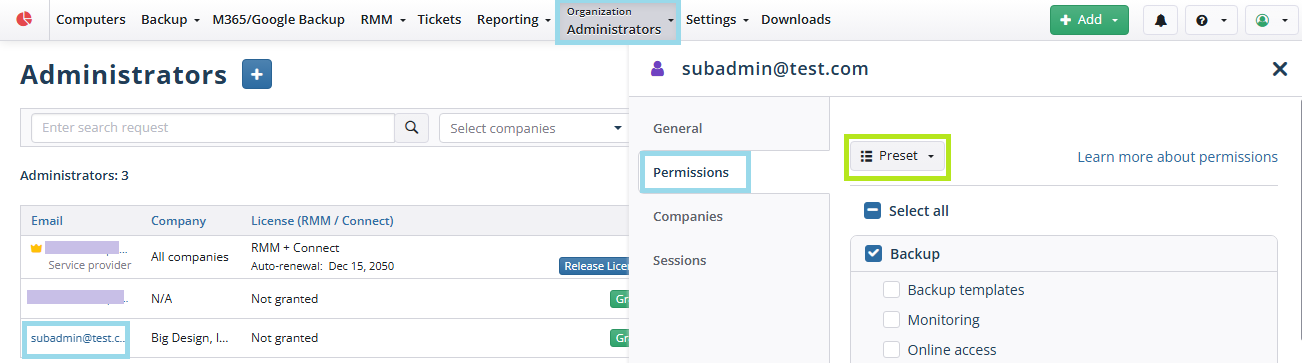
- Select the permissions you want to save as a preset.
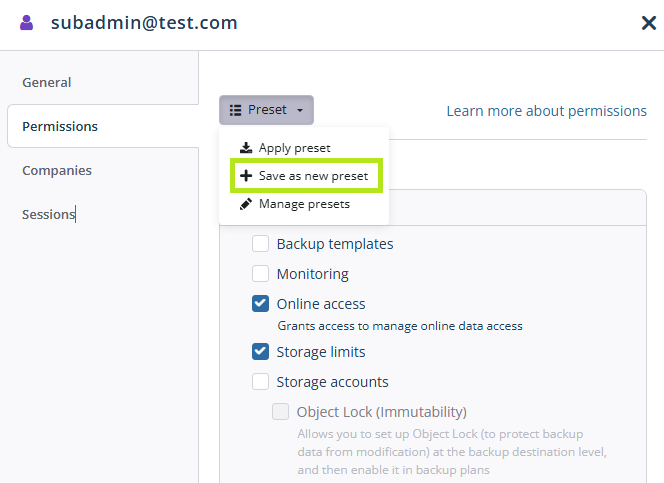
- Expand the preset control and select Create as new preset.
- Name the preset and click Save in the Create as new preset dialog.
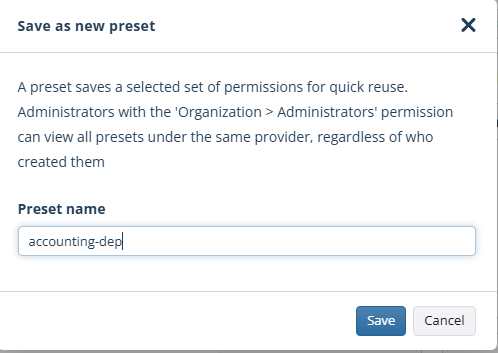
The saved preset becomes available for quick reuse.
Apply Preset
To apply a preset to an administrator, follow these steps:
- Open the Management Console.
- In the Organization menu, select Administrators.
- Click the administrator you want to apply the permission preset to.
- Switch to the Permissions tab.
- Expand the preset control and select Apply preset.
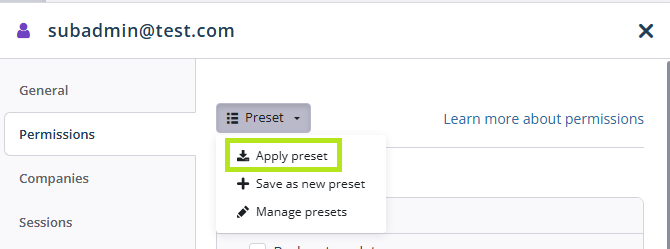
- Select the preset to apply and click Save in the Apply preset dialog.
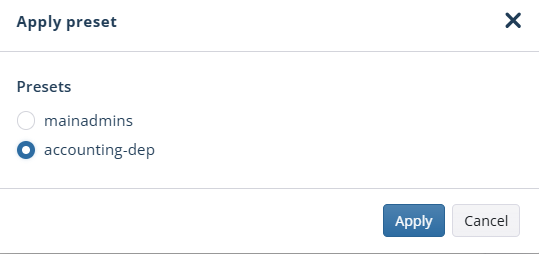
- The permissions selected in the preset will be selected on the Permissions tab. Save the administrator settings.
Edit Preset
To edit a specific preset, follow these steps:
- Open the Management Console.
- In the Organization menu, select Administrators.
- Click any administrator email to open the side panel.
- Switch to the Permissions tab.
- Expand the preset control and select Manage presets.
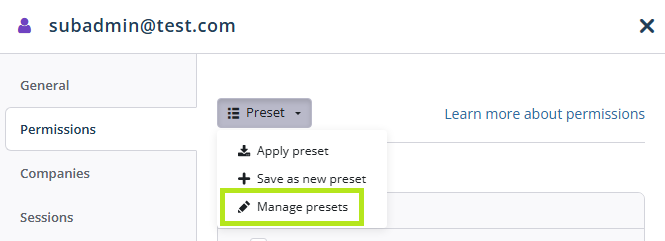
- Select the preset to edit and click the Edit icon next to it.
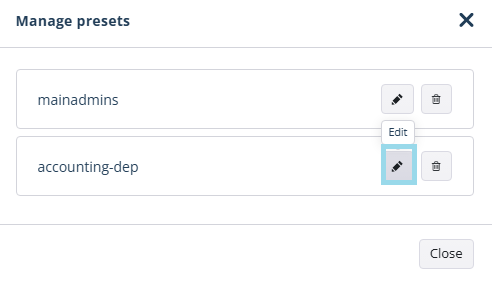
- Edit the selection and save your changes.
Delete Preset
To delete a specific preset, follow these steps:
- Open the Management Console.
- In the Organization menu, select Administrators.
- Click any administrator email to open the side panel.
- Switch to the Permissions tab.
- Expand the preset control and select Manage presets.
- Select the preset to remove and click the Delete icon next to it.
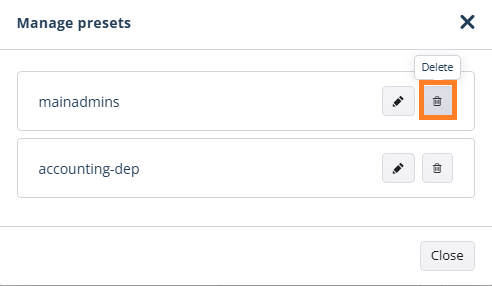
- Click Delete to remove the preset permanently.