Restore MS Exchange
Restore MS Exchange Database
It takes two simple steps to restore MS Exchange: download the Exchange database and log files from the cloud storage, and replace the current Exchange files with the restored files. Let's look at the entire restore process step by step.
How to Restore MS SQL Database
- Run your Backup Agent.
- Click Restore.
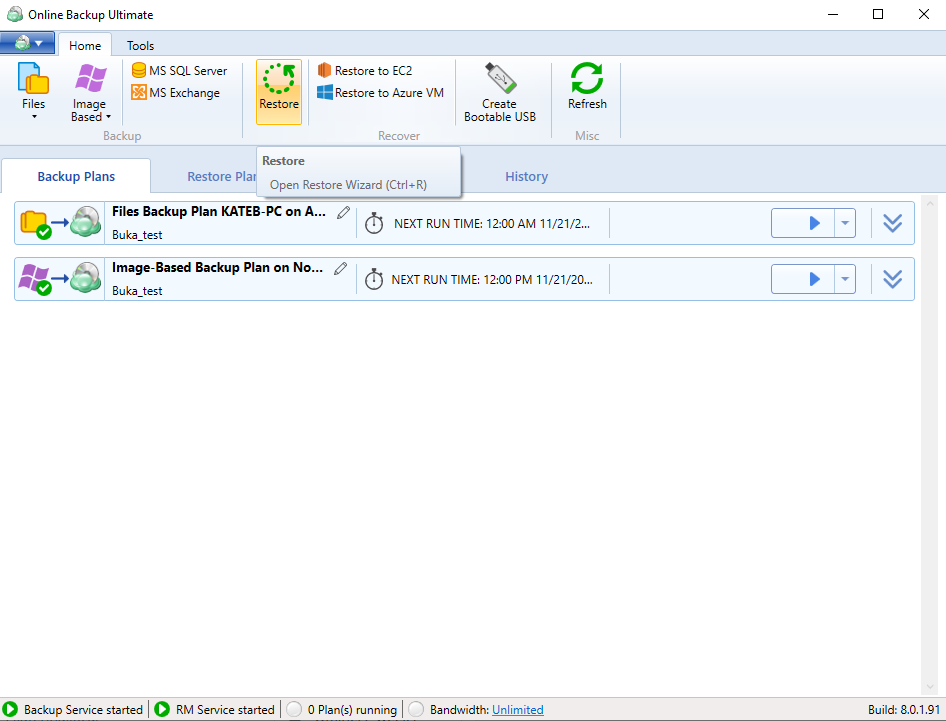
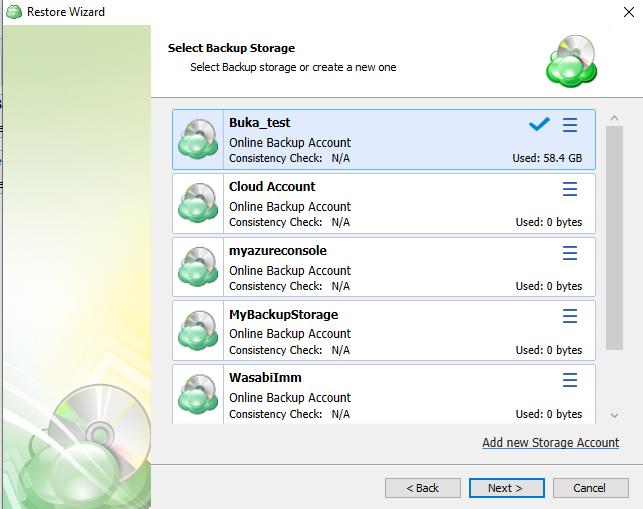
- Use the Restore Wizard to select the backup storage to restore from.
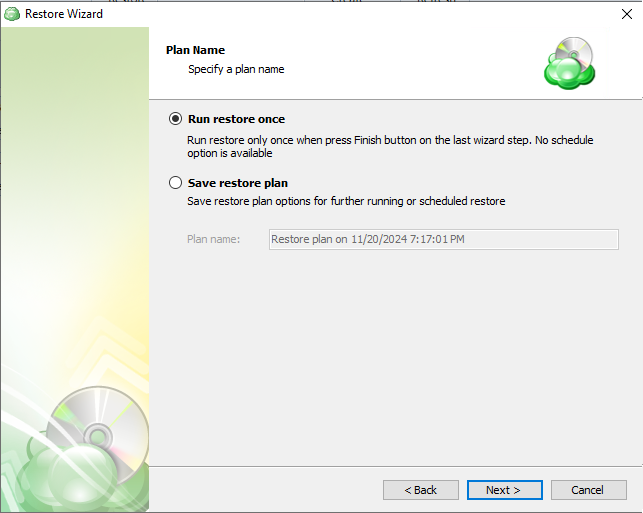
- On the Plan Name screen, select whether to run the restore just once or to save the created restore plan for further use. Click Next.
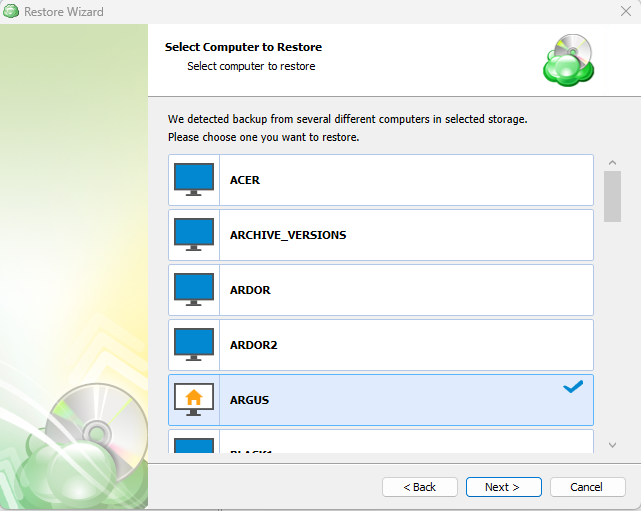
- Select a computer to restore. Click Next.
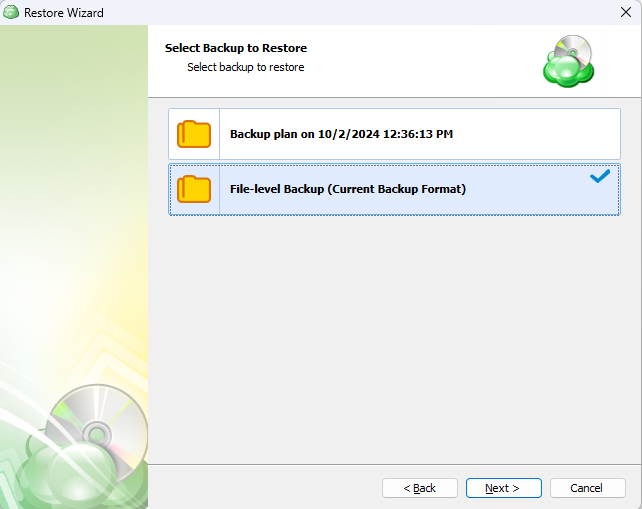
- Select a backup plan to restore. Click Next.
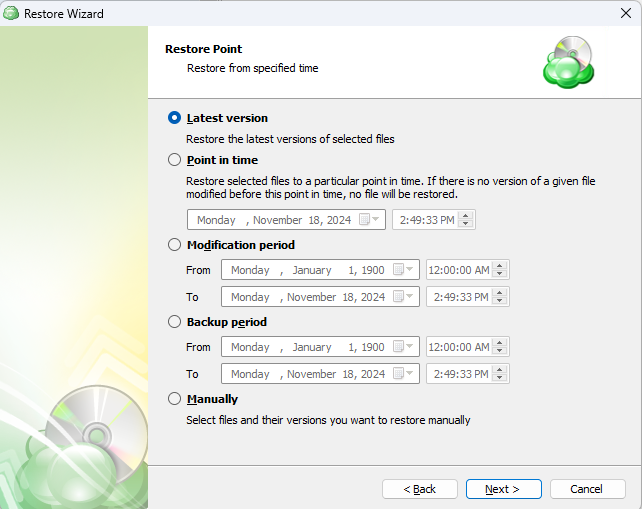
- Select the latest version, a particular point in time, or the disk image version manually. Click Next.
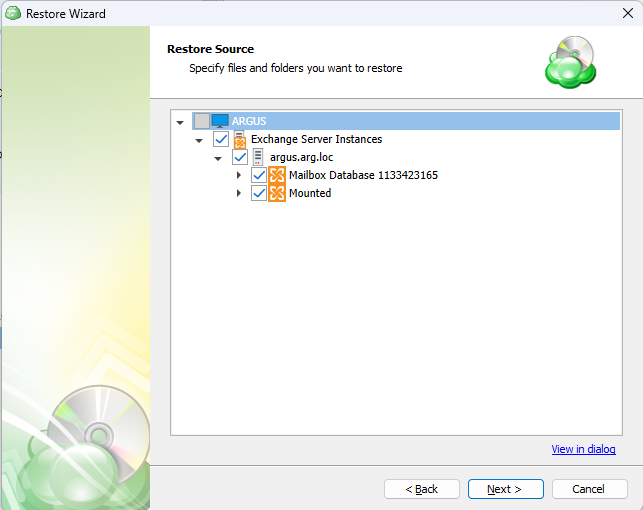
- Restore source: select the files and folders you want to restore. Click Next.
- Select a location to restore the selected Exchange objects to. Click Next.
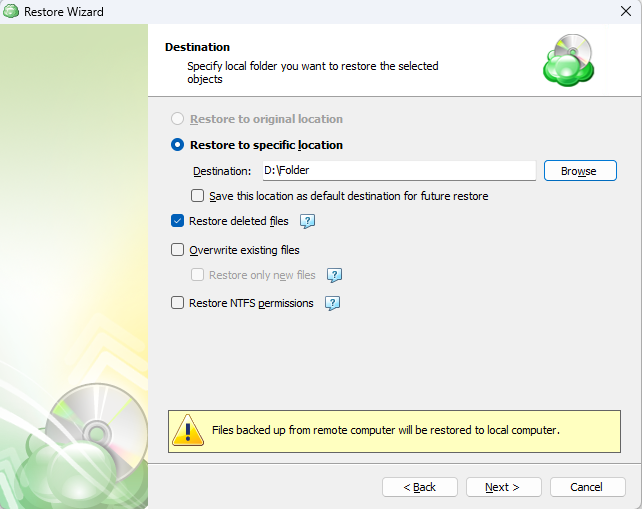
NOTE: You cannot restore to the original location within the wizard. You will need to dismount your current database (if any) and replace Exchange files with restored files.
For the data encrypted on the client side, select the "Decrypt encrypted files with the following password" option. Enter your password and re-enter it to confirm. Click Next.
(Optional) If you restore data from the S3 Glacier Flexible Retrieval or Glacier Deep Archive storage classes, specify Smart Restore options.
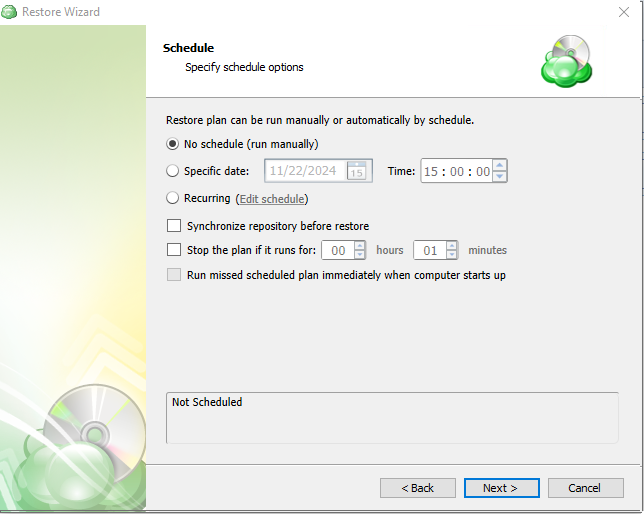
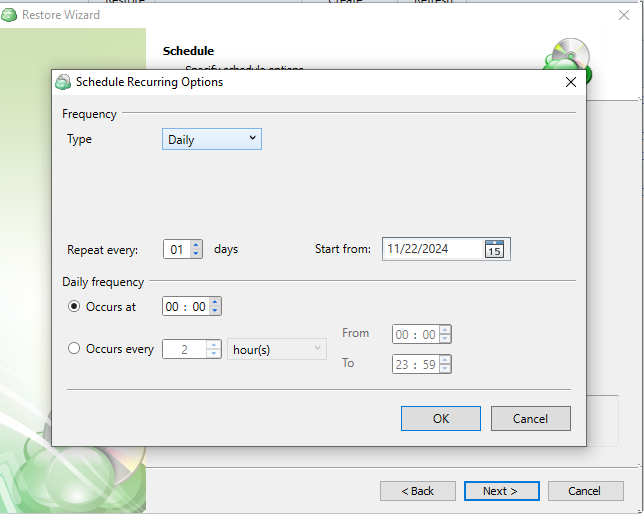
If you chose to save the created restore plan for further use, select schedule options.
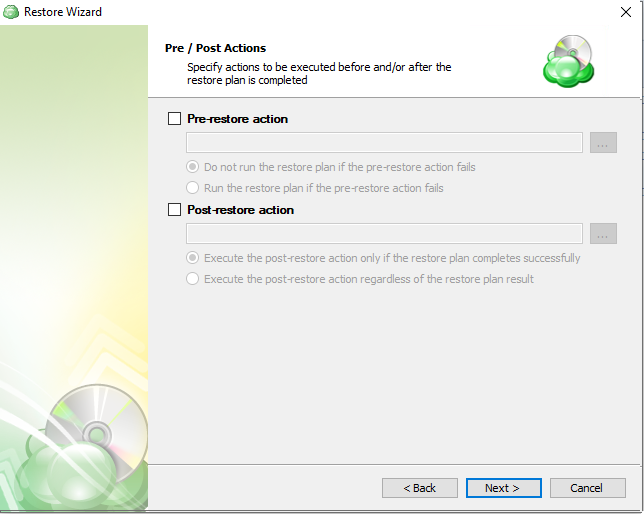
- Specify pre- and post-restore actions. Click Next.
Starting from Management Console version 5.0, pre- or post-actions for Backup Agents can be restricted by the provider. To learn more about the pre-/post-action settings, refer to the Global Agent Options and Companies chapters.
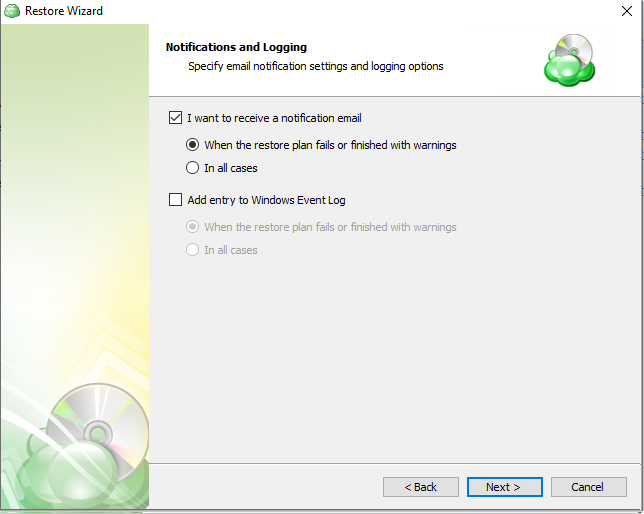
- Specify notification and logging settings.
On the Summary step, review the restore plan configuration, then click Next to create a restore plan.
Wait until the restore is completed.
How to Mount MS SQL Database
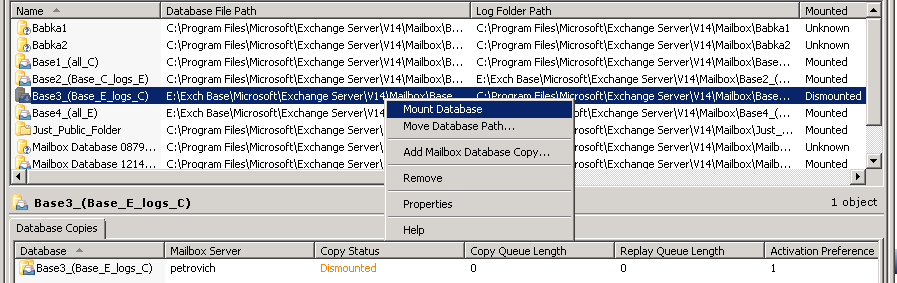
The next step is performed outside Managed Backup. Launch the Exchange Management Console.
- Using the Exchange Management Console, dismount the database(s) you would like to restore.
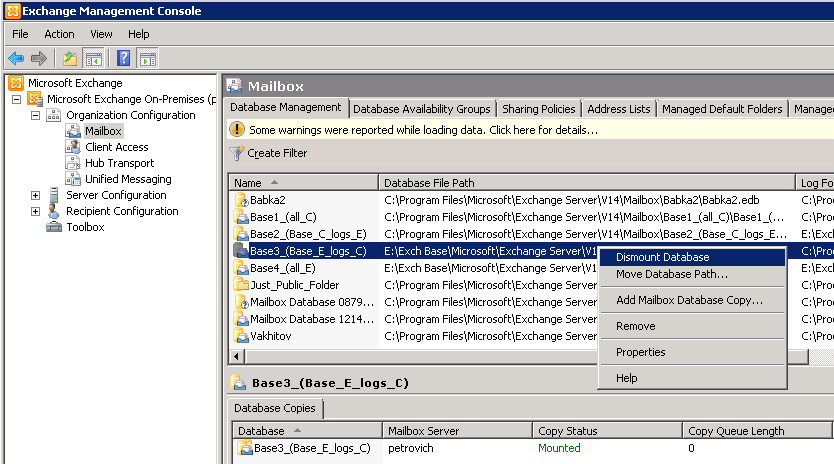
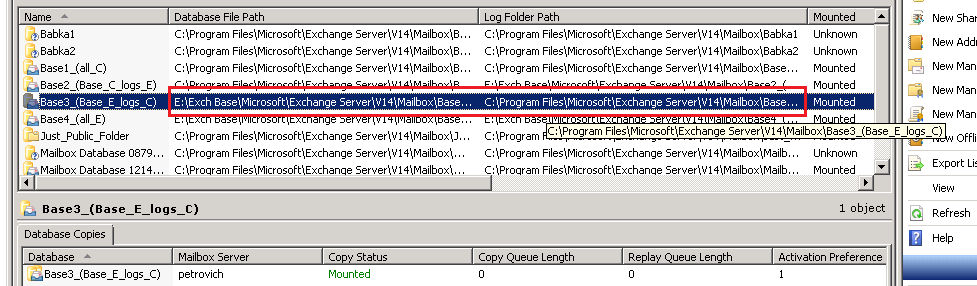
- Locate the log files (see Log Folder Path) and the .edb database file (see Database File Path).
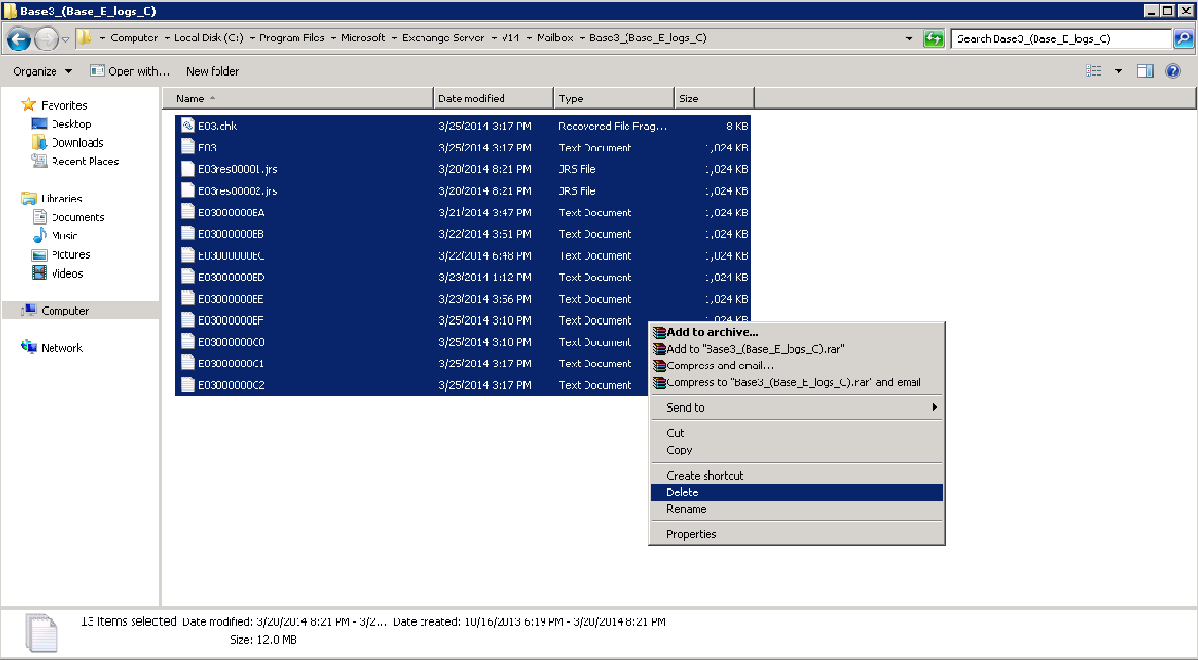
- Move them to another location (or delete them if you no longer need them).
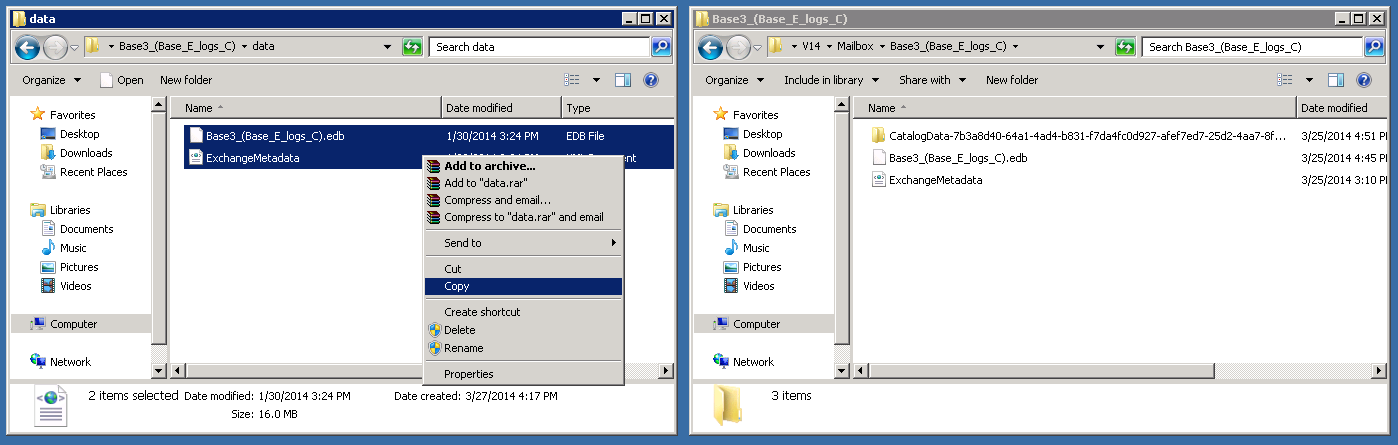
- Open the folder with the files you have restored and copy these files to the original folders ("Database File Path" for the .edb file and "Log Folder Path" for the logs).
- Mount the Exchange database.
Edit a Restore Plan
To edit the restore plan, proceed as follows:
- Switch to the Restore Plans tab.
- Open the restore plan you want to edit by expanding it, then click Edit.
- Proceed through the Restore Wizard steps to adjust settings as needed.
- If the plan is currently running, you'll need to select one of the following options:
- Apply changes after the restore plan completes
- Stop the plan and apply changes.
- After choosing the desired option for the running restore plan, click Apply.
- Save the edited plan configuration.
You can edit certain scheduled restore plan parameters directly, without using the restore wizard, as long as the restore plan is not currently running. Editable parameters are marked with a pencil icon. To make a quick edit, simply click the pencil icon next to the parameter.
Delete a Restore Plan
To delete the restore plan, proceed as follows:
- Switch to the Restore Plans tab.
- Open the plan to delete, expand it, then click Delete.
- Click Yes to confirm the restore plan deletion.