Add Impossible Cloud Storage Account
To add an Impossible Cloud storage account to the Managed Backup service as S3 Compatible storage:
- Open the Management Console.
- Open the Backup > Storage Accounts page.
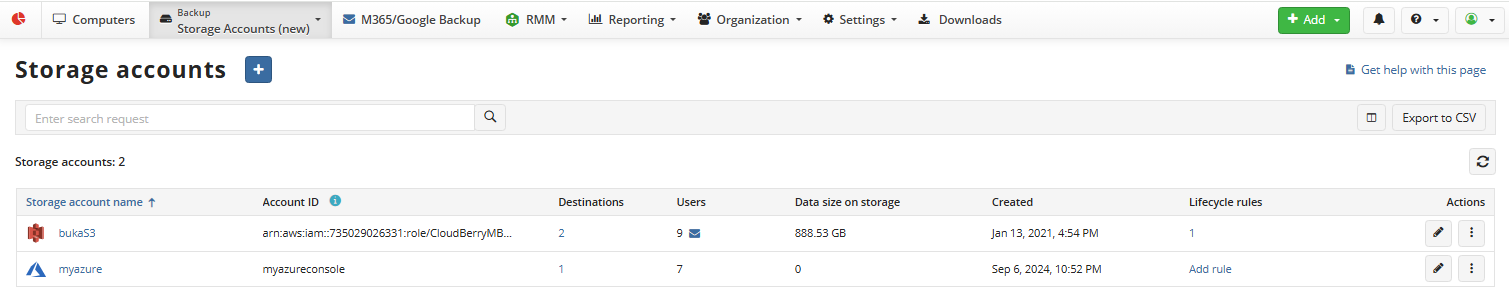
- Click + to launch the Create a new Backup Destination wizard.
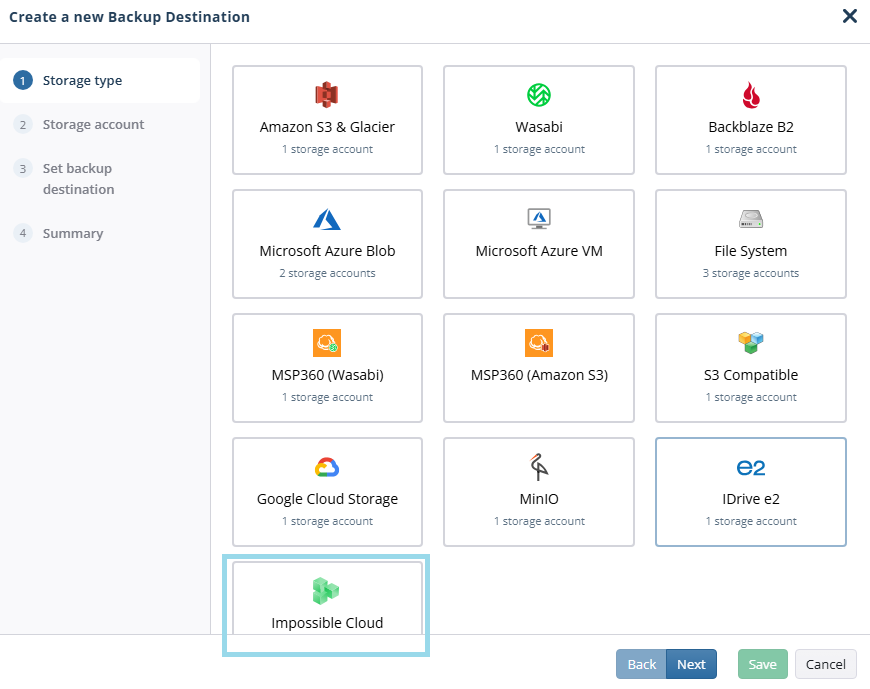
On the Storage type step, select Impossible Cloud. Click Next.
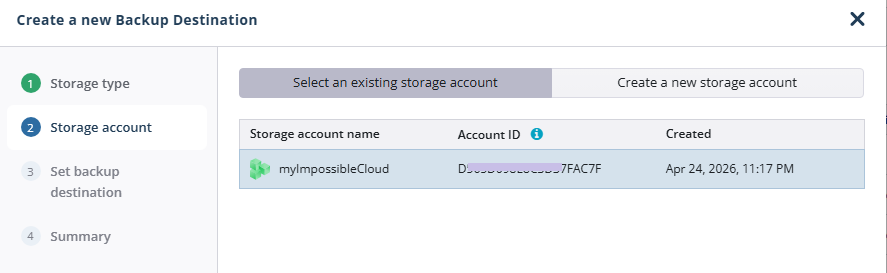
On the Storage account step, select an existing storage account or create a new one. By default, existing storage accounts are displayed. To add a new storage account, click Create a new storage account.
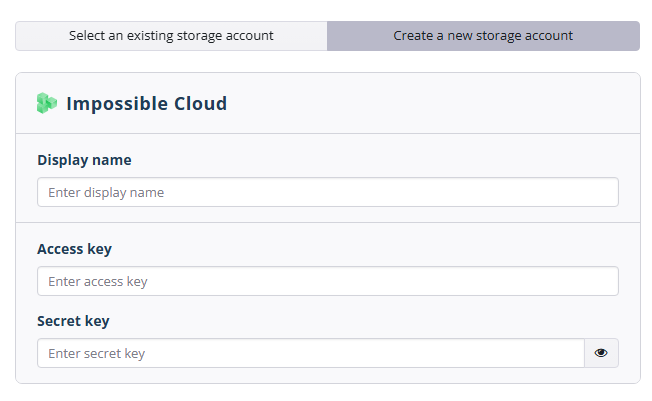
- Specify the display name for the storage account and the access and secret keys to access the specific endpoint associated with the specific region in the storage. Click Next.
- Set the backup destination. In the Destination display name field, specify the display name for the backup destination and the bucket, then select whether you will use an existing bucket or create a new one:
- Select the New bucket option to create a new bucket. Name the bucket. The new bucket will be created in the region associated with the provided credentials. Object Lock (Immutability) features are disabled by default. Enable the required feature types, if needed.
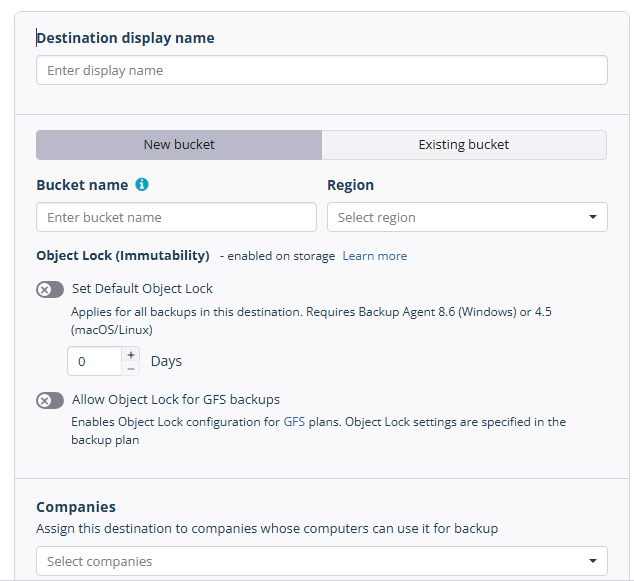
Select a region for the new bucket.
Select the Existing bucket option to use an existing bucket, then select it in the drop-down list. You can also select an external bucket you have access to. For buckets with Object Lock turned on, you can enable the [Object Lock (Immutability)]( Object Lock (Immutability)) feature. Otherwise, this functionality will be permanently disabled.
- Select the companies or users to assign to the storage account.
Note that it may take a while to assign companies and users to the storage account.
- Click Next.
- View the storage account summary, then click Save.
The added Impossible Cloud storage account appears in the grid.
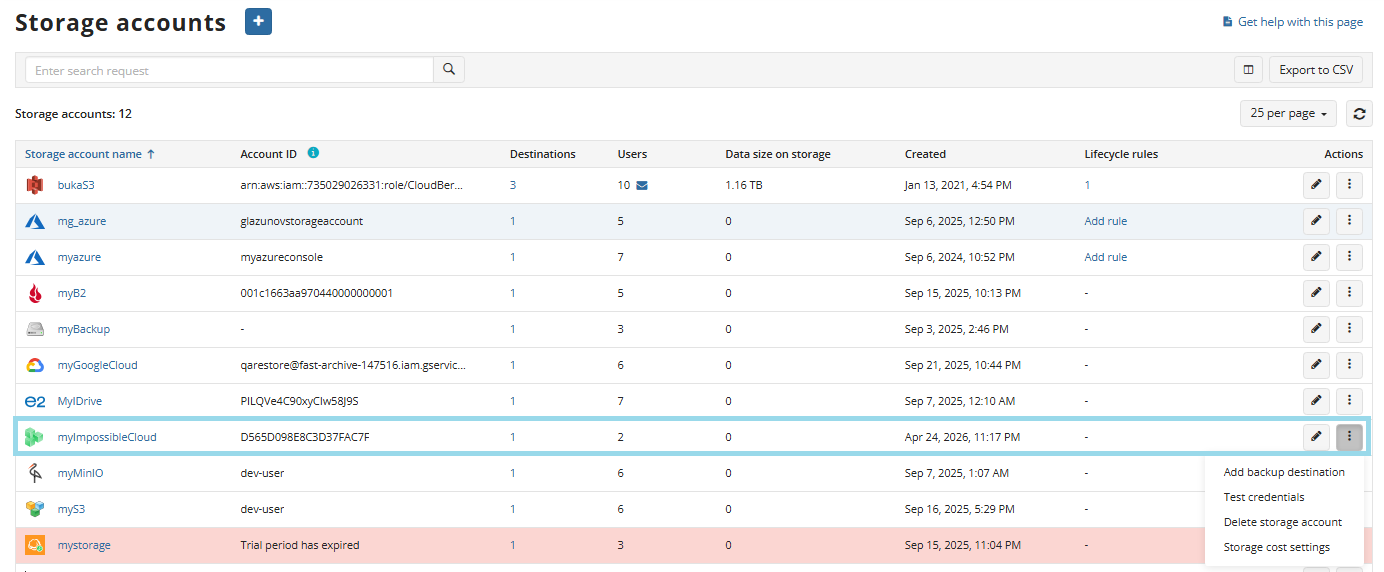
Refer to the Manage Storage Accounts chapter for more information on how to manage the added Impossible Cloud storage account.