Object Lock
This chapter describes support for the Object Lock feature in Managed Backup. For information about Object Lock support for Microsoft 365 / Google Workspace backups, refer to the corresponding article.
- About Object Lock (Immutability)
- Default Object Lock (New)
- Object Lock for GFS backups
- How Object Lock Feature Works
- Grant Administrators Permissions to Manage Object Lock
- Supported Storage Providers
- Which Object Lock Type Should I Use?
About Object Lock
Use the Object Lock feature with extreme caution. Once backup data becomes immutable in Compliance mode, it cannot be deleted from storage until the applied retention period expires (except by terminating the storage account). Incorrect configuration may result in significantly increased storage costs.
The Object Lock feature supports the following feature types:
Default Object Lock (New)
Default Object Lock is an alternative immutability type in which all backup data written to the backup destination is automatically locked, regardless of GFS selection.
- Configured on the cloud storage provider side
- Applied automatically to all backup plans using the destination
- Available for backup plans in both NBF and CBF formats
For details on how to manage Default Object Lock, refer to the following article.
Object Lock for GFS Backups
Object Lock for GFS backups is applied only to full backup datasets selected by the GFS (Grandfather-Father-Son) retention policy.
- Configured in Managed Backup
- Requires the Manage Object Lock (Immutability) permission for administrators
- Available only for backup plans in the new backup format (NBF)
For details on how to manage Object Lock for GFS backups, refer to the following article.
How Object Lock Feature Works
Object Lock is a feature that locks backup datasets for a specified GFS retention period. Within this period, backup data is kept unmodified. The level of protection depends on the selected retention mode.
Feature type comparison:
| Feature Type | Default Object Lock (New) | Object Lock for GFS backups |
|---|---|---|
| Applies to | All backup data written to the destination | Full backups selected by GFS policy |
| Configured in | Cloud storage provider console | Management Console |
| Enabled in backup plans | Automatically for all plans using the destination | Manually |
| Applicable for Backup formats | NBF and CBF | NBF |
| Applicable for retention modes | Governance and Compliance | Governance (Compliance on request) |
Retention Modes for Immutable Data
Object Lock supports the following retention modes:
- Governance Mode (default mode for Object Lock for GFS backups)
- Compliance Mode
Governance Mode
- Objects can be deleted or modified only by users with special permissions
- Intended for operational protection with administrative override
Compliance Mode
- No user, including root or administrator, can delete or modify locked objects
- Designed for strict regulatory requirements (SEC, FINRA, HIPAA, etc.)
- Once enabled, cannot be undone.
If Compliance mode is required for GFS backups, contact MSP360 Support.
Grant Manage Object Lock (Immutability) Permission
To delegate Object Lock management to administrators:
- Open the Management Console
- Go to Organization > Administrators
- Click Edit for the administrator account you are planning to use for backup storage management
- Open the Permissions tab
- Enable Manage Object Lock (Immutability)
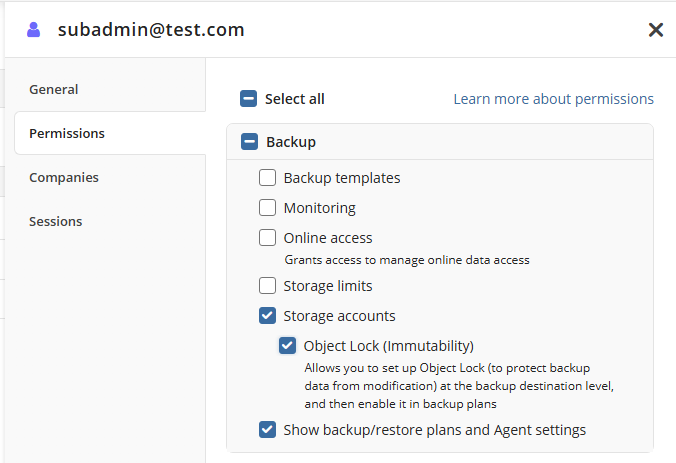
- Click Save.
Now, the administrator can configure the Object Lock (immutability) feature to protect backup data from modification at the backup destination level and enable Object Lock for GFS backups in backup plans.
Supported Storage Providers
The Object Lock feature is supported for the following storage providers:
- Amazon S3
- Wasabi
- Backblaze B2
- MSP360 (Amazon S3)
- MSP360 (Wasabi)
- Minio (added as S3 compatible)
- Microsoft Azure
- Google Cloud
- IDrive e2
For some storage providers (Microsoft Azure, Google Cloud), Object Lock settings cannot be retrieved automatically. In such cases, you will be prompted to Provide settings manually.
Which Object Lock Type Should I Use?
Choose the Object Lock feature type based on your security requirements, compliance needs, and operational flexibility.
Use Default Object Lock if:
- You require all backup data to be immutable by default
- You must comply with strict regulatory or legal requirements
- You want immutability enforced at the storage level, outside of Managed Backup
- You use both NBF and CBF backup plans
Typical use cases:
- SEC, FINRA, HIPAA, or similar compliance requirements
- Environments with a zero-trust or “write once, read many” policy
- High-risk ransomware scenarios
Use Object Lock for GFS Backups if:
- You want immutability applied only to long-term recovery points
- You use GFS retention to control storage growth
- You need a balance between cost efficiency and protection
- You manage immutability centrally through Managed Backup
Typical use cases:
- Protection against ransomware for critical restore points
- Long-term retention of weekly/monthly backups
- Environments where administrators may still need limited control
Use Both (Recommended for Maximum Protection)
Combining Default Object Lock with GFS-Based Object Lock provides layered protection:
- Default Object Lock protects all backup data
- Object Lock for GFS backups extends immutability for selected long-term full backups
This approach delivers strong security while keeping long-term storage usage optimized.
Troubleshooting
Refer to the following KB article if you receive error code 1093.