Manage Storage Limits for Domains
Microsoft 365 / Google Workspace Backup provides the ability to manage storage limits separately for each domain. A storage limit can be assigned either as a total limit across all services or as a service-specific limit:
- SharePoint / Teams / Shared Drives. For trial SharePoint/Teams/Shared Drives licenses, the limit is 100 GB. To increase this limit, you must purchase a commercial license.
- Mail, Drive, Contacts, Calendar.
Add Storage Limit for Domain
To add a storage limit
- Open the Management Console.
- In the M365/Google Backup menu, click the name of the existing domain to open the domain settings.
- On the Where to back up step, check the existing limit options:
- Company limit. The first value is the used storage, and the second value is the associated company storage limit. If the domain backup size exceeds this value, the backup will be suspended. You can manage this limit on Organization > Companies.
- Backup destination limit. The first value is the used storage, and the second value is the selected backup destination storage limit. If the domain backup size exceeds this value, the backup will be suspended. You can manage this limit on Backup > Storage Limits.
- Domain limit. The first value is the used storage, and the second value is the configurable domain storage limit. The domain storage limit must be less than or equal to the backup destination limit or the company limit (if the backup destination limit is not set).
- Service-specific limits:
- SharePoint / Teams / Shared Drives. For trial SharePoint/Teams/Shared Drives licenses, the limit is 100 GB.
- Mail, Drive, Contacts, Calendar.
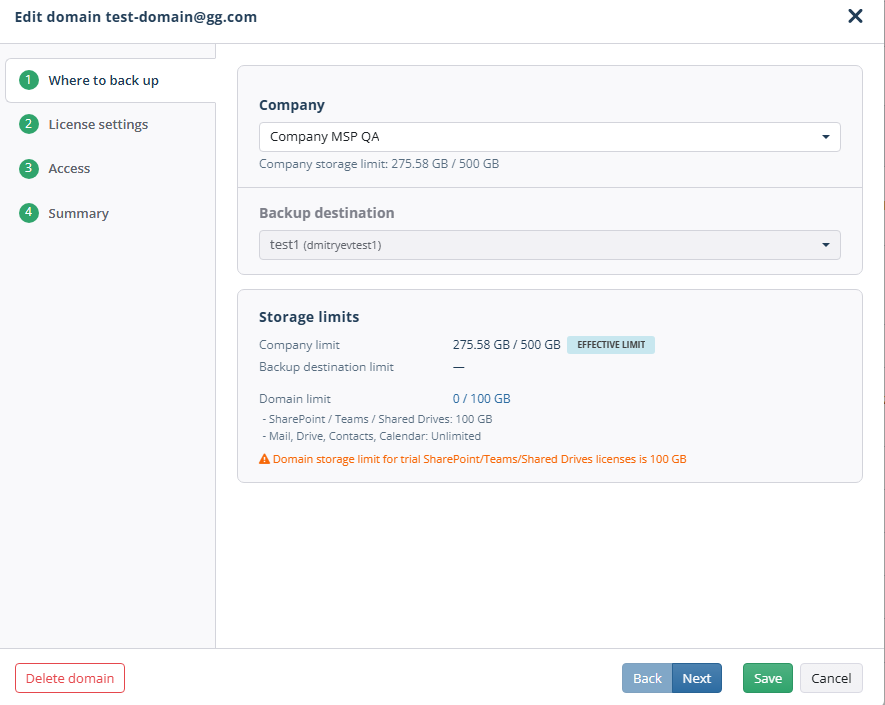
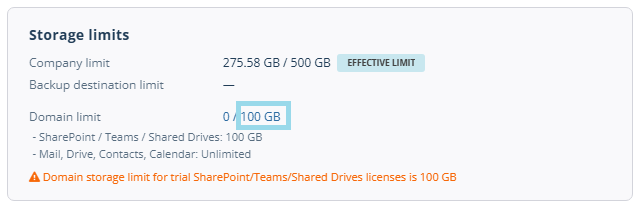
- To manage the domain storage limit, click the domain storage limit value.
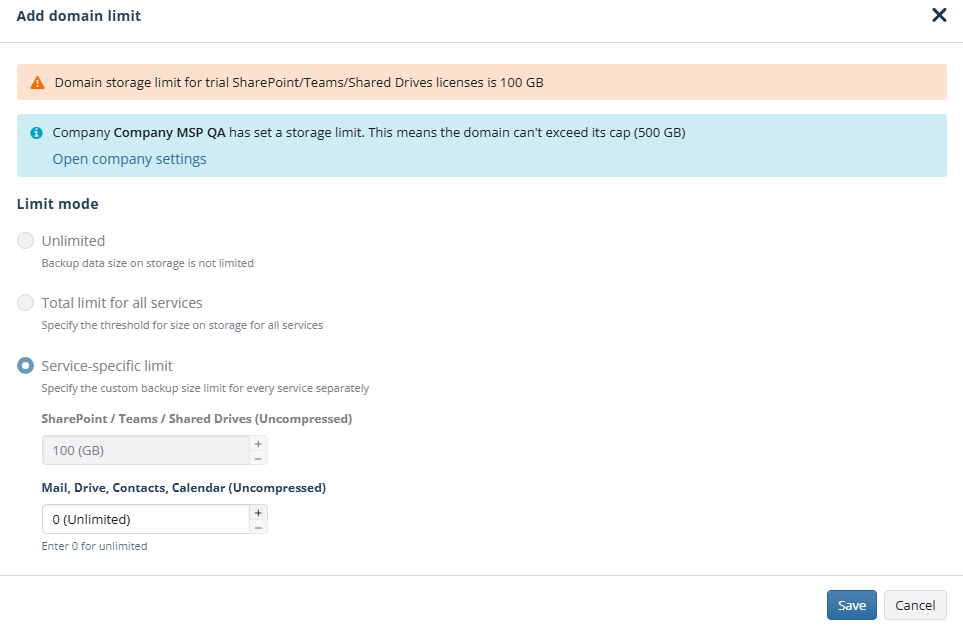
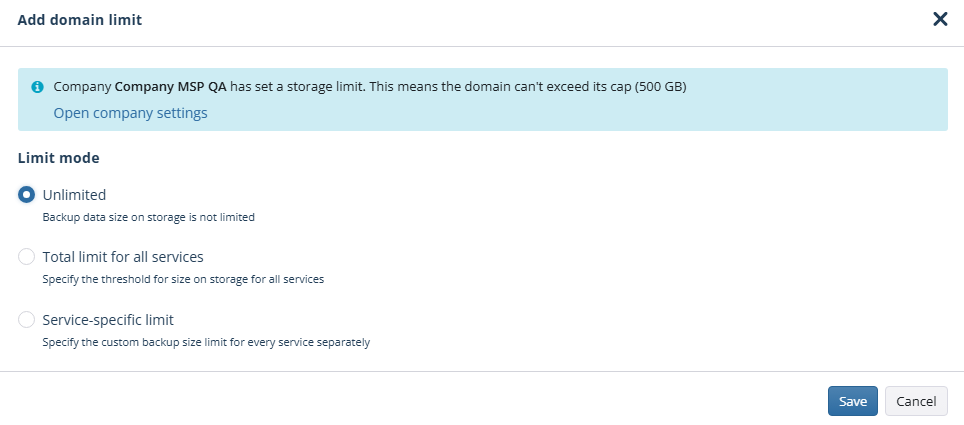
- In the Add domain limit dialog, configure the domain limit settings:
- Unlimited. Backup data is not limited. However, if the domain is assigned to a company with an applied storage limit, that limit will still be enforced.
- Total limit for all services. Specify the maximum size of backup data on storage for all services. Value 0 means that the backup size is not limited.
- Service-specific limit. A custom backup size limit can be specified for selected services. Value 0 means that the backup size is not limited.
- Click Save.
- To learn more about managing domains, refer to the Manage Domains chapter.
Edit Storage Limit for Domain
To manage domain limit settings, a paid M365/Google Backup license is required.
To manage SharePoint / Teams / Shared Drives service-specific limit, a paid SharePoint / Teams / Shared Drives license is required. The trial SharePoint / Teams / Shared Drives service-specific limit is 100 GB.
To change the storage limit
Open the Management Console.
In the M365/Google Backup menu, click the name of the existing domain to open the domain settings.
On the Where to back up step, check the existing limit options:
- Company limit. The first value is the used storage, and the second value is the associated company storage limit. If the domain backup size exceeds this value, the backup will be suspended. You can manage this limit on Organization > Companies.
- Backup destination limit. The first value is the used storage, and the second value is the selected backup destination storage limit. If the domain backup size exceeds this value, the backup will be suspended. You can manage this limit on Backup > Storage Limits.
- Domain limit. The first value is the used storage, and the second value is the configurable domain storage limit. The domain storage limit must be less than or equal to the backup destination limit or the company limit (if the backup destination limit is not set).
- Service-specific limits:
- SharePoint / Teams / Shared Drives. For trial SharePoint/Teams/Shared Drives licenses, the limit is 100 GB.
- Mail, Drive, Contacts, Calendar.
To manage the domain storage limit, click the domain storage limit value.
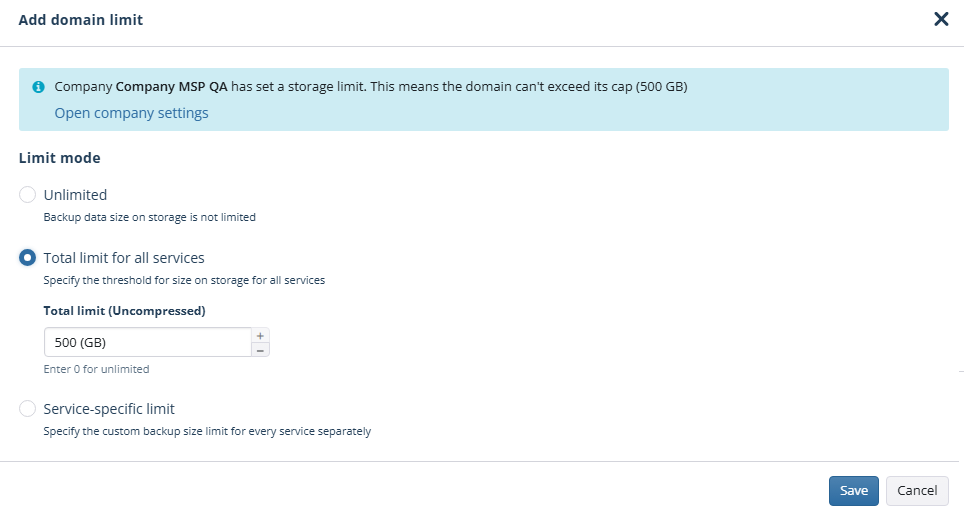
In the Add domain limit dialog, change the domain limit settings:
- Unlimited. Backup data is not limited. However, if the domain is assigned to a company with an applied storage limit, that limit will still be enforced.
- Total limit for all services. Specify the maximum size of backup data on storage for all services. Value 0 means that the backup size is not limited. However, if the domain is assigned to a company with an applied storage limit or the backup destination has a storage limit, these limits will still be enforced, and the lower limit will apply.
- Service-specific limit. A custom backup size limit can be specified for selected services. Value 0 means that the backup size is not limited. However, if the domain is assigned to a company with an applied storage limit or the backup destination has a storage limit, these limits will still be enforced, and the lower limit will apply.
Click Save.
Remove the Storage Limit for Domain
To remove the storage limit
- Open the Management Console.
- In the M365/Google Backup menu, click the name of the existing domain to open the domain settings.
- On the Where to back up step, click the domain limit value to manage it.
- Select Unlimited. However, if the domain is assigned to a company with an applied storage limit or the backup destination has a storage limit, these limits will still be enforced, and the lower limit will apply.
- Click Save. The domain storage limit will no longer be applied.
If necessary, you can also remove the company storage limit applied to a company this domain is associated with.