Renew Licenses
As you have a bundle of subscriptions/licenses, all these licenses are automatically renewed according to the billing period specified at the moment of purchase (monthly). This applies to all successful transactions.
- For monthly renewal, it occurs on the first day of the month.
Note that MSP360 storage accounts (powered by AWS or Wasabi) are billed on the second or third calendar day of each month due to billing peculiarities. Bills are always monthly
Check Your Licenses Auto-Renewal Status
To check the current status, proceed as follows:
- Open the Management Console.
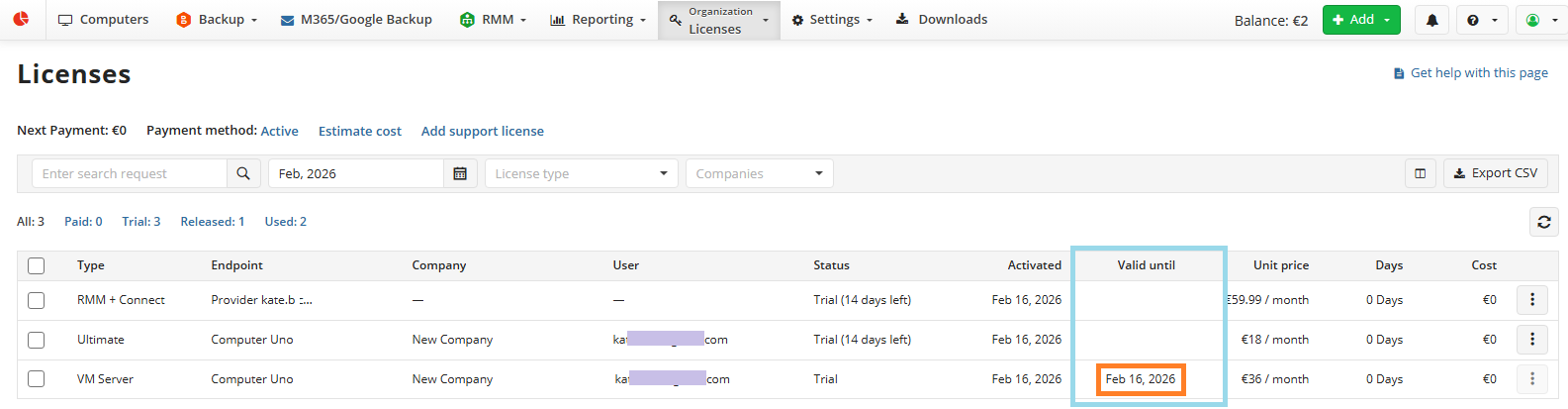
- On Organization > Licenses select the license you want to check auto-renewal status.
- Check the renewal status in Valid until column. Refer to the Valid until column, for licenses with disabled auto-renewal this column contains the last date the license is still valid.
Enable Auto-Renewal In Bulk
To enable auto-renewal for multiple licenses/subscriptions:
- Open the Management Console.
- On Organization > Licenses, select the licenses where you want to enable the auto-renewal.
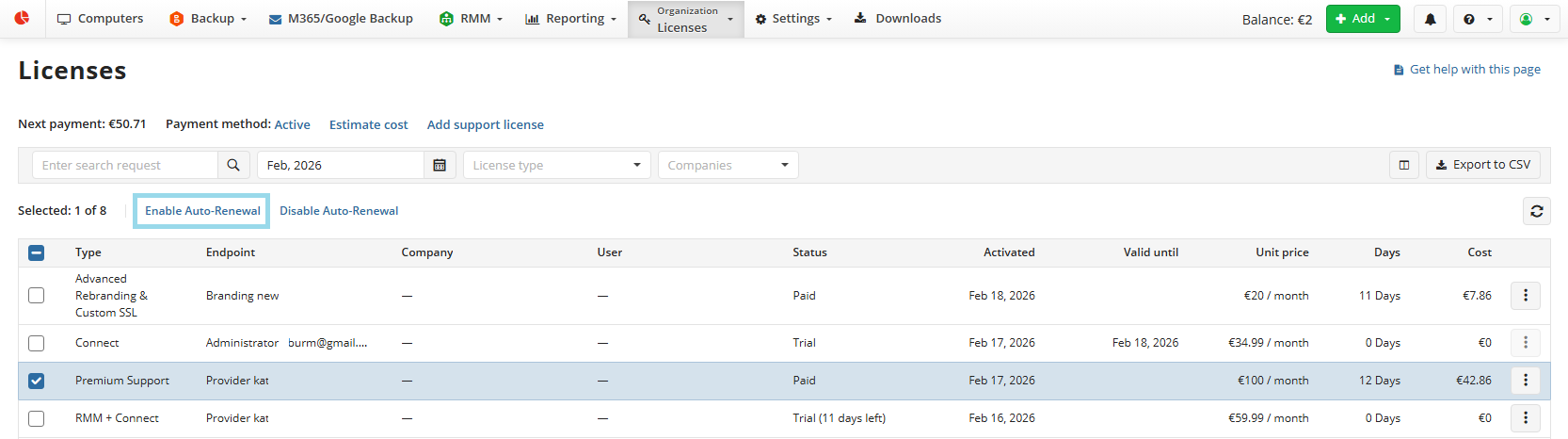
- Click Enable Auto-Renewal.
- In the Enable License Auto-Renewal dialog box click Enable. Auto-renewal works as follows: as licenses expire, an attempt to charge is performed. If the payment is successful, licenses are extended for the next billing period.
Disable Auto-Renewal In Bulk
To disable auto-renewal for multiple licenses/subscriptions:
- Open the Management Console.
- On Organization > Licenses, select the license where you want to disable the auto-renewal.
- Click Disable Licenses Auto-Renewal.
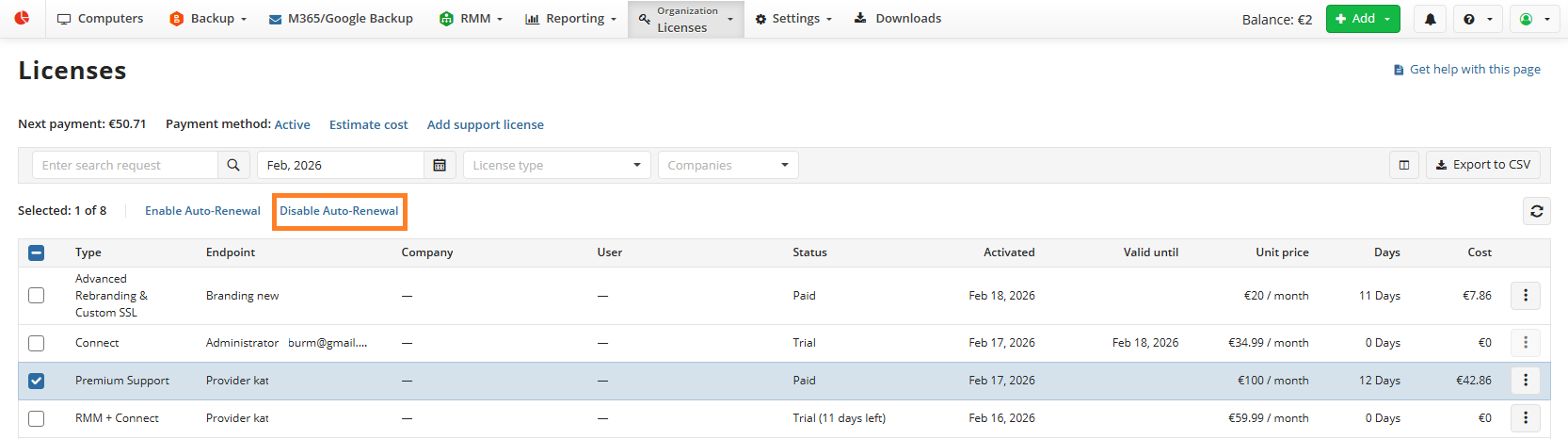
- In the Disable License Auto-Renewal dialog box click Disable. License will be discontinued the next day after expiration date. No further charges will be applied.
Disable Auto-Renewal for Specific Licenses
To disable auto-renewal for a specific license/subscription:
- Open the Management Console.
- On Organization > Licenses, select the license where you want to disable the auto-renewal.
- Expand actions and select Disable auto-renewal.
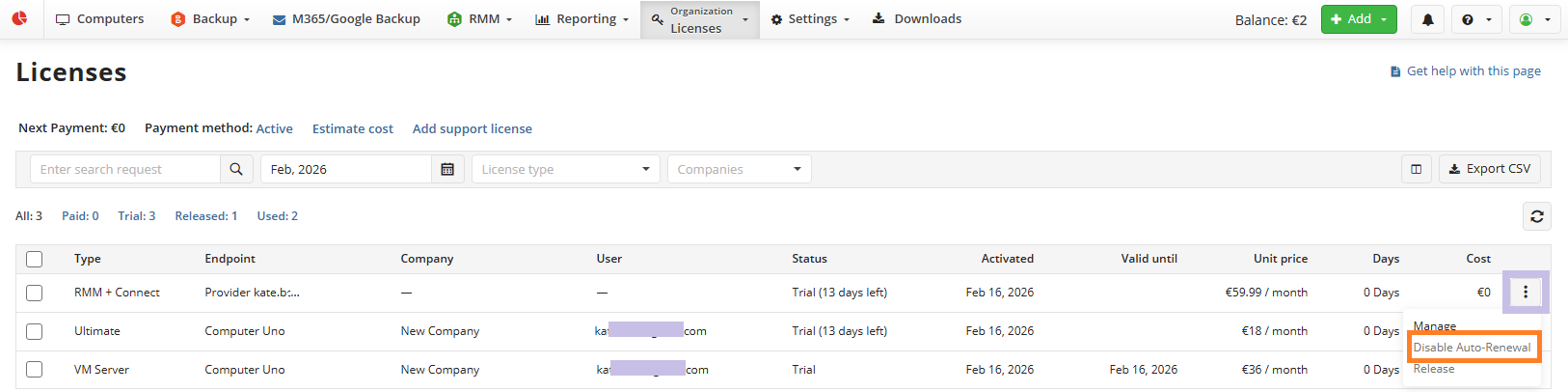
- Confirm disabling.
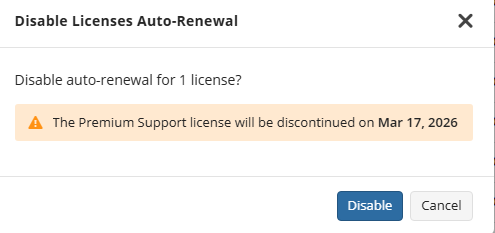
- In the Disable Licenses Auto-Renewal dialog box click Disable.
Troubleshooting
If the licenses were not auto-renewed, proceed as follows:
- Make sure the Auto-Renewal status is enabled for the license.
- The credit card stored in your payment details is valid. Update your payment method, if necessary.
- You have enough balance on your card.
- The billing amount does not exceed your security limit.
To change your payment details, in the Organization, select Licenses, then click Update payment details next to the Subscription Status.
In case the auto-renewal fails, the licensing service will keep retrying to make the transactions 3 times, 1 time per day. If the renewal fails, try to renew the failed licenses manually, by clicking the Renew Licenses button on the Licenses page.
In case you experience difficulties, errors persist or you have any questions with license renewal, contact us at: success@msp360.com.