Built-in Ticket Settings for Integrations
General Settings
Configure settings to apply them to tickets created for Backup and RMM Agents. The following administrator permissions are required to view and configure built-in tickets:
- Products > Tickets to view the Tickets page
- Miscellaneous > Integrations / Built-in tickets to configure ticket settings for integrations in Settings > Tickets.
To configure ticket settings, perform the following:
- Open the Management Console.
- In the Settings menu, select Backup/RMM Tickets.
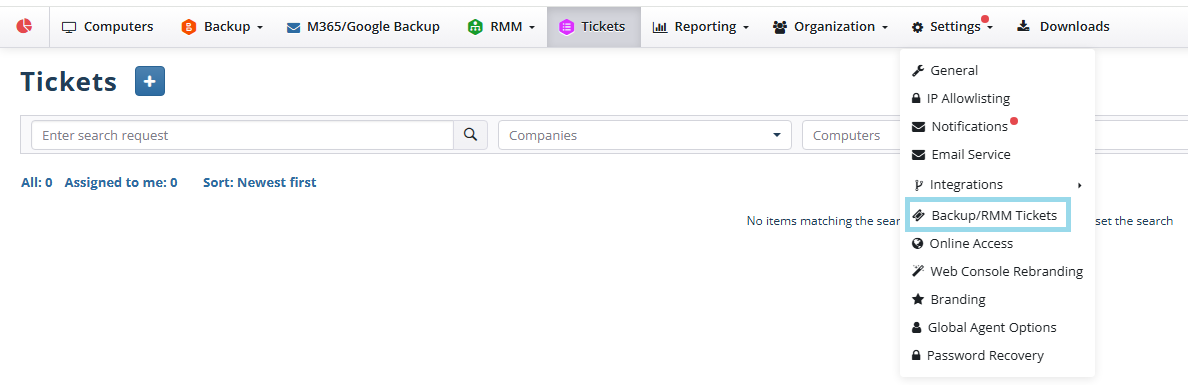
On the General settings tab, select general settings for handling tickets.
Select how the backup tickets will be created or closed.
- Always create new tickets
- Update open tickets and create new ones if they are closed
Save the settings. These settings will affect all tickets in the configured integrations.
Backup Tickets
To configure how the tickets for Backup Agent will be created and managed, perform the following:
- Open the Management Console.
- In the Settings menu, select Backup/RMM Tickets.
- Open the Backup Tickets tab. Configure the ticket details that will be automatically added when specific backup statuses are detected.
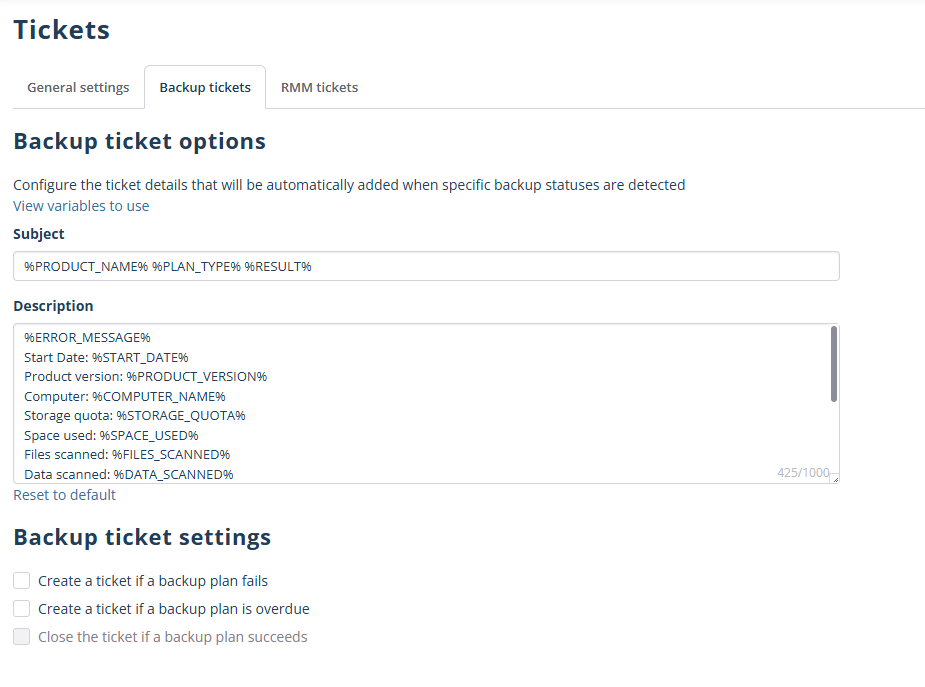
The options you can select for backup tickets are loaded from the integration. If you cannot see any options, first create them in the integration.
- Configure a subject for the backup tickets. The subject must not exceed 100 characters. Excess characters are truncated. This is an integration restriction. Use macros to add the values of the specified variables:
- %USER_NAME%
- %COMPANY%
- %USER_EMAIL%
- %COMPUTER_NAME%
- %RESULT%
- %PRODUCT_NAME%
- %BACKUP_PLAN_NAME%
- %PLAN_NAME%
- %PLAN_TYPE%
- Configure a description.
- Select how the backup tickets will be created or closed.
- Create ticket if a backup plan fails
- Create ticket if a backup plan is overdue
- Close ticket if the backup plan succeeds
RMM Tickets
To configure how the tickets for RMM Agent will be created and managed, perform the following:
- Open the Management Console.
- In the Settings menu, select Backup/RMM Tickets.
- Open the RMM Tickets tab. RMM tickets can be created if the create ticket post-action is selected in the RMM alert profile settings.
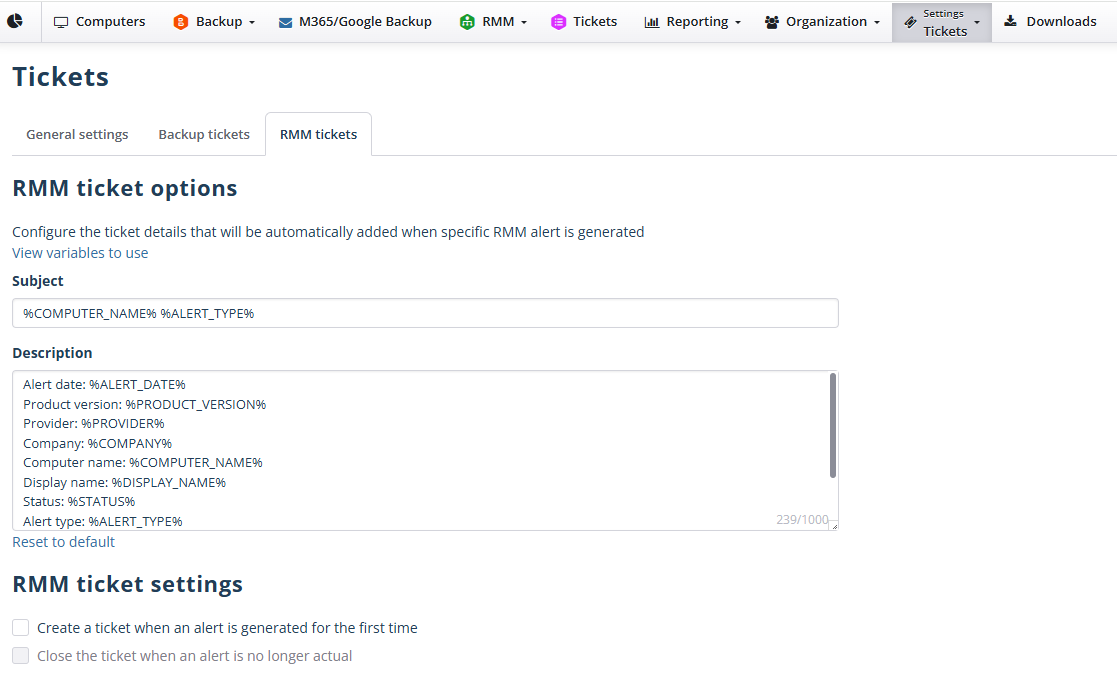
- Configure a subject for the backup tickets. The subject must not exceed 100 characters. Excess characters are truncated. This is an integration restriction. Use macros to add the values of the specified variables:
- %USER_NAME%
- %COMPANY%
- %USER_EMAIL%
- %COMPUTER_NAME%
- %RESULT%
- %PRODUCT_NAME%
- %BACKUP_PLAN_NAME%
- %PLAN_NAME%
- %PLAN_TYPE%
- Configure a description.
- Select how the backup tickets will be created or closed.
- Create a ticket when an alert is generated for the first time
- Close the ticket when an alert is no longer relevant