Email Service
You can use the following services to send email notifications to your users:
The primary reasons to use a custom SMTP or Amazon SES service are:
- You can manage your own SPF record and handle email bounces yourself
- You can access email statistics
Proper email service configuration helps prevent your notifications from being marked as spam.
Notification Delivery Issues
The system now detects cases where Managed Backup is unable to deliver notifications, allowing you to address them promptly. If a notification email cannot be delivered to one of the specified recipients, the following banner appears in the Management Console:

Click X recipients to see details and the affected email addresses.
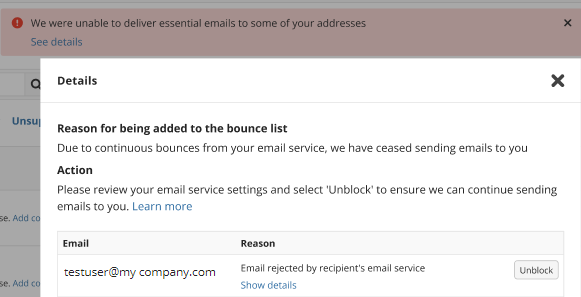
You can unblock them in case you adjusted the email service settings.
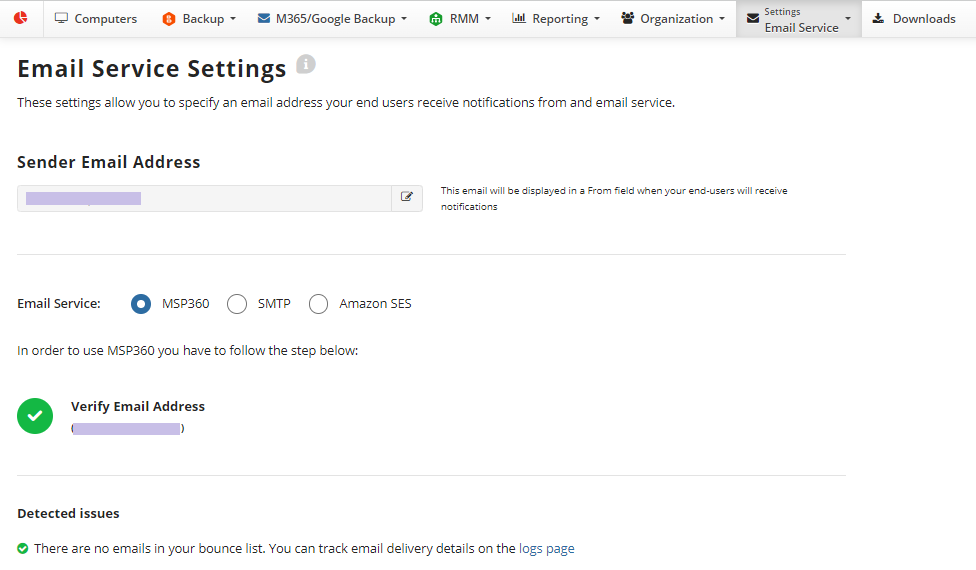
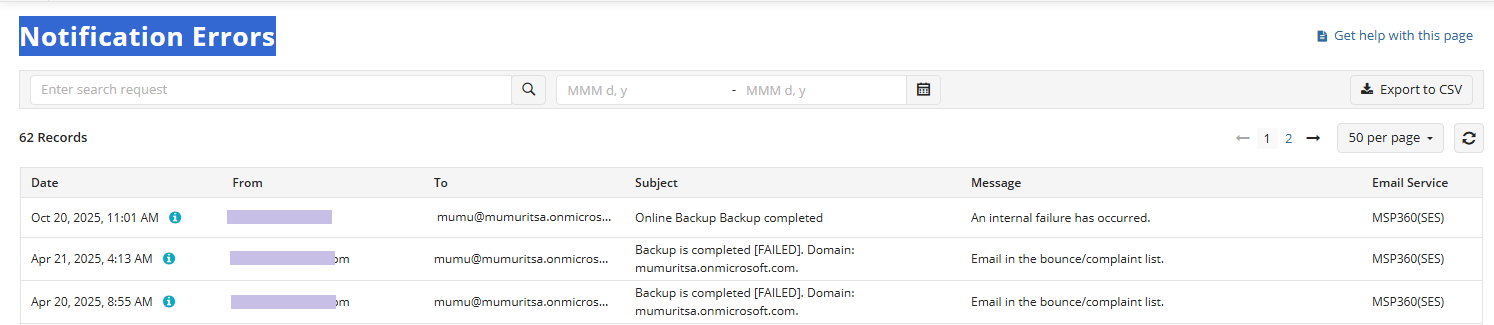
For complete information on the issue for every email address, click Notification Errors.

You can export this list to CSV or use the provided search function to quickly identify issues related to specific addresses or events.
Configure Email Service
To configure the email service, proceed as follows:
- Open the Management Console.
- In the Settings menu, select Email Service.

- Select the required email service, then specify custom settings. To learn more about custom settings, refer to the paragraphs below.
- Once you are done, click Save changes.
Configure MSP360 Email Service
MSP360 is our own email service based on Amazon SES. If you select the MSP360 email service, you do not need any further settings except the sender's email verification.
To use the MSP360 email service, proceed as follows:
- Open the Management Console.
- In the Settings menu, select Email Service.
- Select MSP360.
- Specify the required email address, then click Verify.
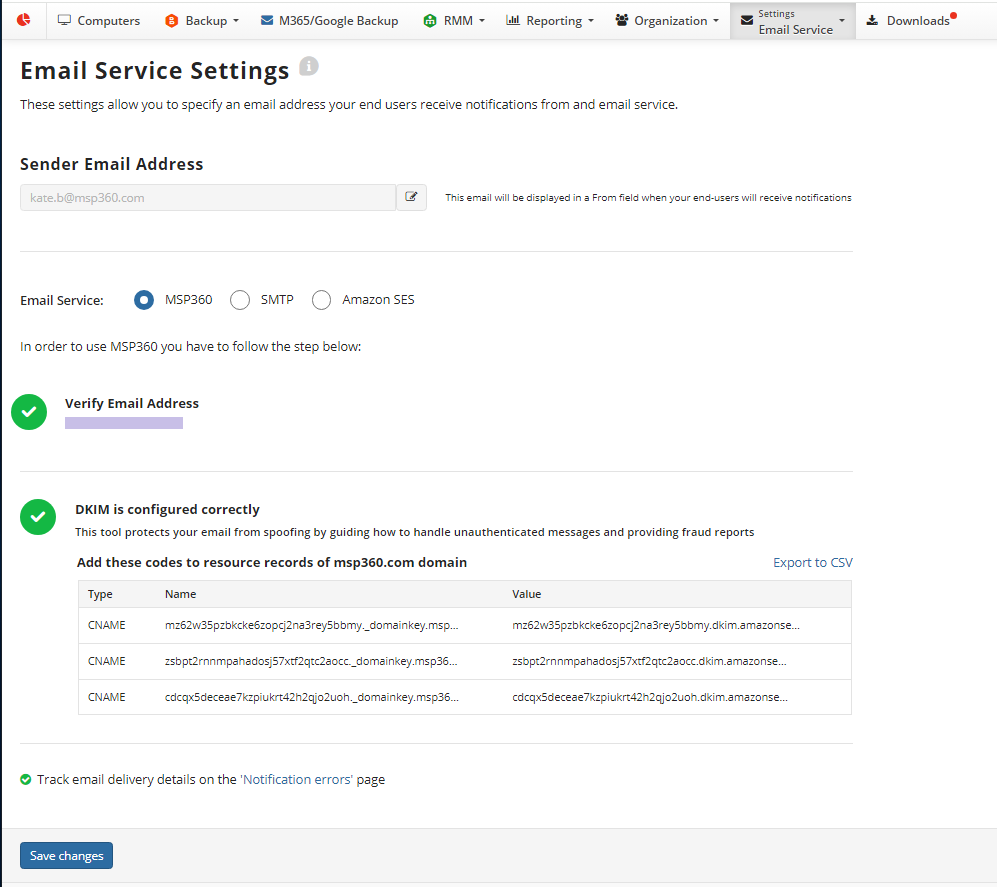
- Once the email address is verified, click Save changes.
Configure Custom SMTP Email Service
You can use your own SMTP service to send email messages to your users.
To use your own SMTP email service, proceed as follows:
- Open the Management Console.
- In the Settings menu, select Email Service.
- Select SMTP.
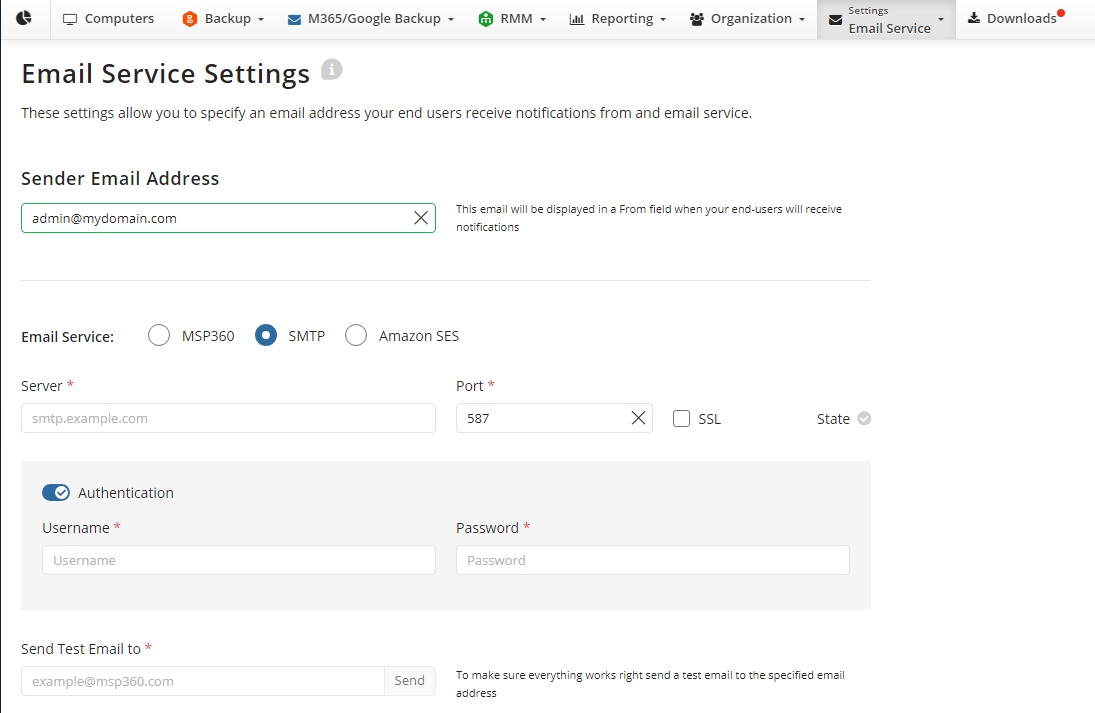
- Specify the mail server settings:
- In the Server field, enter your SMTP server address
- In the Port field, enter the port number
- Customize the SSL usage: select the SSL check box or leave it unselected. Refer to the table below to figure out which settings you need to specify for the correct operation of your SMTP server
| Port | SSL Enabled | Connection Status |
|---|---|---|
| 25 | ✔️ | - |
| 25 | - | ✔️ |
| 465 | ✔️ | ✔️ |
| 465 | - | - |
| 587 | ✔️ | - |
| 587 | - | ✔️ |
| Custom port | ✔️ | Depends on server |
| Custom port | - | Depends on server |
| Empty port | ✔️ | ✔️ |
| Empty port | - | ✔️ |
If you use your own SMTP email service (the SMTP option), the following IP addresses of Managed Backup SMTP Servers should be allowed on customer's SMTP server for connection:
52.6.7.137
52.5.40.159
3.230.30.31
18.205.167.123
From these IP addresses Managed Backup services can connect to customer provided SMTP servers for sending emails.
Configure SMTP Email Service for Google Workspace
For correct operation of email service using your SMTP server with Google Workspace email addresses (for example, smtp.gmail.com), specify one of the following settings:
| Port | SSL Enabled | Connection Status |
|---|---|---|
| 25 | ✔️ | |
| 25 | - | ✔️ |
| 465 | ✔️ | ✔️ |
| 465 | - | - |
| 587 | ✔️ | - |
| 587 | - | ✔️ |
Configure SMTP Email Service for Microsoft 365
As announced by Microsoft, Basic Authentication will be turned off for all tenants starting October 1, 2022, with the exception of SMTP AUTH. To avoid any issues with notifications, we recommend using another email service option. Read KB article for details
For correct operation of the email service with your SMTP server with Office 365 email addresses (for example, smtp.office365.com), specify one of the following settings:
| Port | SSL Enabled | Connection Status |
|---|---|---|
| 25 | ✔️ | - |
| 25 | - | ✔️ |
| 587 | ✔️ | - |
| 587 | - | ✔️ |
- If your mail server requires authentication, enable it with the Authentication toggle button, then specify the authentication credentials.
- In the Send test email to field, specify the email address for testing purposes. Note that this field is mandatory.
- Once you are done, click Save changes.
Configure Custom Amazon SES Email Service
If you have an Amazon AWS account, you can use your specific Amazon SES. This service may be useful when you need to send many email messages simultaneously, view email sending statistics, etc.
SES-configured AWS account needs to be added to the Management Console even if you do not use Amazon S3 as your backup storage provider.
To estimate your expenses using Amazon SES, refer to the Amazon SES pricing chapter at aws.amazon.com
Note that once you selected the Amazon SES email service, in order to get back to the MSP360 email service usage, you need to address to MSP360 technical support team for assistance
To use the Amazon SES email service, proceed as follows:
- Perform steps 1-2 described in the Configure Email Service paragraph.
- Select Amazon SES.
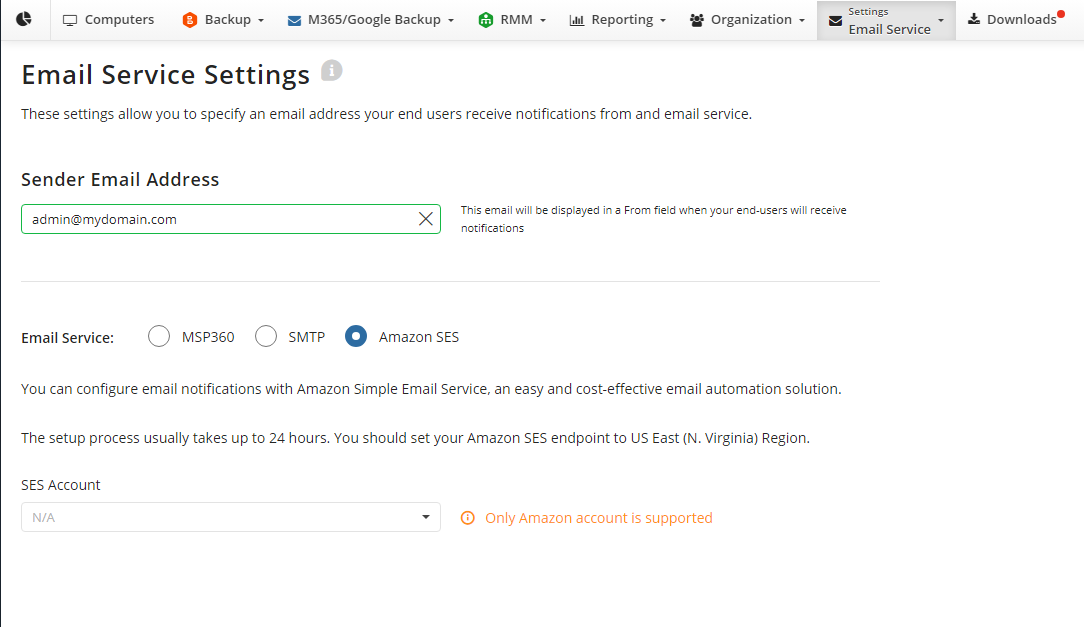
Select SES configured AWS account that was added to Management Console.
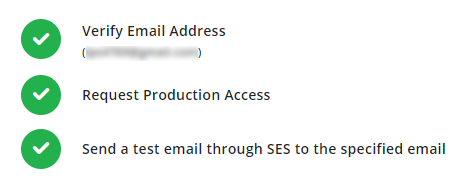
Proceed with the steps provided for the Amazon SES email service:
- Verify your email. Click Verify Email, then wait until your email address is verified
- Request production access. Once your email address is verified, your SES account is put into a sandbox. While your Amazon SES account is in the sandbox, several restrictions are applied:
- You can only send mail to verified email addresses and domains, or the Amazon SES mailbox simulator
- You can only send mail from verified email addresses and domains
- You can send a maximum of 200 messages per 24-hour period
- You can send a maximum of 1 message per second
To request that your account be removed from the Amazon SES sandbox using the AWS Management Console, proceed with the instructions in the Moving out of the Amazon SES sandbox chapter at docs.aws.amazon.com
- Send a test email through SES to the specified email address.
- Once you are done, click Save changes.