Synthetic Full Backup
Synthetic full backup is a backup type that creates a full backup using in-cloud data copying.
A synthetic full backup is a type of backup that creates a full backup using in-cloud data copying, significantly improving speed and efficiency by saving time and reducing network traffic. This method combines synthetic incremental backups with in-cloud data copying, where data is copied on the cloud side only, making it much faster than traditional full backups from an endpoint to cloud.
How It Works
A synthetic backup is completed in three stages:
- Incremental Backup.
- This stage creates a new restore point in the current backup generation. After a successful synthetic incremental backup, all necessary data for the synthetic full backup is stored in the backup storage.
- In-Cloud Data Copying.
- After the synthetic incremental backup is completed, a new backup generation is created. The new generation is built as an active point-in-time state from the data available in the previous generation and the data uploaded during the synthetic incremental backup.
- For example, if a file was backed up in an earlier incremental restore point but was deleted from the source before the synthetic full backup, its data is not carried over to the new generation.
- This means that data from previous incremental restore points is not simply aggregated into the new synthetic full backup. Data that no longer belongs to the current point-in-time state is not included.
Not all storage providers support in-cloud copying. Refer to the Support for Major Storage Providers section below.
- Deletion of Synthetic Incremental Data.
- Once the data copying within the cloud is successfully completed, the synthetic incremental backup data from the previous generation is deleted, marking the synthetic backup as complete and successful.
- When the previous generation is eventually purged, data that was present only in intermediate restore points and is no longer part of the current generation is permanently removed.
Questions and Answers
Q: What happens if a synthetic full backup is interrupted for some reason?
A: The result depends on the stage of interruption. If the synthetic incremental backup was successful but the in-cloud copying was interrupted (e.g., due to network issues), the new generation will be deleted, and the successful synthetic incremental backup will remain valid for the previous generation. If the synthetic incremental backup fails, it is treated as a regular backup failure.
Synthetic Full Backup Applicability
Synthetic backup applies for the following backup types:
- File-Level Backup
- Image-Based Backup
- VMware Backup
- Hyper-V Backu
- Backup to Proxmox Server
Support for Major Storage Providers
A synthetic backup type is supported by the following storage providers:
- Amazon S3 (except S3 Glacier Flexible Retrieval and S3 Glacier Deep Archive storage classes)
- Microsoft Azure (except Azure Archive)
- Backblaze B2
- Wasabi
- MinIO
- IDrive e2
- Impossible Cloud
- S3-compatible storage (depends on storage provider)
Synthetic full backup usage for long-term (cold) storage tiers could result in higher storage costs. Please exercise discretion.
The minimum data part size limitations for in-cloud copying imposed by storage providers could cause the appearance of metadata objects on the storage.
Synthetic Full Backup in Backup Plans
If a plan type and destination support synthetic full backup, it will be switched on automatically. For the cases when synthetic backup is not supported, you still can turn it on manually.
Management Console:
To turn the synthetic full backup on for the backup plan:
- Select a backup plan you want to run a synthetic full backup for, then expand it.
- Click the Edit icon.
- Proceed to Where to back up step and click thr Advanced options and enable editing for them, if prompted.
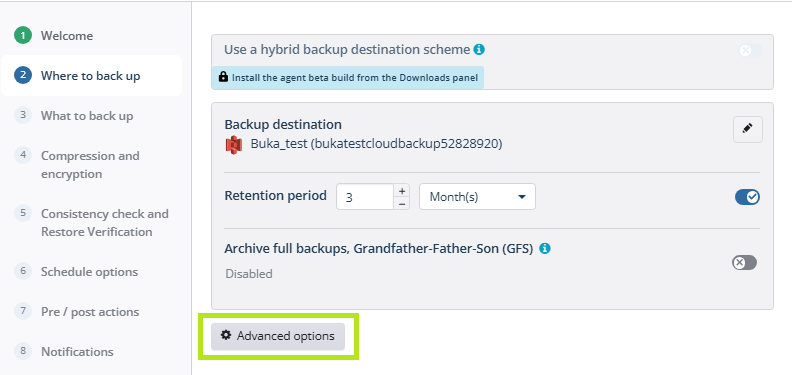
- Enable synthetic full backup
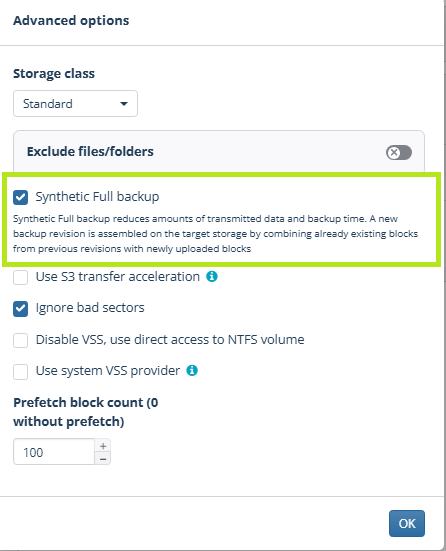
Backup Agent:
To turn the synthetic full backup on for the backup plan:
- Select a backup plan you want to run a synthetic full backup for, then expand it.
- Click the Edit icon to change advanced options of the backup plan.
- Proceed to Advanced Options and enable editing for them, if prompted.
- Enable synthetic full backup
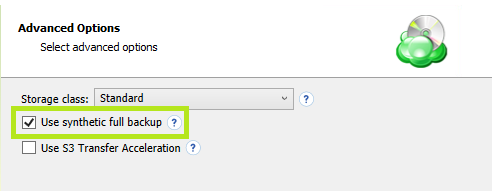
- Proceed with the backup plan to save the changes.
Every time you edit a backup plan, the synthetic full backup conditions are re-evaluated. The synthetic full backup may be disabled if the changes you made affect compatibility (for instance, if you updated the storage account to a destination that doesn’t support synthetic full backups).
Force Synthetic Full Backup for Backup Plans
If you want to force a synthetic backup by yourself:
- Select a backup plan you want to run a synthetic full backup for, then expand it.
- On the Run control, open the drop-down menu.
- Click Force Synthetic Full Backup.
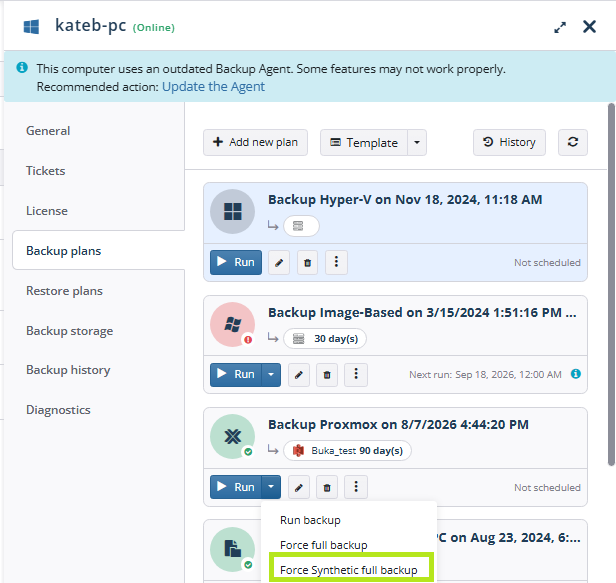
If you change compression and/or encryption settings, a synthetic backup will not be available before a full backup, so a full backup is required.