Hybrid Backup (BETA)
Hybrid Backup (BETA) is currently available only for the new backup format and Windows computers. For information about Hybrid Backup in the current backup format, see the corresponding article.
Hybrid Backup combines local and cloud backups into a single backup plan. Instead of creating separate backup plans for local and cloud storage, the data is backed up to a local storage destination first (for example, a NAS device) and then replicated from the local storage to the cloud.
This functionality requires Backup Agent 8.7.5 for Windows or higher.
Because the data is read, compressed, and encrypted only once before being copied to both destinations, Hybrid Backup reduces the workload on the source computer while simplifying backup management. With a hybrid backup plan, you can:
- Manage local and cloud backups with a single backup plan.
- Reduce CPU, disk I/O, and network load on the source computer.
- Compress and encrypt data only once before it is replicated to the cloud.
- Keep both a local copy for fast recovery and an off-site copy for disaster recovery.
Note that using non-hybrid (local or cloud) and hybrid backup plans with the same or similar backup dataset may cause revision conflicts or other errors. Errors with the following codes may occur: 1524, 1525, 1526, 1527, 2600, 2601.
To learn more, refer to the Hybrid/Non-Hybrid Errors article at kb.msp360.com.
Create hybrid backup plan in Management Console
To create a hybrid backup plan in the Management Console:
- Create a new backup plan or edit an existing one.
- On the Where to Back Up step of the backup plan, enable Use a hybrid backup destination scheme.
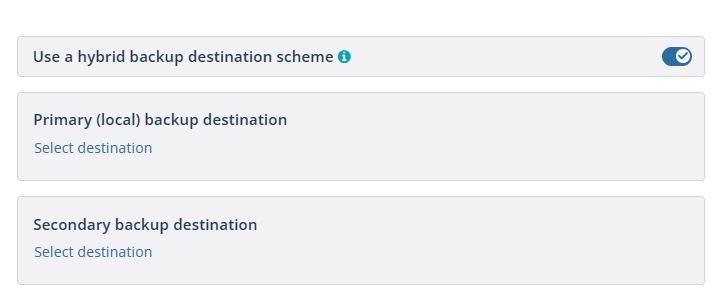
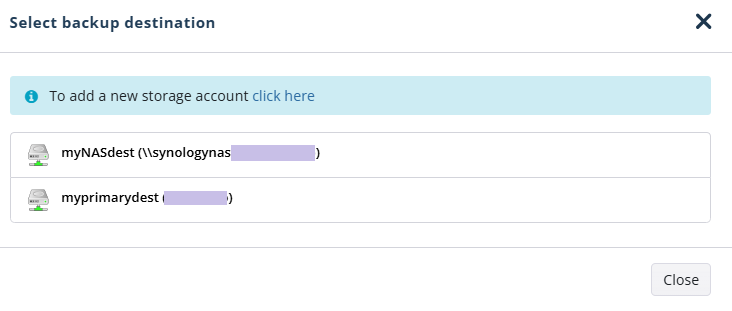
- Select the primary (local) backup destination. Click Select destination to select an existing destination or add a new file system backup destination.
By default, the retention period for the primary backup destination is set to 3 months. You can change this value, as appropriate.
Select the secondary backup destination. Click Select destination to select an existing destination or add a new file system backup destination. If no storage accounts are available, create a new one. Refer to Add New Storage Account to learn how to do it.
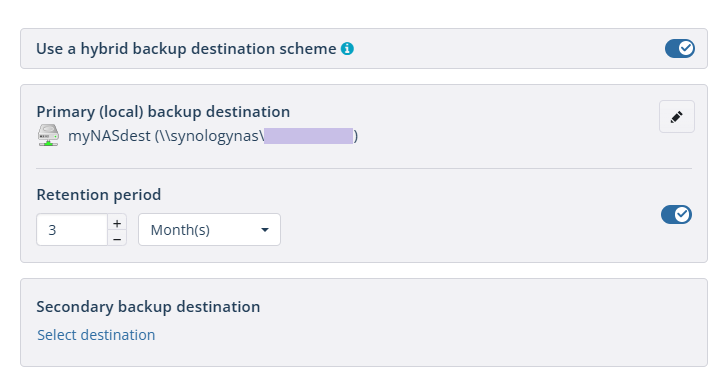
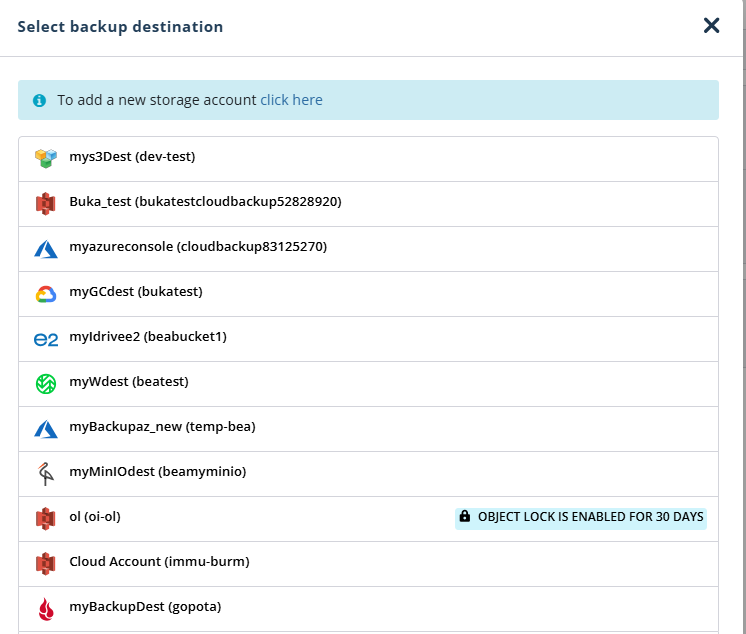
- By default, the retention period for the secondary backup destination is set to 3 months. You can change this value, as appropriate.
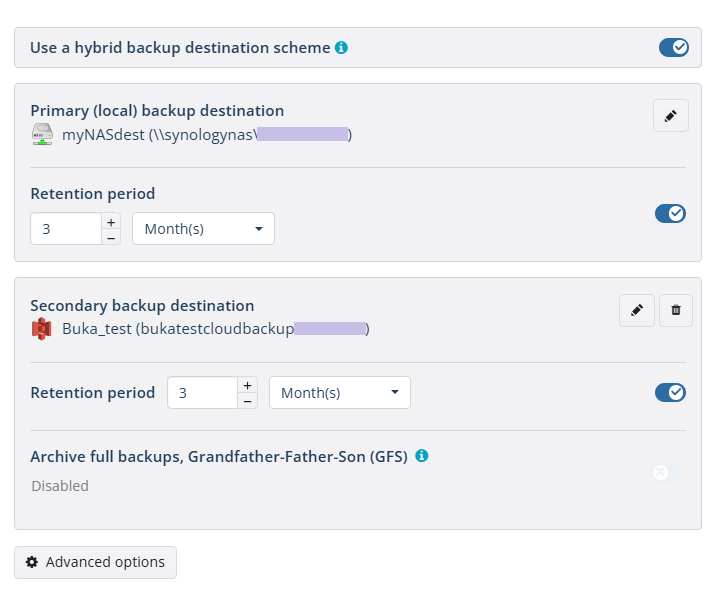
You can also enable and configure the Advanced options. Refer to the wizard description for details.
- Click Next to proceed with the wizard.
Create hybrid backup plan in Backup Agent
To create a hybrid backup plan in Backup Agent:
- Create a new backup plan or edit an existing one.
- On the Welcome page, select the Hybrid backup option.
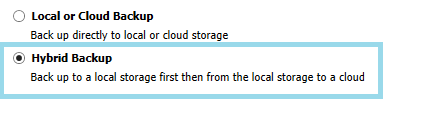
- Select the primary (local) backup destination.
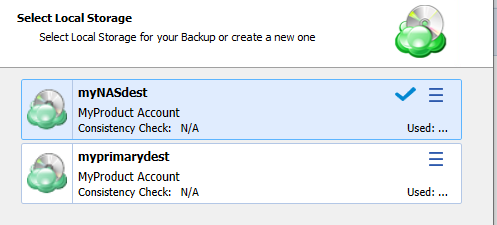
- Select the secondary backup destination.
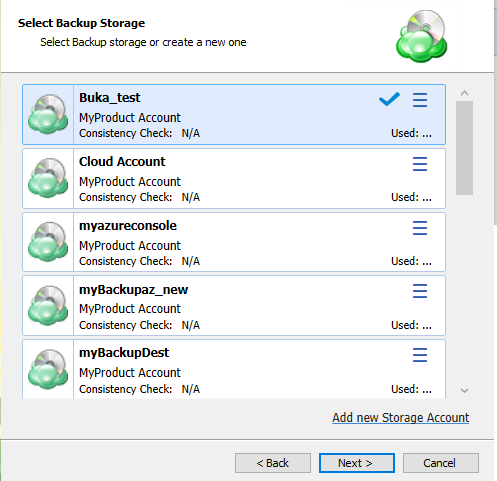
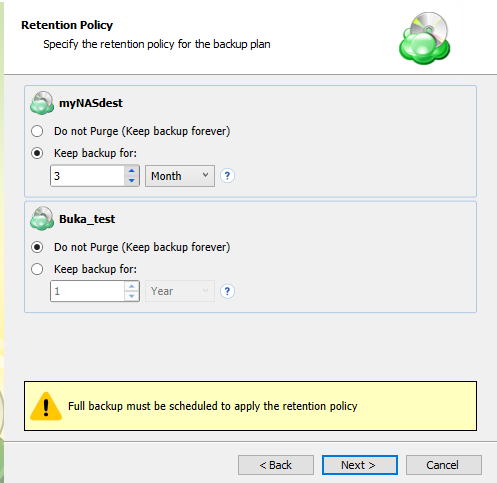
- Proceed with the wizard. On the Retention Policy step, you can configure separate retention policies for primary and secondary backup destinations.