Proxmox Virtual Machine Restore Plan (BETA)
Backup for Windows offers restores of Proxmox virtual machine backups to to Proxmox Virtual Environment (VE). This functionality is now available in beta version.
Beta version limitations for restore:
- High memory consumption is possible during the item-level restore process.
- Only one Proxmox backup or restore job can run at a time; concurrent execution is not supported.
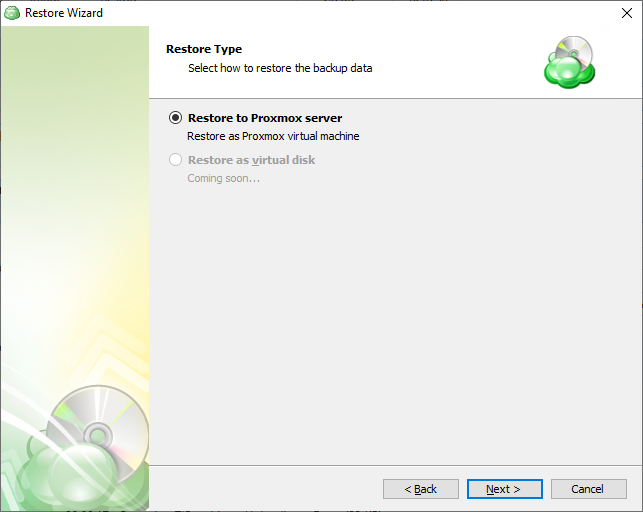
- In the beta version, restore is only supported to a Proxmox server. Restore as a virtual disk is not currently available.
Create Restore Plan
To create a new restore plan, click the Restore icon in the horizontal menu bar.
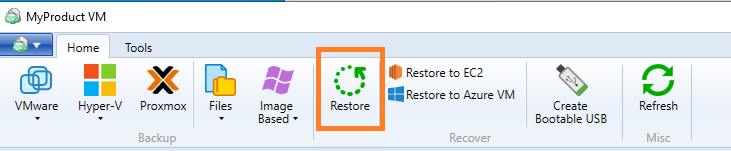
The Restore wizard starts.
Select Backup Plan to Restore
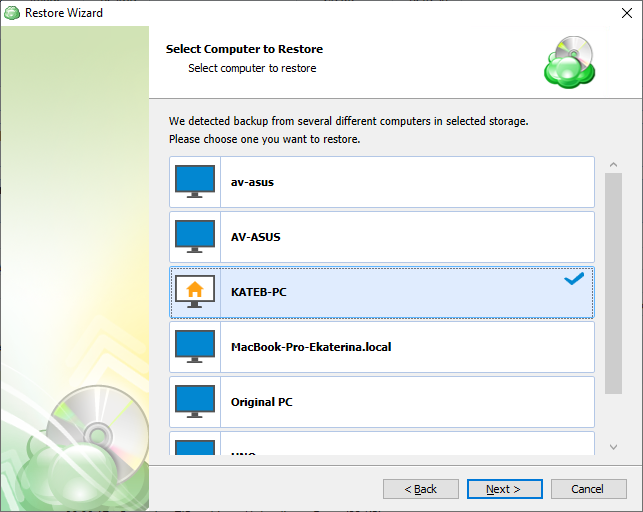
Select a backup storage account that contains the dataset to restore, then select the computer associated with the backup plan to restore.
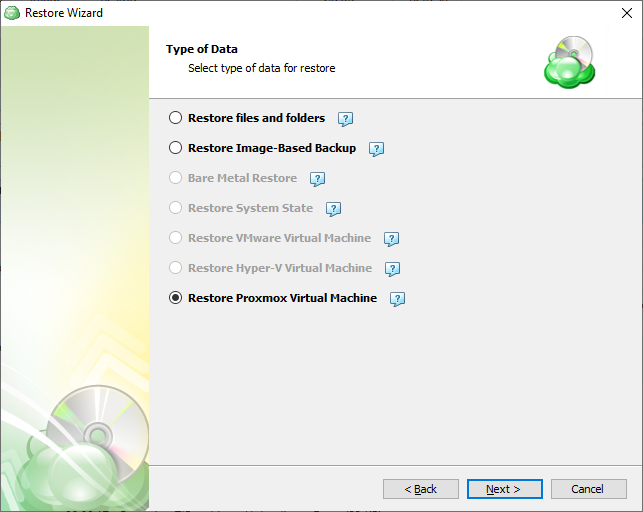
Select Type of Data to Restore
Select the Restore Proxmox Virtual Machine option to restore VMs.
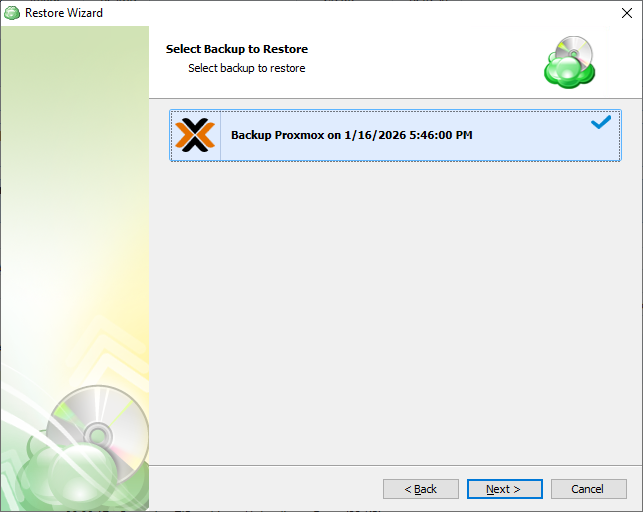
Select Backup Plan to Restore
Select a backup plan that contains the dataset to restore. Entries are named after backup plans previously created and executed successfully.
Click Next.
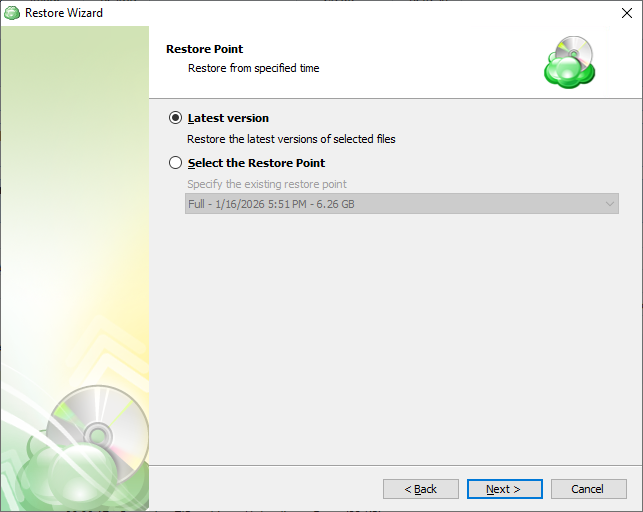
Select Restore Point
Select the required restore point for the plan. You can select the latest available restore or select the required one manually from the list.
Click Next.
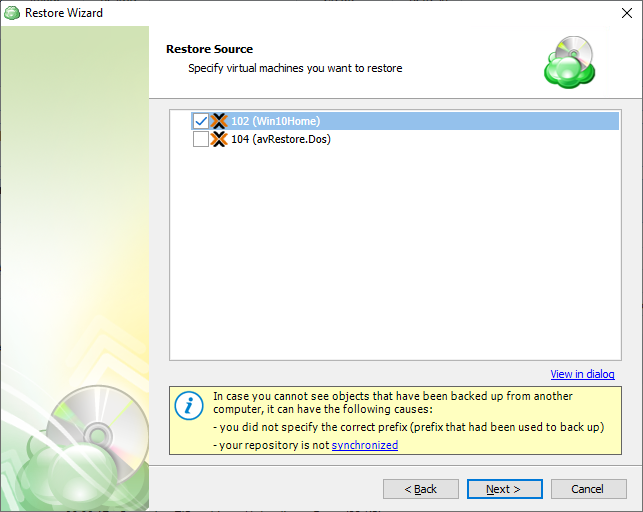
Restore Source
Select virtual machines to restore from the list.
Restore Type
This step displays all possible restore types that are available for backups currently stored in backup storage. Select Restore to Proxmox server.
Click Next.
Select Proxmox Host Server
Select Proxmox Host Server where you want to restore the selected virtual machine. Use FQDN name or IP Address of the Proxmox Host Server.
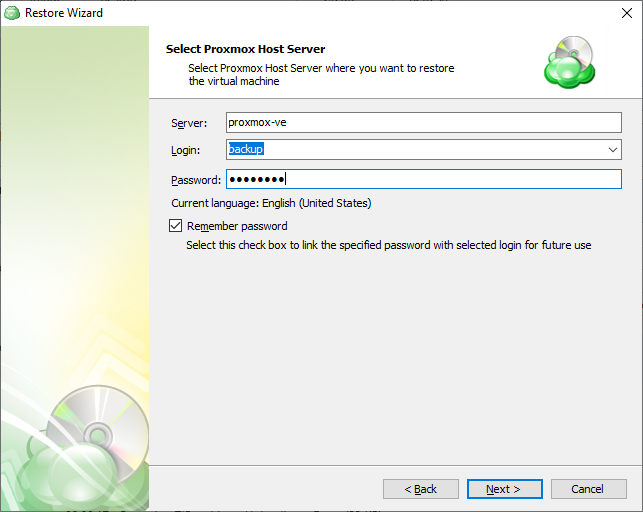
A Proxmox hostname examples (often an FQDN) are pve-server01.home.local, proxmox.mydomain.com, or a simple functional name like pve-lab. Also the IP address of the Proxmox host server can be used. Local IP addresses can be used only if the backup is created on the computer connected to the LAN containing these addresses.
Do not copy hostnames directly from the Proxmox GUI (e.g., https://pve-server01.home.local:8006). Instead, use the base hostname such as pve-server01.home.local.
In case credentials are invalid or the Proxmox host server cannot be accessed, you will not be able to proceed to the next Restore Wizard step
Click Next.
Restore Options
Select the target datastore to put the restored VMs from the list of available, then configure the restore options.
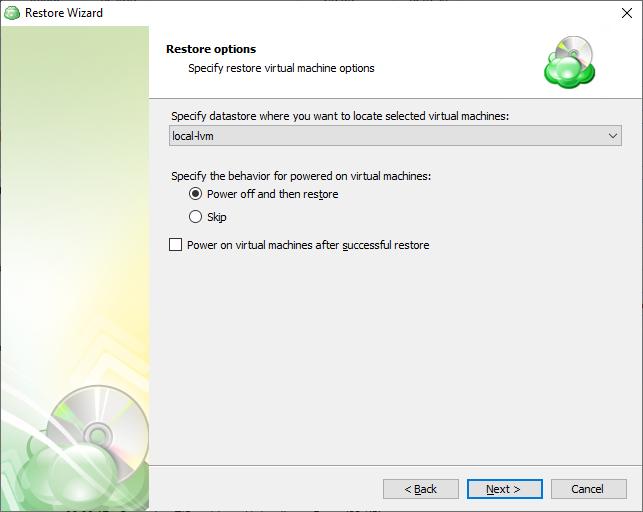
The following restore options are available:
- Configure the action for running virtual machines. You can power the VMs off and then restore or skip the restore if a virtual machine is up and running
- To run the restored virtual machines after the restore plan completes, select the Power on virtual machines after successful restore check box
Click Next.
Restore Virtual Machines As
By default new machine will be created. Specify the names for the restored VMs if required. The name should meet the DNS naming standards.
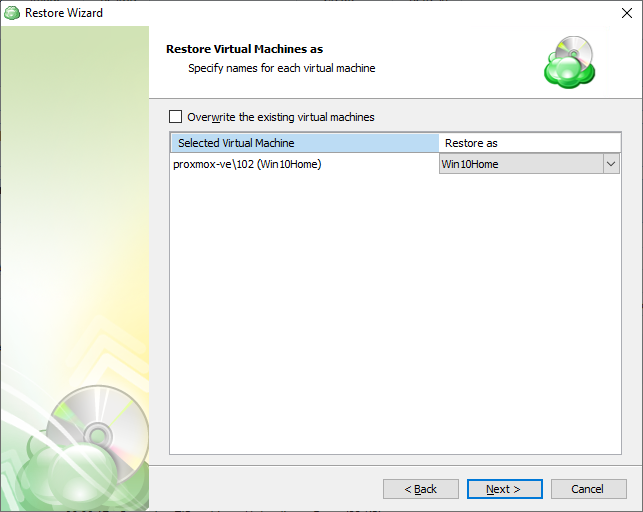
To overwrite the existing virtual machines on the target datastore, select the appropriate checkbox.
Click Next.
Complete Restore Plan Creation
Proceed with the restore wizard. Once you have reviewed your selections on the Summary step, click Next to create the restore plan.
The final step in the wizard will confirm that the Restore Plan has been created successfully. If the plan was scheduled, you can opt to run it immediately by checking the Run restore now checkbox and clicking Finish. Otherwise, the plan will be set to run at the next scheduled time.