Delete Backup Data via Azure Lifecycles
You can delete your backup data stored in Microsoft Azure Blob using lifecycle management rules.
Backup data deletion may take several days, depending on your storage account settings. The progress cannot be tracked. Once the deletion is complete, you will receive a notification via email.
Azure lifecycle management is supported only for the following storage account types:
- Standard general-purpose v2
- Premium block blobs
To use Azure lifecycle management for backup data deletion, you need to provide Azure AD Credentials.
{% hint style="warning" %} It is not recommended to delete backup data using a lifecycle policy outside of the Management Console (e.g., directly in the Azure Portal). If you delete backup data using an Azure Portal lifecycle policy directly, this may cause inconsistencies in the storage usage reports.
After you have configured Azure AD access for lifecycle management as described in the Prepare to Use Azure Lifecycle Policy article, you will have the following options to delete the data from your Azure storage via the Lifecycle Policies in the Management Console:
- Deleting the specific endpoint backup from the Organization > Users page
- Deleting the entire Microsoft Azure Blob storage account using the Storage Accounts page
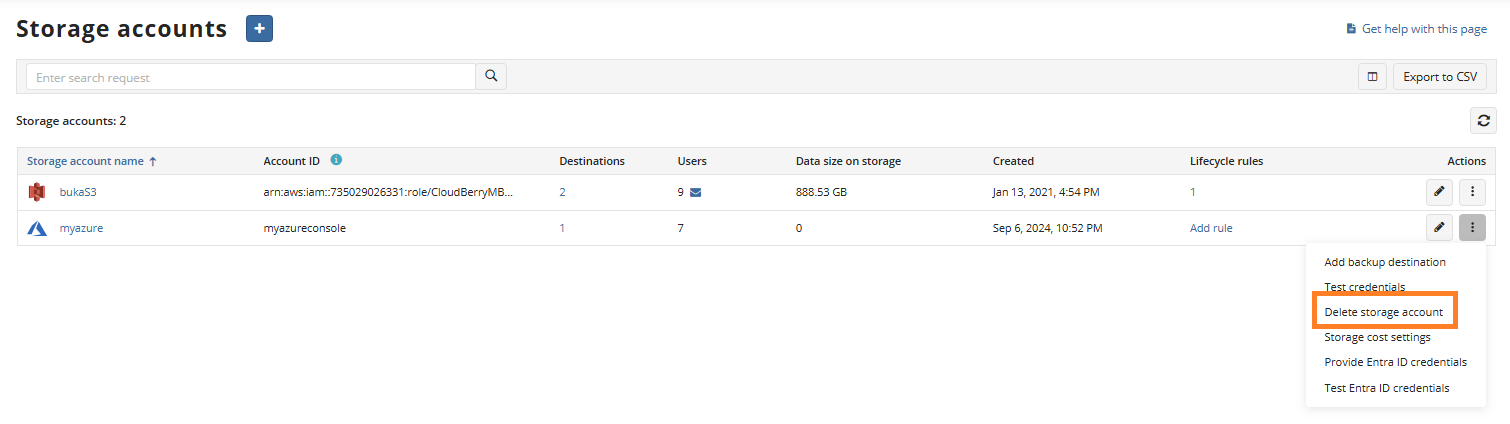
If the Azure AD Access is not configured, you will be prompted to provide Entra ID Credentials using the Configure storage account link.
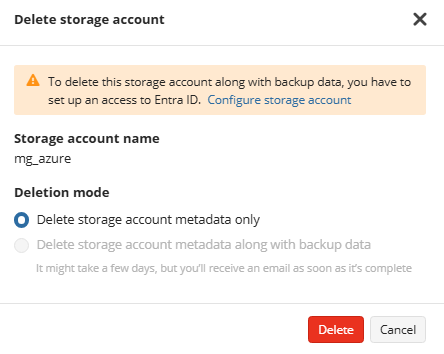
If you have already provided the Entra ID Credentials, the deletion task will be created.
- Deleting user's data via the Capacity Report. If the Azure AD Access is not configured, you will be prompted to provide Entra ID Credentials.
If you have already provided the Entra ID Credentials, the deletion task will be created.