Backup Agent Silent Installation
Backup Agent for Windows supports remote installation on users' computers without user involvement. Service providers can silently install Backup Agent on any computer they have remote access to.
To perform a silent installation, use the Windows command line.
- Start the Windows command line on the remote computer with the "Run as Administrator" option.
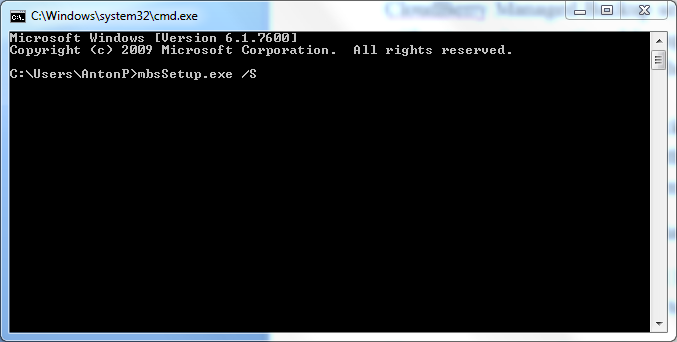
- Type "mbsSetup.exe /S" to start a silent installation with default settings.
Note: "mbsSetup.exe" is the name of the installation file you downloaded from the Management Console.
Silent Installation to a Specific Folder
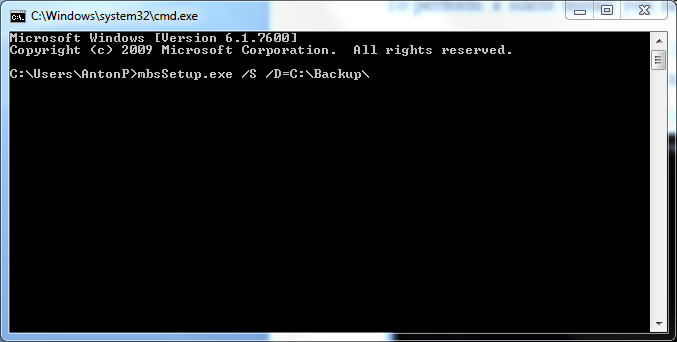
To install Backup Agent to a specific folder, type mbsSetup.exe /S /D=C:\custom installation folder.
For example, to install Backup Agent to a folder named "Backup" on drive "C:", type "mbsSetup.exe /S /D=C:\Backup".
Set Up MBS User Account Using Command Line
To set up an MBS user account, follow the steps below:
- Change the directory to the product installation folder. For example:
cd "C:\Program Files (x86)\MyCompany\Online Backup"
- Run the command to set up the MBS user account:
cbb.exe addAccount -e yourUserEmail -p userPassword
where yourUserEmail is the email of the MBS user account;
userPassword is the MBS user account password.

Silent Uninstallation
To perform a silent uninstallation, use the Windows command line.
Step 1. Start the Windows command line on the remote computer with the "Run as Administrator" option.
Step 2. Change the directory to the MBS Agent installation folder.
Step 3. Type "uninst.exe /S" to start a silent uninstallation.
