Object Lock for GFS Backups
This chapter describes the Object Lock for GFS backups feature type:
- Allow Object Lock Features for Backup Destinations
- Enable Object Lock for GFS backups in Backup Plan
- Disable Object Lock for GFS backups in Backup Plan
- Disable Object Lock Features for Storage Account
Object Lock for GFS backups is directly linked to the GFS retention policy. When enabled, full backups marked as GFS are protected from deletion (locked) for the corresponding GFS retention period.
For example, if weekly and monthly GFS retention is configured, all backups marked as weekly and monthly restore points are locked and cannot be deleted or modified for the specified GFS retention period, while all other backups will be retained for the default retention period set in the backup plan.
This feature type can be added to Default Object Lock to extend protection for GFS-based full backups beyond the Default Object Lock period set on the storage and specified in the backup destination properties.
For information on the permissions required to manage Object Lock, refer to the following article.
Grant Manage Object Lock (Immutability) Permission
To delegate Object Lock management to administrators:
- Open the Management Console
- Go to Organization > Administrators
- Click Edit for the administrator account you are planning to use for backup storage management
- Open the Permissions tab
- Enable Manage Object Lock (Immutability)
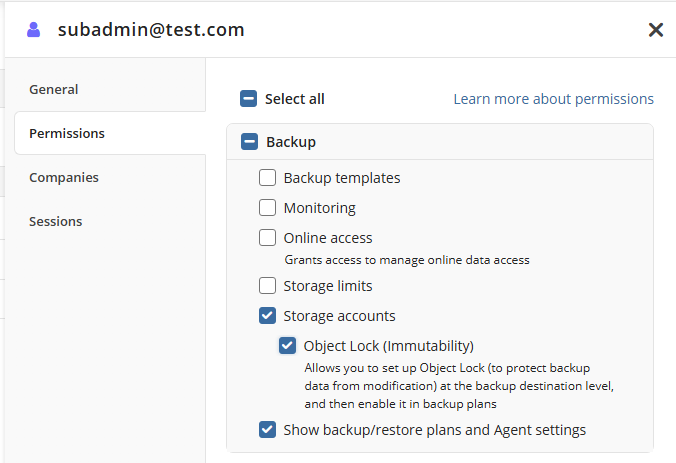
- Click Save.
Allow Object Lock for GFS Backups for Storage Account
Note that the Object Lock for GFS backups feature type must be allowed in the Management Console as described below.
- You can create a new destination bucket with Object Lock for GFS backups enabled
- Or use an existing bucket where Object Lock for GFS backups was enabled via the Management Console
Ensure that the account used to manage the storage account has the required permissions.
For example, for Amazon S3 destinations, the GetBucketObjectLockConfiguration permission is required.
Refer to the storage account documentation for details on how to enable Object Lock for GFS backups:
- Amazon S3 & Glacier
- Microsoft Azure Blob
- Microsoft Azure VM
- Backblaze B2
- File System
- Google Cloud Storage
- S3 Compatible
- Wasabi
- MinIO
- IDrive e2
- MSP360 (Wasabi)
- MSP360 (Amazon S3)
After enabling Object Lock for GFS backups on the storage account, you can enable it in backup plans that use this storage. The feature will take effect only after it is enabled in the backup plan and will apply to GFS backups created by that plan.
Enable Object Lock for GFS Backups in Backup Plan
For security reasons, the Object Lock for GFS backups option cannot be enabled or edited in Backup Agent.
To enable GFS-Based Object Lock in backup plans, proceed as follows:
- Open the Management Console.
- In the Computers menu, find the required computer, then click on the computer name.
- In the side panel, navigate to the Backup plans tab.
- Edit the required backup plan or create a new one. Remember that the backup plan must be in the new backup format.
- On the Where to back up step of the backup wizard, select the storage account with the Object Lock for GFS backups feature supported.
- Follow the backup wizard to the Retention Policy step.
- Enable the Archive Backups, Grandfather-Father-Son (GFS) feature, then specify the GFS retention periods according to your requirements. If you already have the GFS policy configured, click the edit icon to change the GFS settings.
- Enable Prevent backups created according to GFS policy from deletion.

- Read the important information about the feature and confirm enabling.
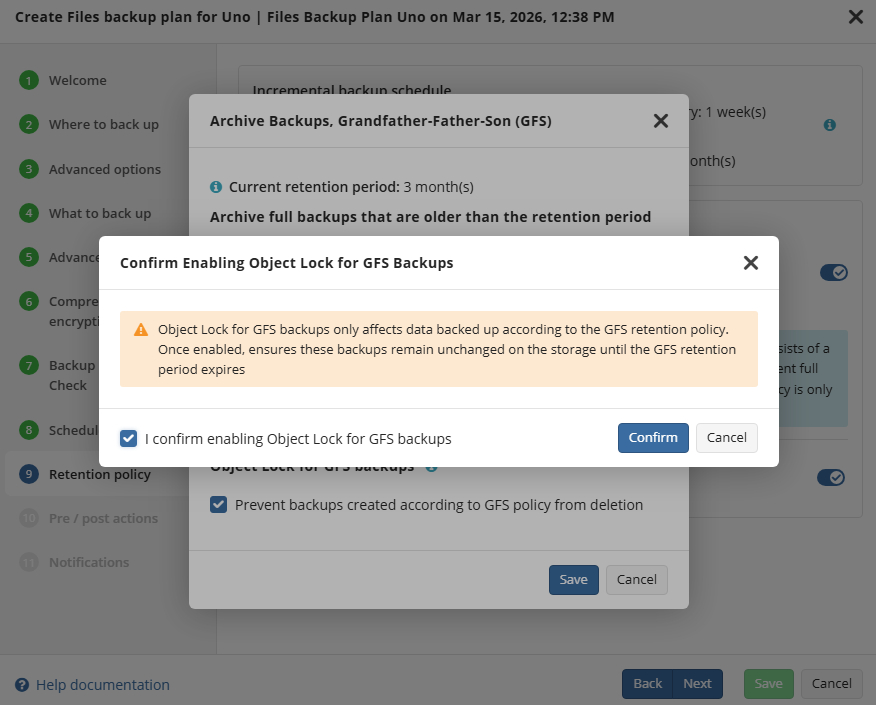
- Follow the backup wizard steps to save the backup plan configuration.
If the Object Lock for GFS backups is not available (for example, it is not enabled for the selected backup destination bucket), you will see the following warning on the Retention step:
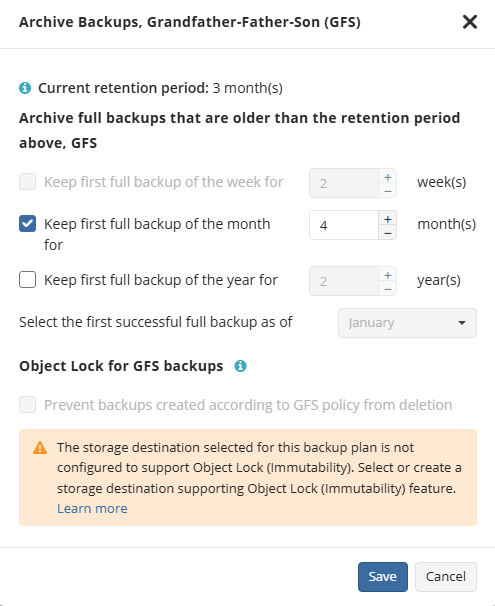
Disable Object Lock for GFS Backups in Backup Plan
For security reasons, the Object Lock for GFS backups option cannot be enabled or edited in Backup Agent.
To disable GFS-Based Object Lock in a backup plan, proceed as follows:
- Open the Management Console.
- In the Computers menu, find the required computer, then click on the computer name.
- In the side panel, navigate to the Backup plans tab.
- Follow the backup wizard to the Retention Policy step.
- Open the Archive Backups, Grandfather-Father-Son (GFS) feature for editing.
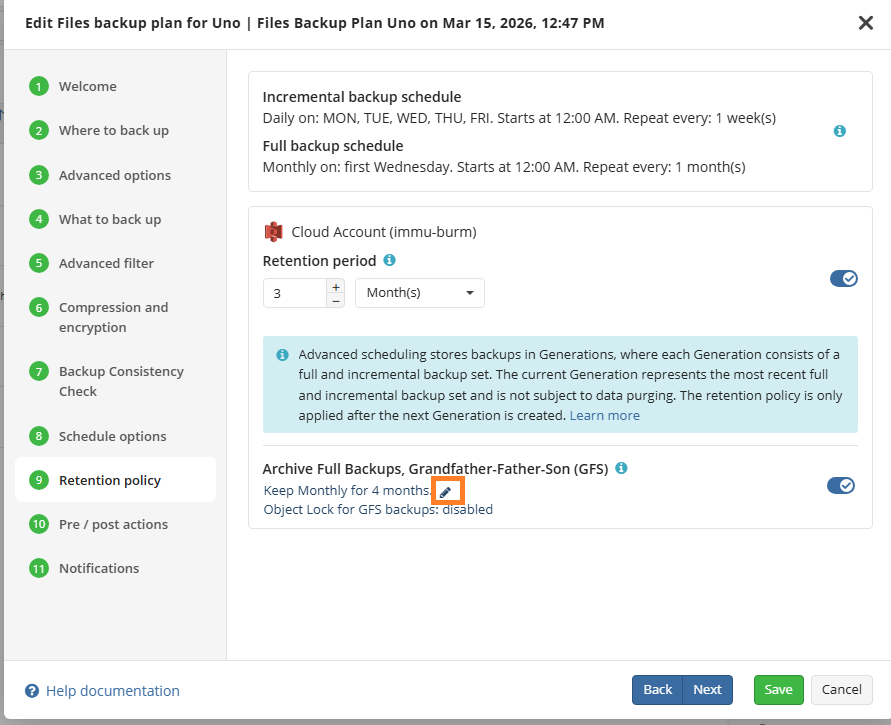
- Disable Prevent backups created according to GFS policy from deletion.
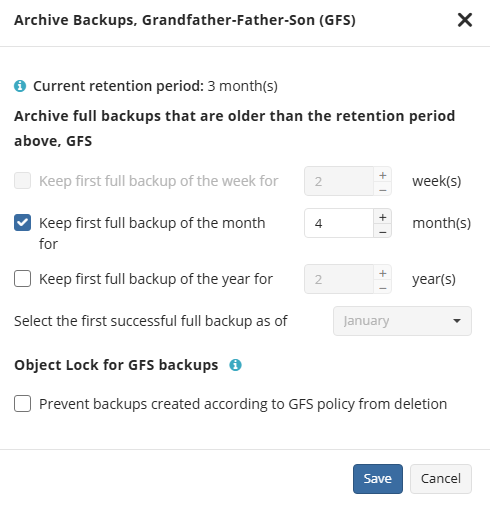
- Follow the backup wizard steps to save the backup plan configuration.
Disable Object Lock for GFS Backups for Storage Account
If Object Lock for GFS backups is disabled or the GFS policy is changed:
- Existing immutable backups remain locked until their GFS retention period expires
- New immutable backups cannot be created
If you need to suspend or stop keeping immutable backups, proceed as follows:
- Open the Management Console.
- In Backup > Storage Accounts, select the required account.
- Click the storage account name to view a list of backup destinations.
- Click the edit icon at the end of the required backup destination record.
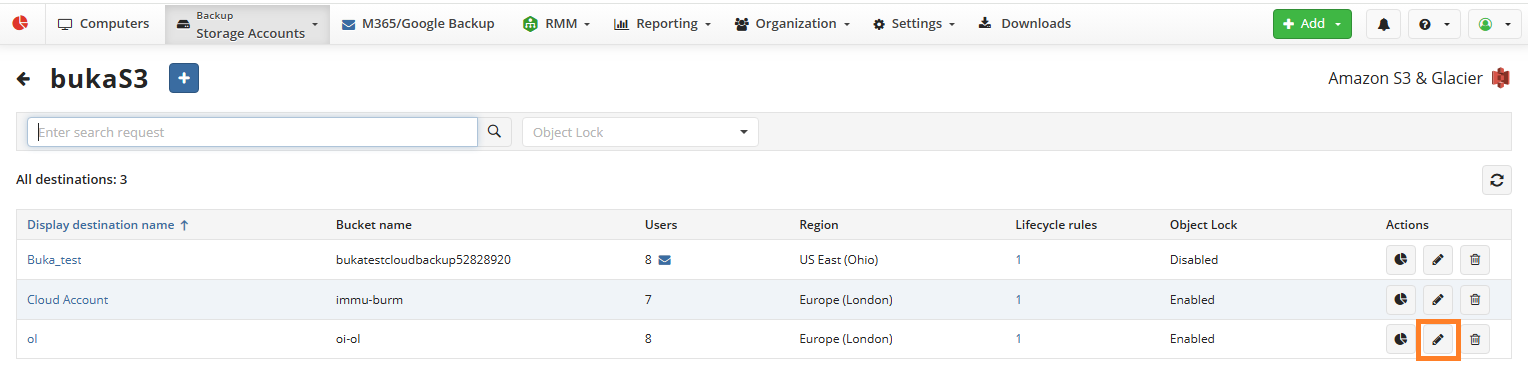
- In the Edit destination dialog, clear the Object Lock for GFS backups checkbox.
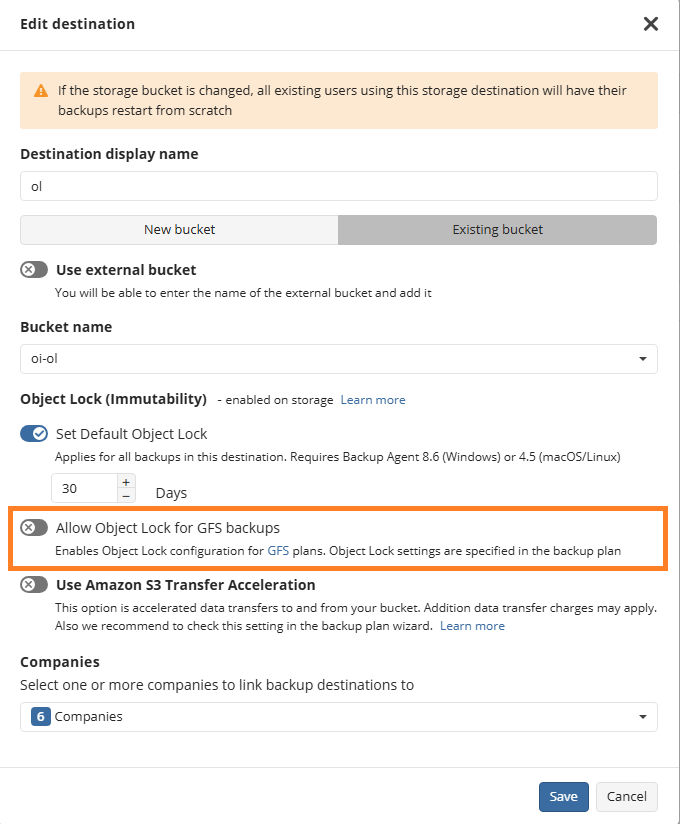
- Click Save.
After disabling Object Lock for GFS backups:
- Object Lock for GFS backups cannot be enabled in new backup plans
- Existing plans with GFS-Based Object Lock enabled will generate warnings.