Tickets Tab
With the RMM service, you can add or manage tickets for the remote computer. You can create a new ticket or navigate to the Tickets page at the computer level.
To access the Tickets tab, proceed as follows:
- Open the Management Console.
- Navigate to the RMM > Computers page in the main menu.
- In the Computers menu, select Remote Management.
- Find the target computer in the computer list, then click the diagram icon in the RMM column.
- As the computer info is loaded, switch to the Tickets tab.
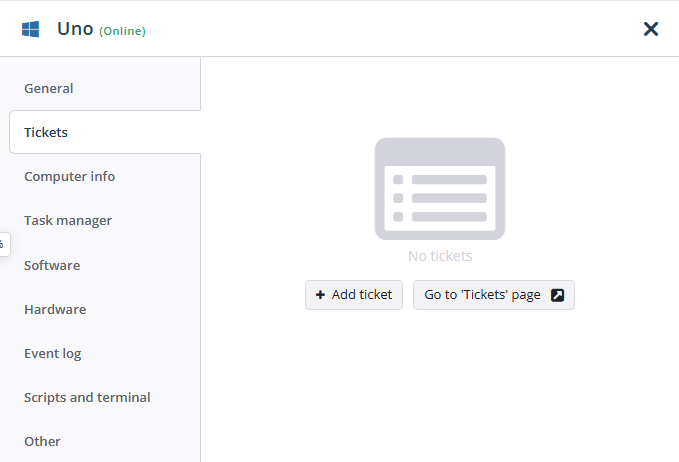
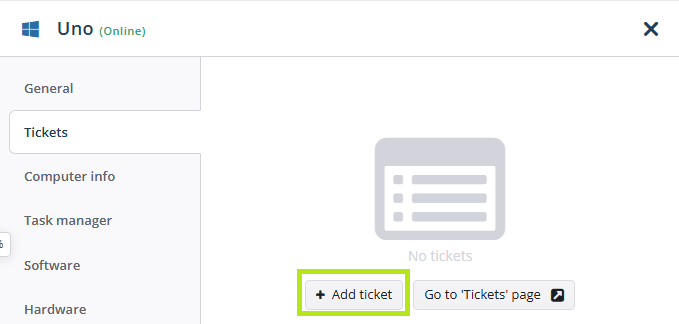
To add a new ticket in your MSP's ticketing system for your team and customers, click +Add ticket. It does not create a support case with the MSP360 Support team.
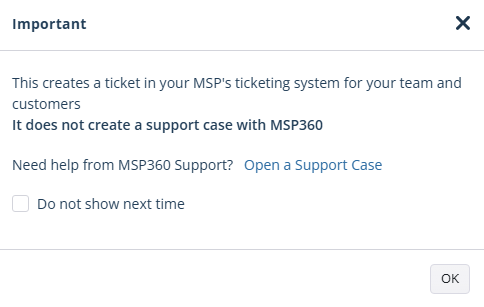
To create a Managed Backup support ticket, click Open a Support Case in the Important message box. Click Ok to proceed with creating the ticket in your system.
Enter the subject and description for the ticket, select the ticket priority, Managed Backup company, contact and assignee (optional). The computer is preselected in this dialog. Save the ticket to add it. The added ticket appears on the Tickets page.